Organization of forms and related processes
FormFlow and its PROCESSES tab offer four basic buttons with various ways to list forms and the processes tied to them.

On the right of these four buttons, there might be another section with more buttons available, based on your permissions and settings.
Folders
The forms representing processes are stored in named folders. Like folders on a computer drive, they can be organized in a tree structure. The FormFlow administrators set up the folder structure and access permissions to the individual folders.
Click the Folders button on the ribbon to open a screen with a Folders section on the left, displaying the process folder structure. You can display or hide parts of the tree structure by clicking the closed  or open
  folder icon next to its name. Contents of a folder are also displayed if you click on its name.
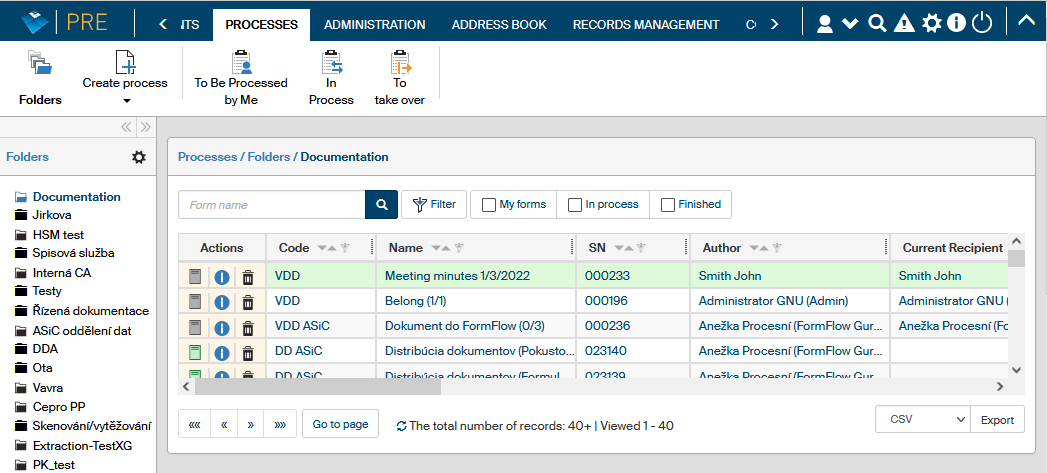
The right side of the screen then displays the list of processes placed in the selected folder.
Tasks
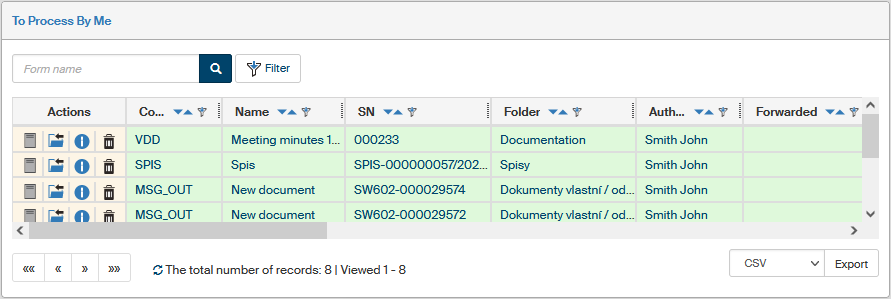
Ribbon buttons are grouped in sections with several vertical lines. The second section on the Processes ribbon tab, on the right from the first section containing the Folders button, can be called Tasks. It contains three task-related buttons: To Be Processed by Me, In process and To take over. These buttons will display a list of running processes relevant to you, regardless of the folder in which they are placed.
-
The button To Be Processed by Me displays all processes whose forms are waiting for you to process them.
-
The button In Process displays all the forms where you take part in processing, even if someone else is processing them right now.
-
The button To take over displays the forms for all processes that are being processes by someone else, but you can take over them and continue processing them.