System settings
General system parameters can be found on the System settings screen ().
Check the box Substitutions editable by users to allow users set up their own substitutes in the details of flow form templates.
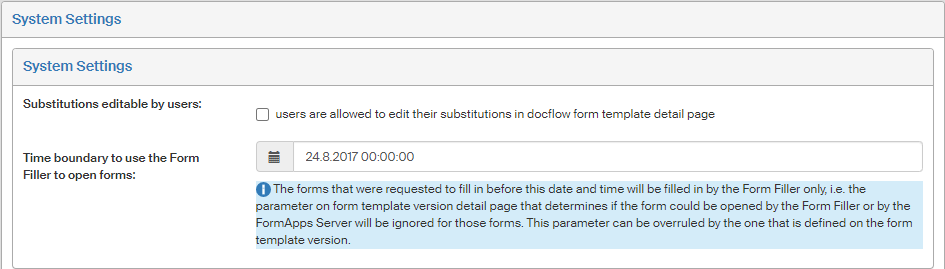
For very old forms, there might be issues when trying to open them using the FormApps Server. To prevent this occurring, you can set that all forms older than a specific date will always be opened in Form Filler, regardless of settings for the specific form or general FormFlow settings. Set the date using the option Time boundary to use the Form Filler to open forms. This time limit can also be set individually, in the settings for a specific form template (as described in chapter Opening method).
Webservice log rotation
To rotate webservice logs, visit section Webservice log rotation and check Rotate webservice logs.
It means that the logs from the previous day will be archived in a ZIP file. This way disk space is saved, because ZIP files are compressed. For example:
-
Exceptions will be packed in file
exception—2020-03-30.zip. -
Logs will be packed in a file
server_name+date.zip, for exampleFormFlow.2020-01-01.zip. -
Errors will be packed in
FormFlow_errors.2020-02-01.zip. -
Service logs e.g.
FormFlow_service.2020-01-24.zip.
For log rotation to work, the service named Log rotation must be running (see the checkbox above).
Use the field Delete old zipped webservices log files to specify the time (number of days) after which old logs will be deleted.

Database timezone setting
Section Database timezone setting can be used to set the timezone in which the database is placed.
If you check Recalculate time to database zone, all saved timestamps will be converted to a single timezone.
Specify the timezone (either by its name, e.g. Europe/Prague, or the offset, e.g. +02:00) in the field Zone set for the database.

Server logo
Use the section Server logo to select the logo for this FormFlow instance. It is displayed in the upper left corner of the FormFlow window. The logo image should be in PNG format and its maximum size is 300×32 pixels for the classic version and 100×32 pixels for the mobile version. Larger images will be automatically resized as needed. Place the image file in the following folder:
-
C:\(web_server_root)\htdocs\resources\logo\(logo for the classic version) -
C:\(web_server_root)\htdocs\resources\logo\mobile(logo for mobile devices)
The section Server logo in System parameters displays all images available in the two folders. Select the logo by checking it in column Is Enabled and confirm by clicking Save changes.
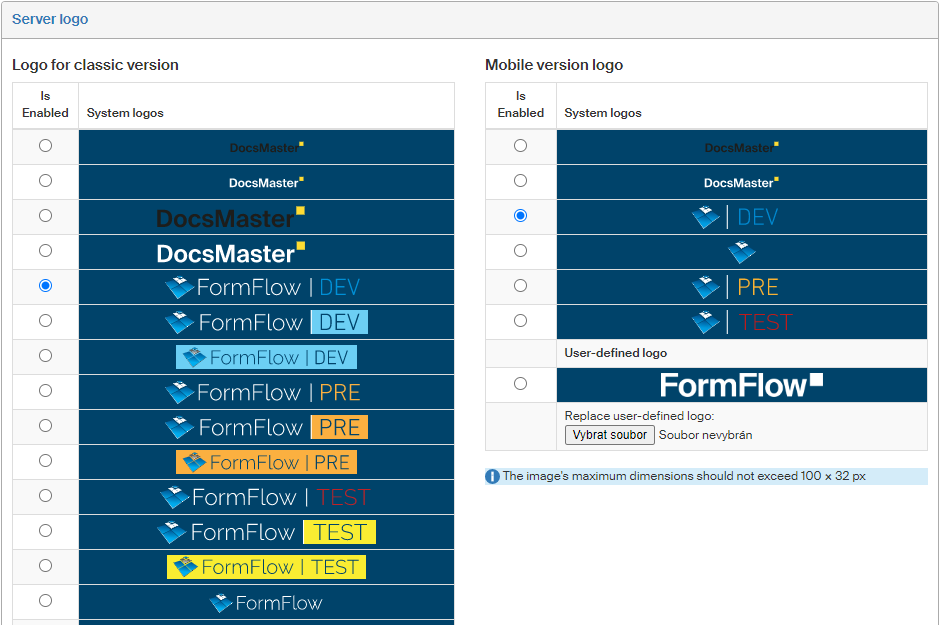
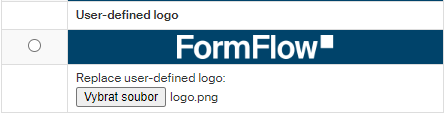
Besides these preset images, you can insert a logo from your own image. Use the field User-defined logo in the lower part of the section. The logo image should be in PNG, JPG, JPEG or SVG format and its dimensions for the classic version are 300×32 pixels at maximum. Click Browse to look it up using the system dialog.
You can also specify a separate logo for the mobile version (in the right-hand column). Its image size should not exceed 100×32 pixels.
Logout redirect
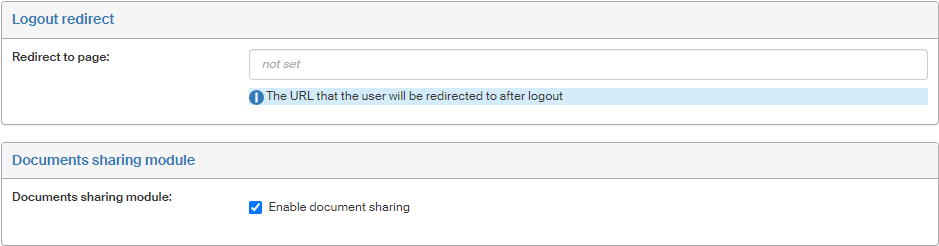
Use the field Redirect to page to enter the URL of a page to redirect the browser when the user logs out of FormFlow.
Document sharing module
You can use this section to enable or disable the feature for sharing documents between users. This module is described in chapter Document sharing.
Colors
Colors of FormFlow components are primarily set by the administrator. Individual users may adjust this setting to their preferences if they like. The setting is available in section Colors in the lower part of My settings / Application Preferences.
The upper part of the section displays a color palette with the preset colors and the button Set default colors, which you can use at any point to return to the default color setting.
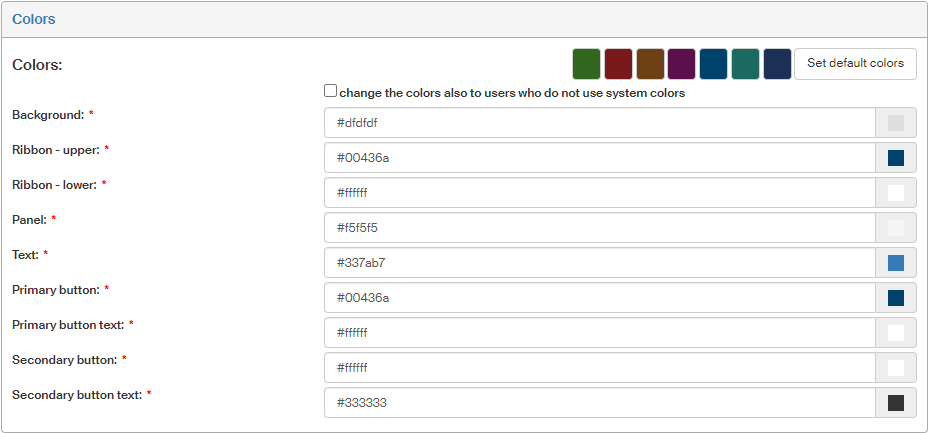
The administrators can set the colors for individual FormFlow components using the nine fields in section Colors. The changes will apply to all users who have not set up their own color setting.
The administrator can choose to change the color setting for all users, regardless of whether they use their own setting or not, by checking change the colors also to users who do not use system colors.