Process handover
The process handover function is used to forward the assigned forms from one user to another in bulk. It is suitable in situations such as when an employee is starting, is transferred to another position, or leaving.
The Process handover screen consists of four tabs following one another, and you can access it from .
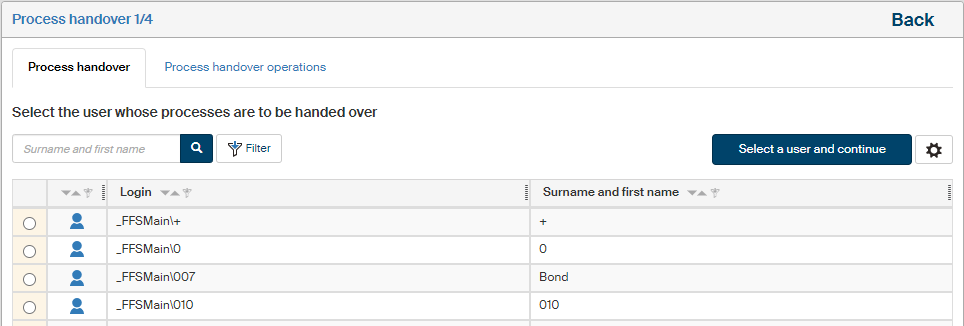
New process handover
Start on the Process handover 1/4 tab by selecting the user whose processes will be forwarded.
You can search using the filter placed above the list – enter a part of the user’s name in the input field. If you use advanced search, you can search by additional details, such as whether the user is enabled or disabled, or whether they are internal or external. Matching entries will be displayed in the table below.
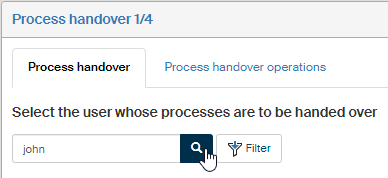
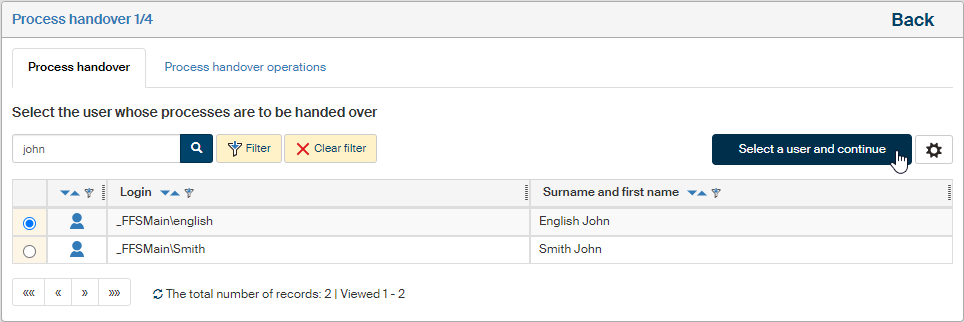
Select the user whose processes will be handed over by clicking the radio button in the first column on the left. Click Select a user and continue to confirm your selection.
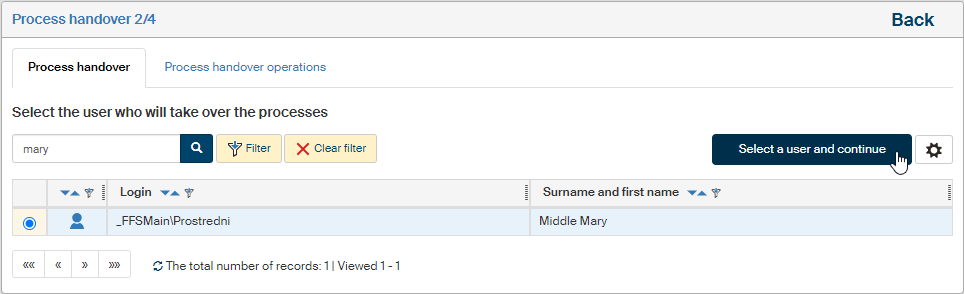
On the tab Process handover 2/4, select the user who will take over the processes. Use the same filter to search and then confirm the operation by clicking the button Select a user and continue.
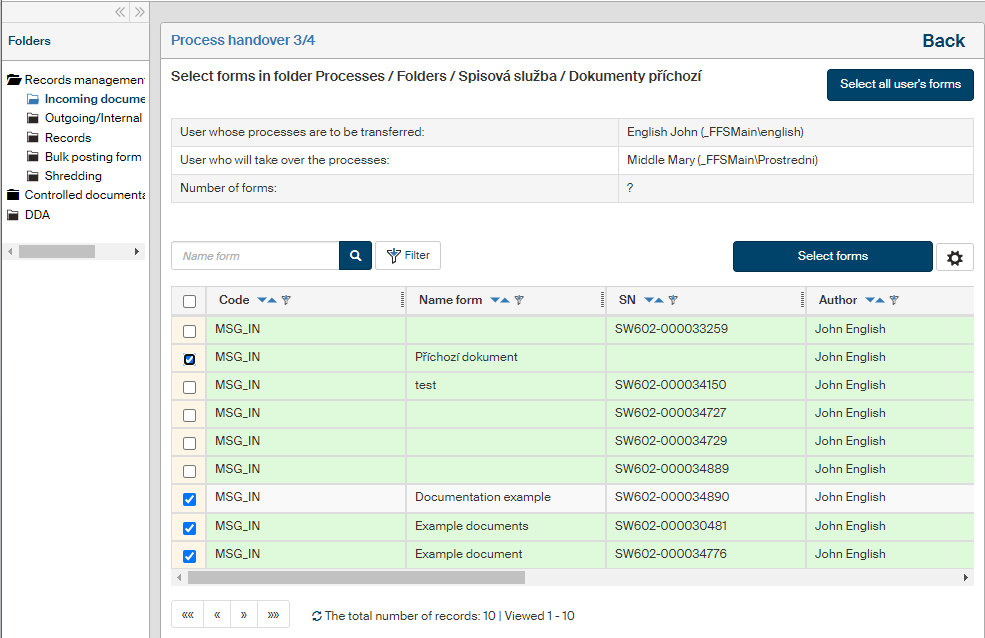
The third step, on the tab Process handover 3/4, is the selection of processes (forms) that will be handed over. If you do not want to transfer all of them, you can use the filter again to limit the scope. The quick filter searches in the form name, or you can use the advanced filter to search by other properties. Select the forms to hand over by checking the box in the table’s leftmost column and confirm the selection by clicking Select form.
To transfer all the forms, you do not need to use any filters, simply click Select all forms to continue.
The last step, on the tab Process handover 4/4, is an overview of the whole operation. Check the settings and the resulting number of forms to hand over. Then confirm the operation by clicking Run process handover.
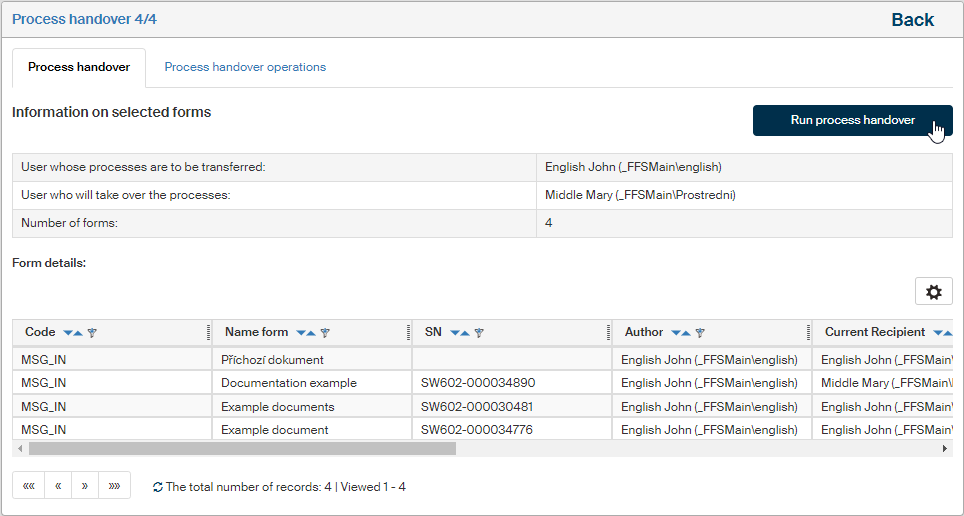
A log of the form handover will be recorded.
List of performed operations
Besides Process handover, there is another tab available, Process handover operations, listing previous handovers. Besides basic information, the operation Status is displayed in the rightmost column:
-
 Success
 -
 Failure
 -
 Canceled
 -
 Waiting
 -
 Rolled back
 -
 Warning
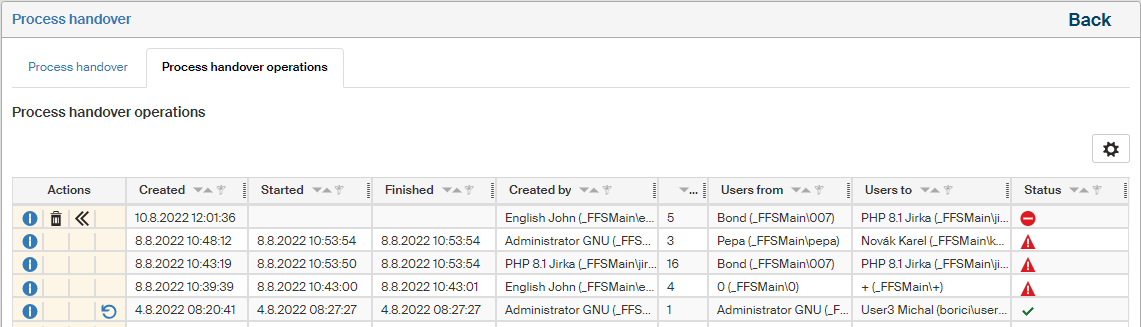
The Actions column contains several buttons. Their availability varies based on the operation status:
-
 Form information – displays a list of forms included in the handover.
 -
 Delete – removes the entry. It is only available for failed and canceled operations.
 -
 Reactivate – starts a new attempt at the operation. It is only available for failed and canceled operations.
 -
Roll back – cancels the handover and returns the forms to the original user. It is only available for successful operations.