Archival folders
You can create a folder structure in the archive to organize your archived files, documents, records and storage units.
Archival folder overview
Open the Archive folder administration screen by going to . The screen consists of two parts. The left one lists existing folders in the archive and the one on the right displays details of the selected folder.
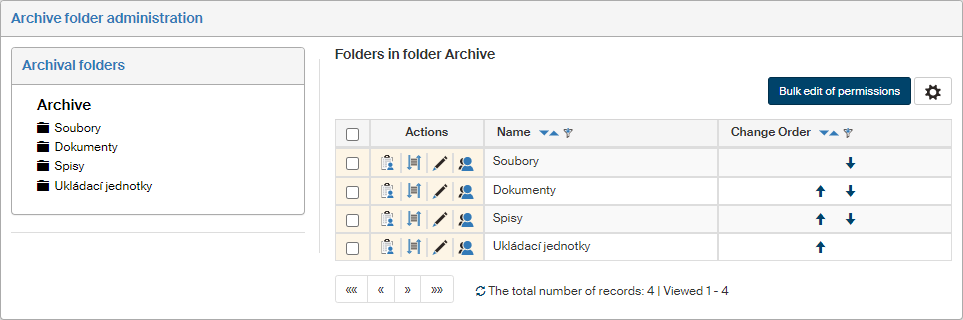
The root folder, Archive, contains four default folders that cannot be changed or deleted: Soubory (Files), Dokumenty (Documents), Spisy (Records) and Ukládací jednotky (Storage units). Each one of these folders can contain user-defined subfolders, which can also contain subfolders, etc. Add subfolders as you need to create a hierarchical structure in the archive.
The section on the right displays subfolders to the folder selected on the left. If you click e.g. on Documents, its contents are displayed: the subfolders to the Documents folder.
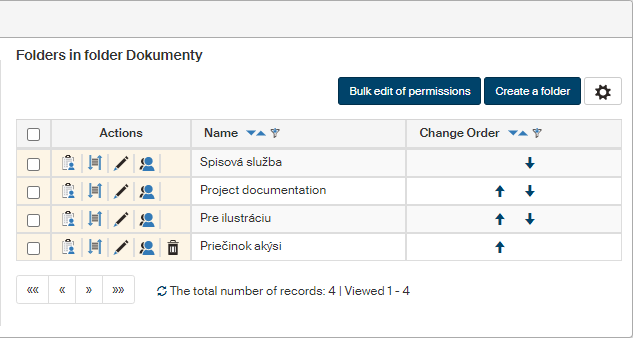
You can order items in this section using the arrow buttons in column Change order. There are several buttons in the Actions column to edit each subfolder.
-
Checkbox – check to select folders for bulk edit of permissions.
-
 Set permissions – set up individual user permissions for the archive folder.
 -
 Change order of metadata in GUI in this folder – opens the metadata designer window for the folder.
 -
 Edit the folder – allows editing the identification details and description for the folder.
 -
 Show effective permissions – displays a list of users who have an effective permission to the folder and a list of their permissions.
 -
 Delete folder – removes the subfolder from the folder structure. Not available for the basic folders, only for user-created folders. The folders must be empty.
Creating a new folder
Create a new archive folder as a subfolder to one of the default ones (Soubory (Files), Dokumenty (Documents), Spisy (Records) and Ukládací jednotky (Storage units)). Then you can add more subfolders and create the structure as needed.
To create a folder, click the folder that will be the parent to the new folder and then, on the right, click Create a folder.
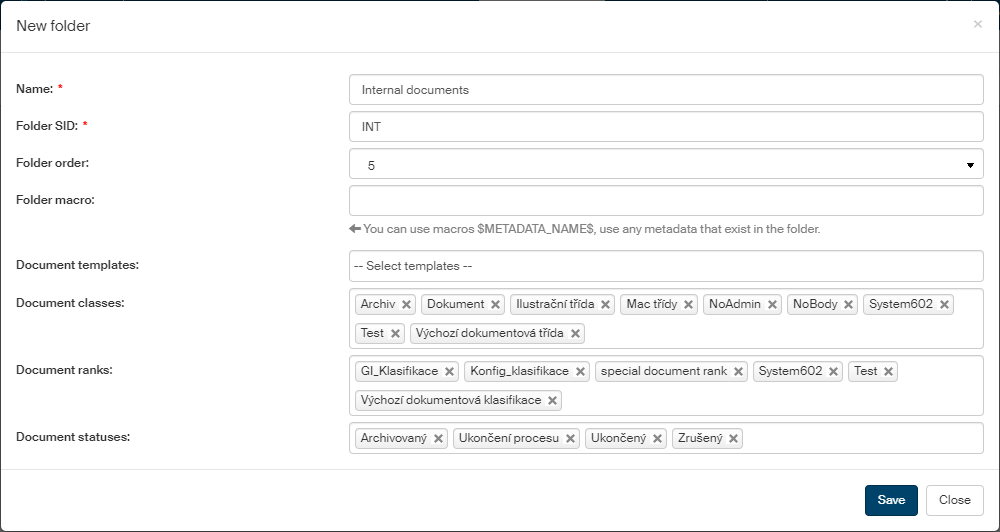
Enter the following values in the New folder window (only the first two are mandatory):
-
Name – this name will be displayed in the folder structure.
-
Folder SID – unique identification string.
-
Select a value in the Folder order field to set its position in the folder list directly. You can also change the order later manually in the list, using the arrow buttons.
-
To make a macro available in the folder, you can use the $METADATA_NAME$ macro and any metadata that exist in the folder can be used.
-
Select document templates from the list in field Document templates to make them available in the folder.
-
Similarly, you can also assign Document classes, Document ranks and Document statuses to the folder.
Click Save to confirm creating the folder.
A message framed in green will notify you about a successful addition of the new folder.

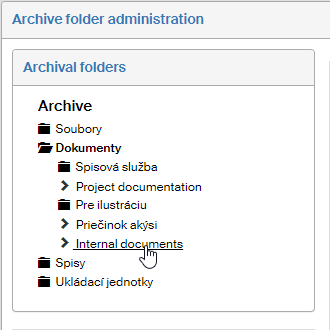
The new folder will be displayed in its place in the subfolder structure in screen Archive folder administration.
Editing archive folders
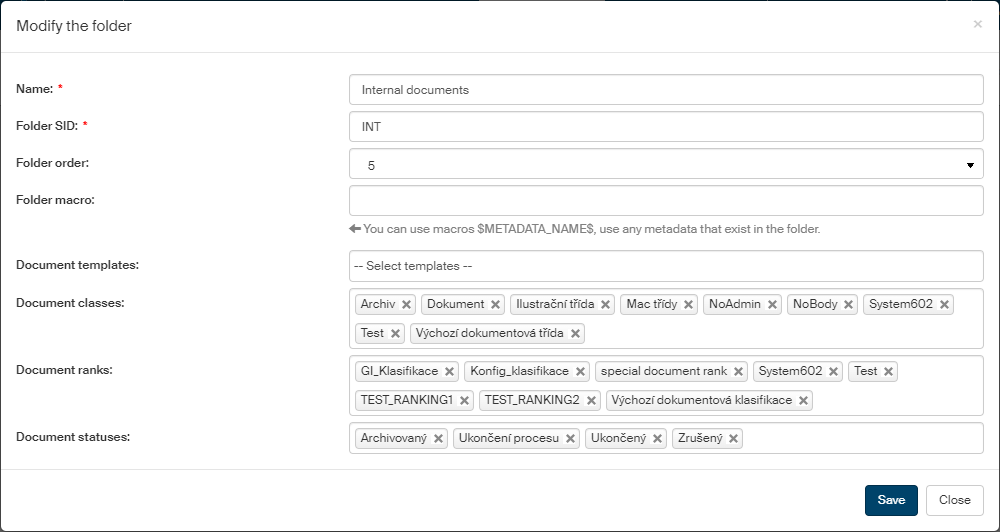
You can edit existing folders – add or change values in their description. Display the folder to edit in the section on the right, go to the Actions column and click Edit the folder. The window Modify the folder is displayed, similar to the New folder window displayed when creating a new one.
Deleting an archival folder
Only a user-created folder can be deleted. If a folder can be deleted, the trash bin button is displayed in the Actions column. Click it to display a confirmation dialog.

Click Yes. The folder is then deleted and removed from the displayed folder structure. A message in a green frame is displayed to confirm the deletion.

Permissions to archive folders
Click Set permissions in the Actions column to edit the archive folder permissions for individual users, groups and roles.
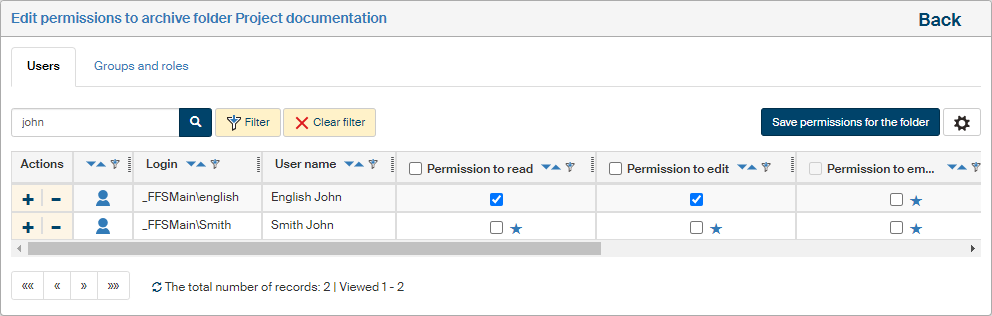
A list of permissions and their edit controls are displayed in screen Edit permissions to archive folder…
If you select the checkbox on the left of the Actions column for several folders and then click the Bulk edit of permissions button, a similar window will be displayed but the settings will apply to all selected folders.
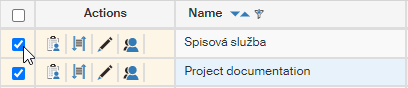
In such a case the window title is Edit permissions to archive folders. There is a button Show selected folders next to the title, which you can use to check the list of folders this setting will apply to.

For the rest of the setting, proceed the same way whether setting up a single folder or several folders at once:
Use the tabs in the upper part of the page to switch between a list of users and a list of groups and roles. A filter is also placed above the list and you can use it to look up individual entries.
Check or uncheck the individual permissions for every entry (user, group or role):
-
Permission to read;
-
Permission to edit;
-
Permission to empty the trash;
-
Permission to create a document;
-
Permission to unlock a document;
-
Permission to grant permissions.
If there is an asterisk  displayed next to a permission, the user has received the permission through membership in one or more groups or roles. Move the mouse cursor to the asterisk to display a tooltip with the list of groups that provided the permission. You can still grant the permission to the user directly.
-
Click
 Add all permissions to assign the user, group or role all the permissions at once.
 -
Conversely, click
 Remove all permissions to revoke all granted permissions.
When bulk editing archive folder permissions, there are three options available for each permission: yes, no and do not change.
To confirm your changes, click the Save permissions for the folder button placed above the list of users or groups. To apply the newly granted permissions to subfolders as well, click Save permissions for the folder including subfolders (the button is only displayed if there are any subfolders). Click the Back link in the upper right corner to return to the list of folders without saving any changes.
Checking existing permissions
If you want to check the overall permissions assigned to a user (i.e. permissions assigned both by being a group/role member and individually assigned permissions), return to the folder structure and, in the Actions column, click  Show effective permissions.
The screen These users have effective privileges for this folder… opens with a list of permissions to this archival folder for all users.
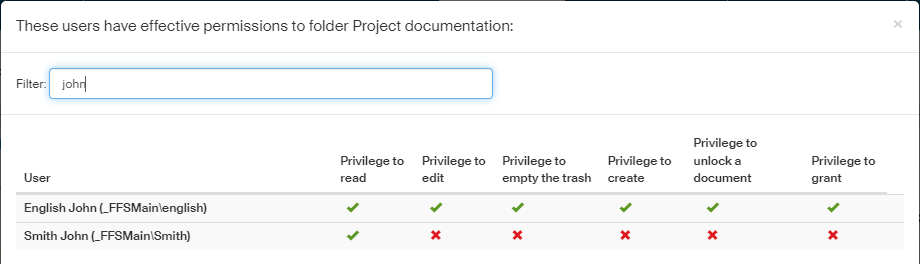
A green checkmark means the user is granted the specific permission. A red cross means the user does not have that permission. To narrow down the user list, use the Filter field above the list.
Changing the order of metadata in GUI in an archive folder
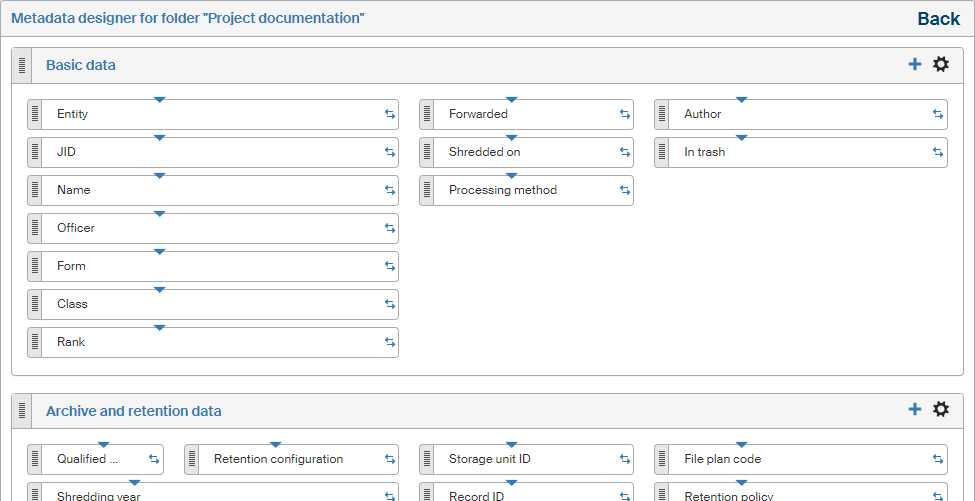
Click Change order of metadata in GUI in this folder in to display the metadata designer screen for the folder, where you can change the order and inclusion of metadata items for the Archive folder metadata screen. The metadata is separated into four basic system panels (Basic data, Archive and retention data, External system and Comments). These panels cannot be removed, but you can select the Add panel button to add user-defined panels.
Each small rectangle corresponds to one metadata item. Move the items around using drag and drop to place them in a different place within the same panel or to a different panel. You can also adjust the properties of each metadata item.
For more details on the metadata designer, see chapter DMS metadata designer.