GDPR and stored details
GDPR (General Data Protection Regulation) is a legal framework that sets the rules for collection and processing of personal details of natural persons in the European Union.
According to the GDPR, you should always store your contacts' data for a specific purpose and with a corresponding authorization, for example by law or with the person’s consent. The FormFlow Address book allows keeping record of the purposes and displays them next to the individual details.
A purpose is usually based on a document or other element stored in FormFlow. Attach it to the contact in the Relations section (described in chapter Adding a relation). Individual entries in sections Basic data and Contact information display a green checkmark  on the right to indicate that at least one purpose is registered for the data item. If no purpose is registered, an orange warning symbol
  is displayed instead.
Registering personal details
Before you start registering details for address book contacts, you should have the data structures ready. This is the FormFlow administrator’s responsibility.
The administrator enters the required purpose or purposes in the purpose list. Then the administrator creates a dataset that specifies which data entries will be registered and for what purpose. When managing contacts, do the following:
A user or an automatic process takes a document or form with authorization to process the personal data and places it in FormFlow, for example in the records management service. It could be for example a contract, the data subject’s consent or a document referring to other authorization by law. If you give the document the label Consent with GDPR, it will be included in a list that is easily accessible by a button directly in the Address book. * The user managing the Address book displays the contact detail, opens the Relations section and creates a relation between the contact and the document (or another element). The relation includes selecting a dataset with the set of details covered by this relation. For more details, see chapter Adding a relation.
+ NOTE: You can also create a one-off dataset at this point to cover the single case. * When the relation is added, the details included in the dataset will be marked in the contact detail with a green checkmark. You can fill in these details now and save them.
Marking the documents that contain a GDPR consent
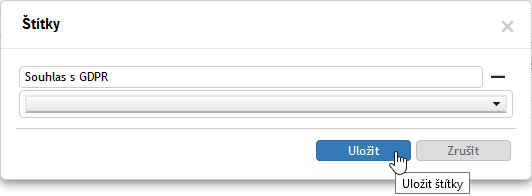
To mark a document that contains a GDPR consent, attach the label Consent with GDPR to the document. You can apply the label in forms Incoming document or Outgoing document.
Open the form and select the originator if needed to enable the controls in section Additional information. Next to the Labels field, click the pencil symbol – Edit labels.

In the Labels dialog, expand the option and select Consent with GDPR.
List of documents containing consent with GDPR
The button Consent with GDPR, placed on the ribbon, displays a list of documents in the Electronic records management that were labeled with Consent with GDPR.

You can handle documents in this list the same way as in other records management lists.

GDPR relation automation
GDPR relations can be created automatically. Creating GDPR relations automatically save users' time. They do not need to enter details in the address book manually with each new form and then attach GDPR relations to them.
For more details on GDPR relation automation, see chapter GDPR relation automation in Administration.
If this feature is set up, it works as follows: When a new form is filled out, FormFlow looks up the contact in the Address book and GDPR relations are already attached to it. Therefore, they do not need to be created manually.