Statistics
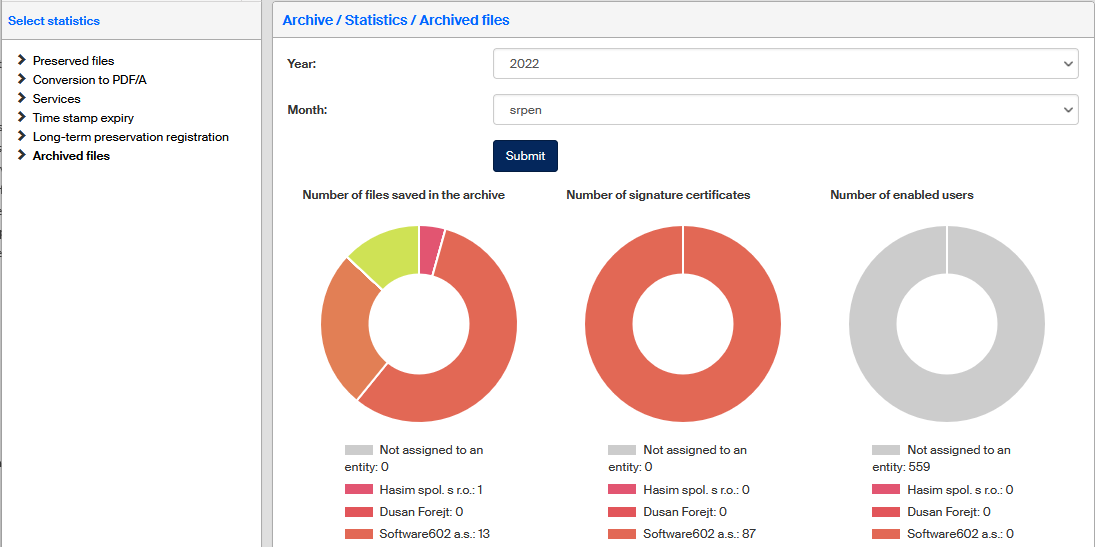
The screen Archive – Statistics () provides an easy overview of archived files.
The Statistics button is only available to users who are granted one of the system operations related to qualified storage. By default, the operation permission LTD_VIEW_DOCUMENT_BINARY is granted to users in roles Long-Term Docs Auditor and software602. Otherwise, the user needs the EXECUTE permission to one of the operations SETUP_LTD_AND_MARKS and LTD_VIEW_DOCUMENT_BINARY.

The window consists of two sections. Select the scope of information to view in the left section, and it will be displayed on the right.
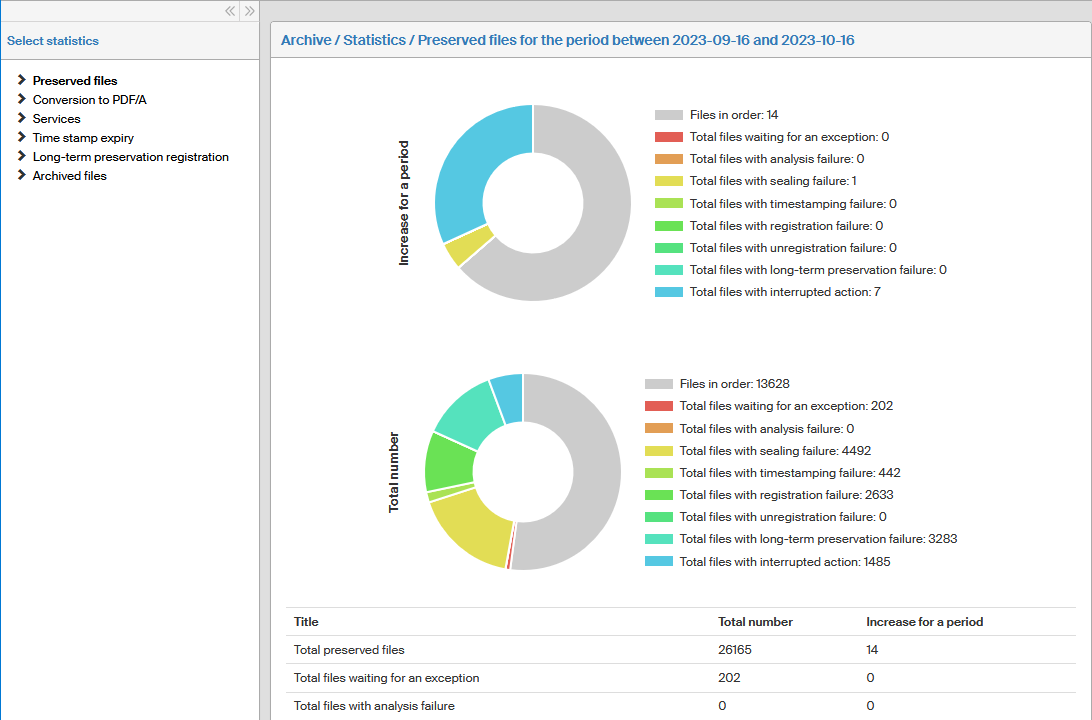
The details correspond to the time period displayed in the right section header. Set up the period in the Settings window (), in the Report period field.
Preserved files
Click Preserved files in the left window section to display the overall statistics on the right. They will be displayed as a table and a corresponding circle graph. The following details are included:
-
Total preserved files (long-term preserved files). This is the total of all files that are currently registered in the archive.
-
Total files waiting for an exception. This is the number of documents that do not meet the automatic long-term preservation conditions. Such documents can be still included in long-term preservation manually.
-
Total files with analysis failure.
-
Total files with sealing failure.
-
Total files with timestamping failure.
-
Total files with registration failure.
-
Total files with unregistration failure.
-
Total files with long-term preservation failure.
-
Total files with interrupted action.
Conversion to PDF/A
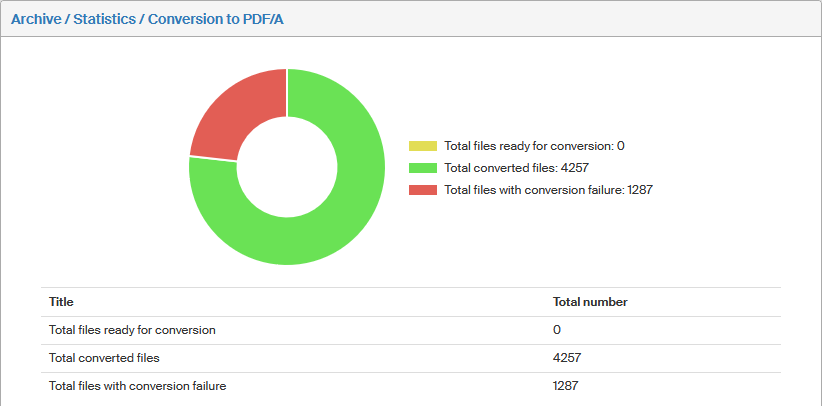
Click Conversion to PDF/A on the left to display the statistics of file conversion to the PDF/A archive format. The results are displayed as a table and the corresponding pie chart. The following details are included:
-
The total number of files prepared for conversion.
-
The total number of files converted.
-
The total number of files for which conversion failed.
Services
Click Services in the left window section to display the statistics of file archiving service usage on the right. The results are displayed as a table.

Time stamp expiry
Click Time stamp expiry in the left window section to display the total of files with time stamps to expire in various time periods on the right.
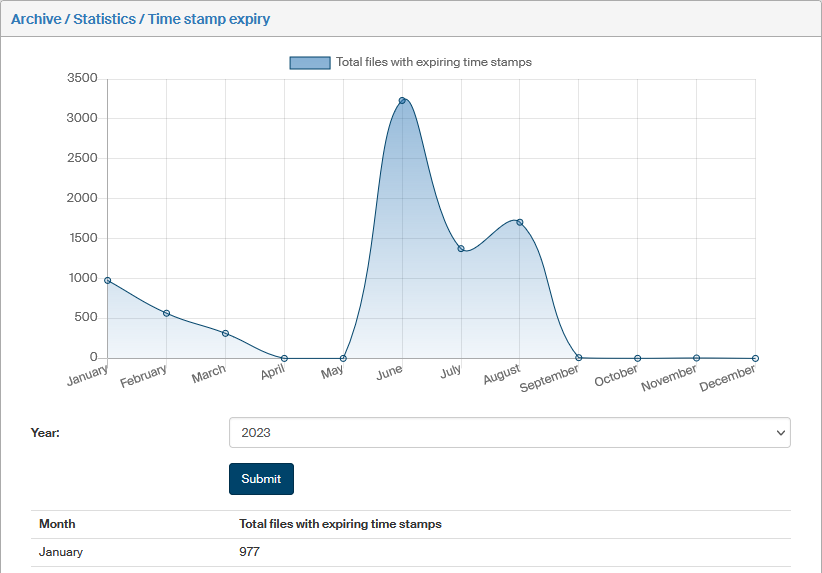
Select the current year or a future one in the Year field and click Submit to confirm the query. The following table displays numbers of time stamps by month. You can click Recalculate to update the table. The results are also displayed as a graph.
Long-term preservation registration
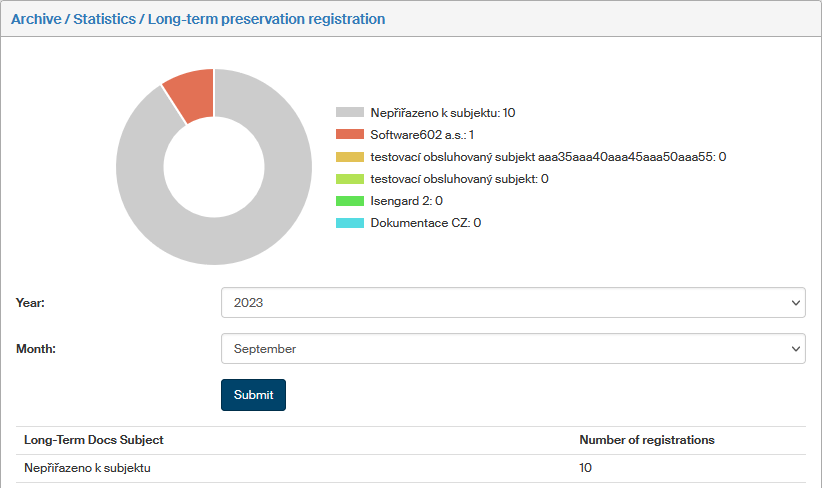
Click Long-term preservation registration in the left window section to display the totals of registered documents sorted by assigned entities on the right. The total includes files already unregistered. The results are displayed as a circle graph and options to set the year and month for which to display the data. Click Submit to change the time period.