Labels
Labels can be attached to documents and records. Unlike categories, a document can have more than one label. Labels can be used to filter the document list.
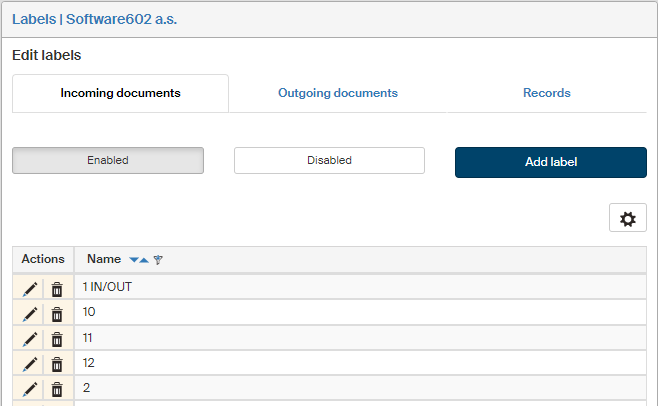
On the left panel in the Entities screen (), make sure the entity you want to edit is selected in the Entities list. Then go to Menu and click Labels. The screen Labels (entity name) is displayed on the right. The section contains a list of existing labels. The screen is divided to three tabs: Incoming documents, Outgoing documents and Records. Labels are defined for each type separately.
Use the buttons placed below to switch within the selected type between Enabled labels, meaning those currently available in forms, and Disabled ones, which are not in use. Click Add label to display a dialog where you can create a new label.
Creating a label
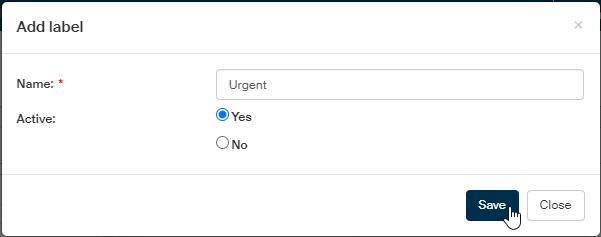
Click Add a label above the list of existing labels to open the dialog.
-
The text in the Name field will be displayed in the Labels lists in forms.
-
If you set Active to Yes, the label will be available to use in forms immediately after saving. If set to No, the label will not be available to apply.
To confirm insertion or changes, click Save.
Label overview and editing
The table on the right displays a list of existing labels for the selected document type and enabled/disabled status. Use the buttons in the Actions column to manage the entries:
-
Click
 Edit label to display the label edit dialog. The controls are the same as when adding a new label.
 -
Click
 Delete label to remove the label entry.