Creating a new synchronization
To create and set up a new user and group synchronization, choose the synchronization type first: on the ADMINISTRATION tab, click Synchronization and select ActiveDirectory or Other.
| Synchronization with Entra ID is described in a separate chapter. |
Then click the tab title New synchronization and enter the details needed – the required ones are marked by a red asterisk.
-
The Name for the synchronization should be unique; this field is required. The name will be used as the tab title.
-
If it is an Active Directory synchronization, enter the username and password in the Login account section.
Enter other details as needed. The settings are described in chapter Synchronization properties.
Saving the settings and testing the connection
The Save button is placed on the right below the synchronization settings. Clicking it will save the synchronization under the specified name.
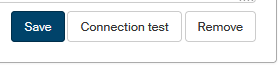
Once the synchronization is saved, more buttons are added to this area:
-
Click Connection test to check whether the synchronization settings are valid and usable.
-
If you do not need a synchronization setting anymore, click Remove to delete it from FormFlow.
More settings
Some synchronization settings are only available after it is saved for the first time. In addition to the connection test, this applies for example to attaching a certificate to secure communication with the remote server.