Fulltext settings
Use the Fulltext settings screen () to set up the default parameters for fulltext search.
The screen consists of two tabs – Fulltext settings and Fulltext index management.
Fulltext settings tab
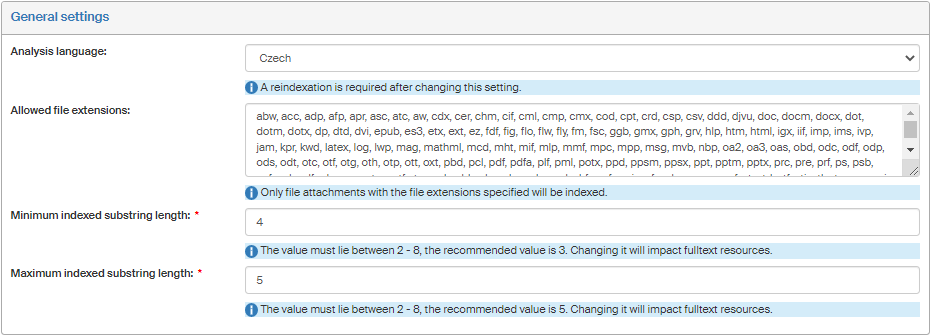
The General settings contain the following options:
-
Analysis language – the rules of this language will be used for text indexing;
-
Allowed file extensions – files with other extensions than those listed will not be indexed.
-
Minimum indexed substring length – enter the minimum number of characters to be analyzed. The allowed range is 2–8, the recommended value is 3. The change has an impact on fulltext system resources.
-
Maximum indexed substring length – enter the maximum number of characters to be analyzed. The allowed range is 2–8, the recommended value is 5. The change has an impact on fulltext system resources.
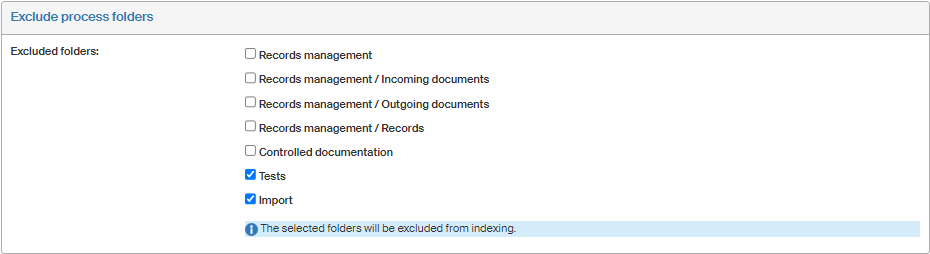
You can use section Exclude process folders to select form folders the contents of which will not be indexed. Similarly, document folders selected in section Exclude document folders will not be indexed.
Fulltext index maintenance tab
Use this tab to set up properties related to fulltext indexes and their regular updates. Search and indexes are managed by the OpenSearch service.
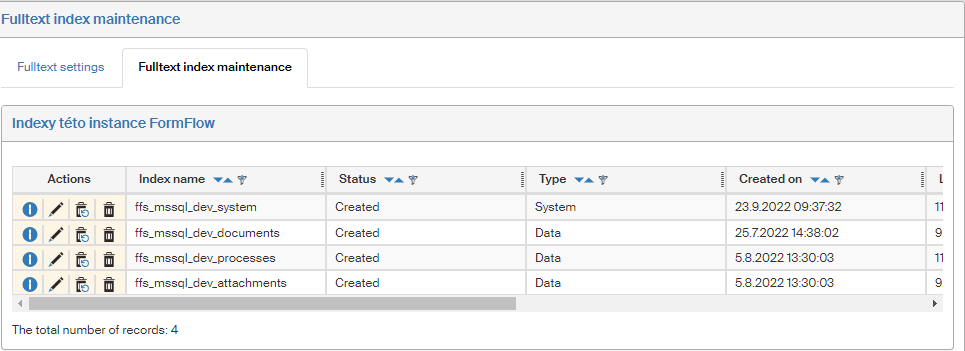
The sections in the upper part of the screen relate to the basic indexes created automatically by a background service. You can also create them manually if needed, for example when the OpenSearch service has not been running and the indexes have not been updated. To see index entry details, click  About this index in the corresponding row.
-
System index – stores system data related to indexing. Should not be deleted as long as there are data indexes for the document and process sections, to provide correct fulltext functionality.
-
Data index – stores indexed documents or processes. This index can be deleted or recreated. That way you will request a new indexing by the background service.
-
Attachment processing index – is used to process attachments (files) and stores information on their indexing. Should not be deleted as long as there are data indexes for the document and process sections, to provide correct fulltext functionality.
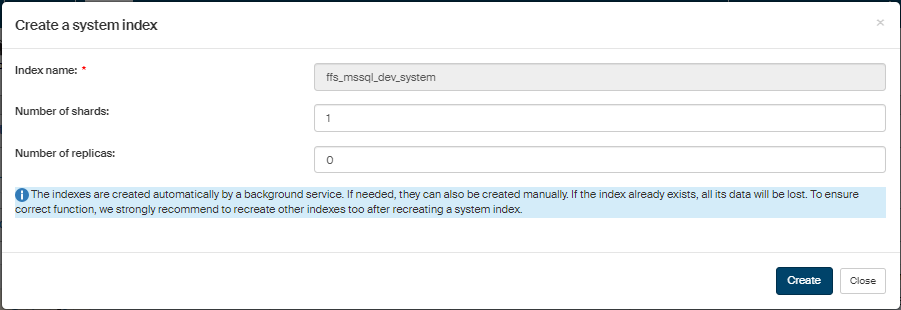
To create a new index, click  Create index in the Actions column. In the dialog Create a system index (Create a data index or Create an attachment index), set the number of shards and the number of replicas and click Create to run new indexing. The window displays the current state of the selected index.
| If the index already exists, all its data will be lost after the new indexing. To ensure correct function, we strongly recommend recreating other indexes too after recreating a system index. |
Another option is the  Quick index creation button. When you click it, a warning is displayed first, because the index recreation will delete all the indexed data in the index.
Select  Delete the index to remove the index completely.
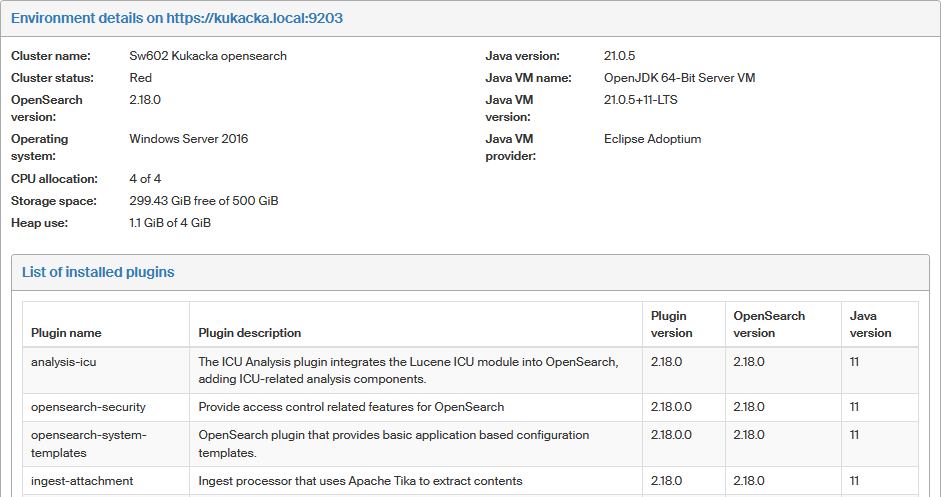
The section in the middle part of the screen displays overall data for the OpenSearch service and a list of installed plugins.
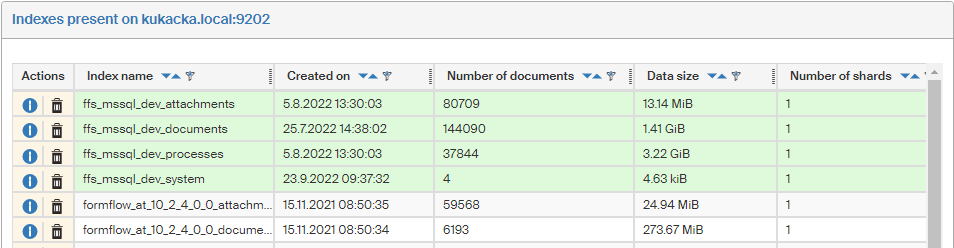
The bottom part contains a list of all registered indexes. Each includes the details on creation date, number of registered documents and its disk size.
-
Click
About this index to display details of the index type (system, data or attachment one). -
Click
Delete the index to remove an index that is no longer needed.