Default values
On the left panel in the Entities screen (), make sure the entity you want to edit is selected in the Entities list. Then go to Menu and click Default values. The screen Default values (entity name) is displayed on the right. In this screen, select the default records management service type, the default values for incoming and outgoing documents and the default values for records.
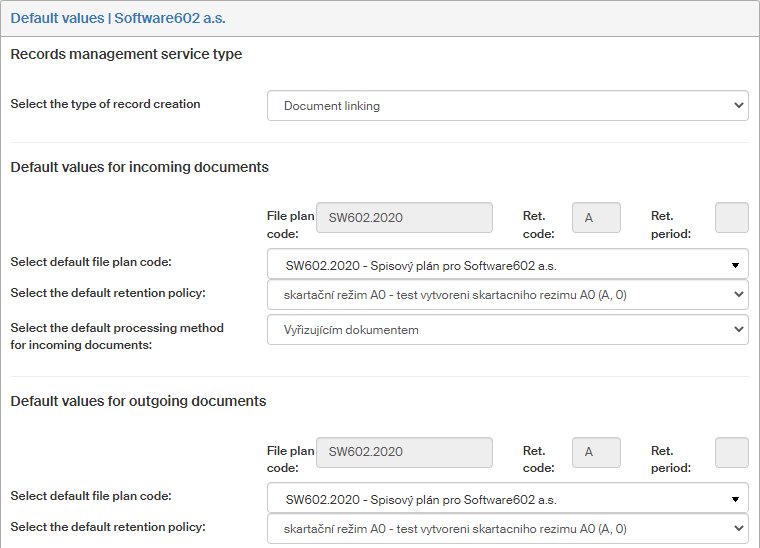
The following default values can be set up:
-
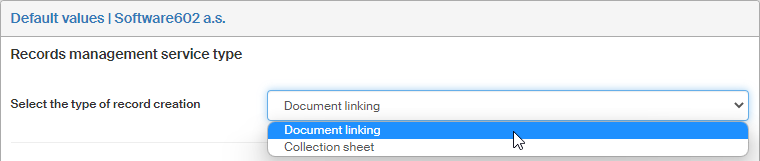
In Select the type of file creation, select whether this records management creates records by Document linking or Collection sheet. If a record is created using one of the above types, the type cannot be changed later.
-
“Collection sheet” record type – documents inserted in this record will receive their reference number from the record file number and the order of the document in the record. A document inserted in a record of this type cannot be inserted in another record. If a document with a reference number assigned is placed in a “collection sheet” type record, its reference number changes. The document receives a new reference number; if it is later removed from the record again, the document will get its original reference number back.
-
“Document linking” record type – documents placed in this record will keep their original reference numbers. One document can be placed in more than one record of this type.
-
-
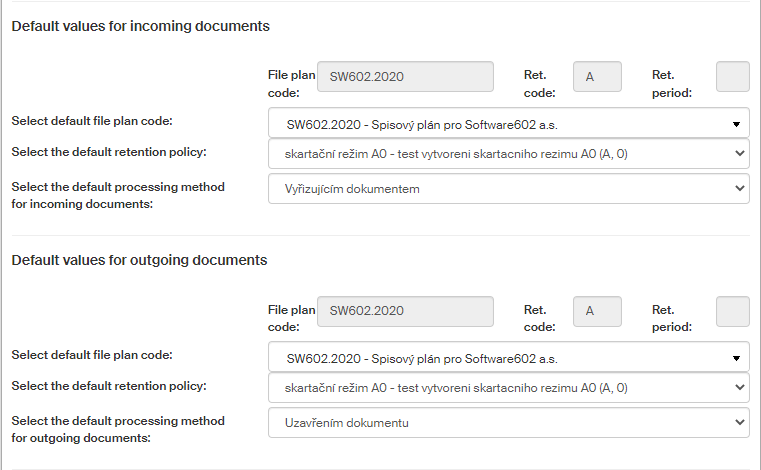
The next sections are Default values for incoming documents and Default values for outgoing documents. Values from this section are inserted in Records management forms if this feature is enabled in the forms.
Both sections contain the same setting fields, separately for each document type:
-
The field Select default file plan code lists entries from the File plan screen.
-
The field Select default retention policy lists entries from the Retention policy screen.
-
The field Select default processing method lists entries from the Document processing screen.
-
-
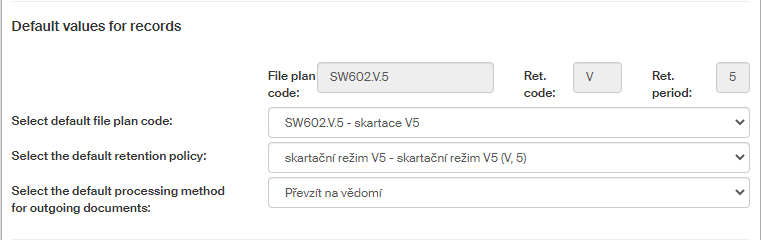
Section Default values for records contains the controls to set up the default values for records.
Select the default file plan code and the default retention policy in the first two fields.
-
The list Select default file plan code only lists the file plan codes where SPIS_ZNAK_USE=2 (Record) or SPIS_ZNAK_USE=4 (Documents and records), are enabled and valid (their year is the current year or not specified).
-
The list Select default retention policy displays retention policies based on the selected file plan code. If a file plan code is not set, all retention policies are available.
-
In the list Select the default processing method for outgoing documents, set up the default processing method to be used when processing outgoing documents.
-
-
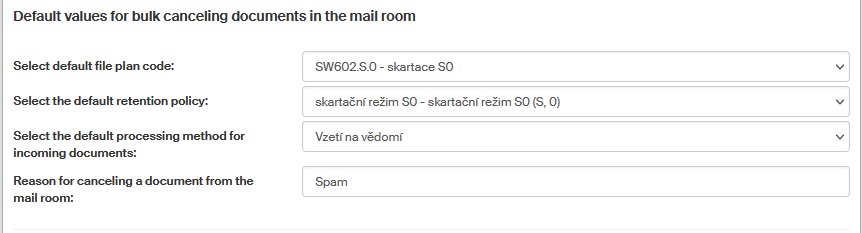
In section Default values for bulk canceling documents in the mail room, set up the default parameters for documents canceled in bulk.
-
In fields Select default file plan code and Select the default retention policy, select the default values similarly to the sections above.
-
In field Reason for canceling a document from the mail room, enter the default text that will be suggested as the reason for canceling in the mail room.
-
Filling the default values in the form automatically must be enabled in the record settings (), by setting the Default values field to Fill in default values. Without this setting, the default values will not be prefilled in the form.