Anonymous users
Some forms can be filled out by users who are not registered in FormFlow – they are called anonymous users. These users may fill out forms and submit them to FormFlow, they can only join the form flow as the first signer, they cannot save incomplete forms to FormFlow, etc.
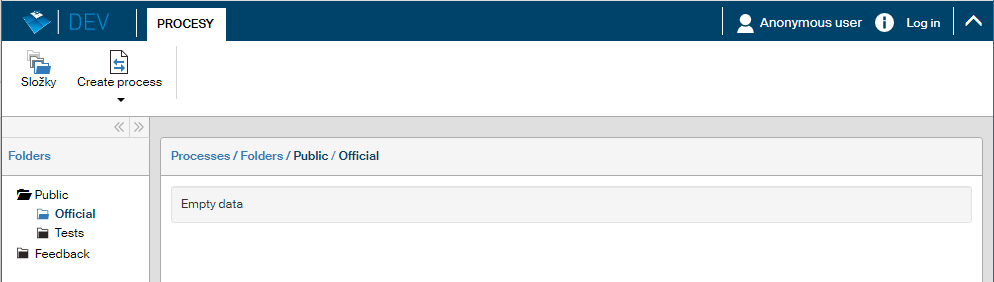
These are the main rules for making FormFlow folders and forms available to anonymous users:
-
Anonymous users can be enabled and disabled for the whole FormFlow and some general properties can be set up. The settings are available in the screen Anonymous users properties () – see below.
-
Anonymous user access can be enabled or disabled for a specific form, either when creating the form (described in chapter The detailed steps) or any time later by changing the setting (described in chapter Form detail).
-
Anonymous user access to forms can be also simplified by enabling or disabling the access to a specific folder; the setting is described in chapter Anonymous access to a folder.
Anonymous access global settings
Settings for anonymous users, i.e. those who do not log in using a specific username, can be adjusted in the screen Anonymous user properties ().
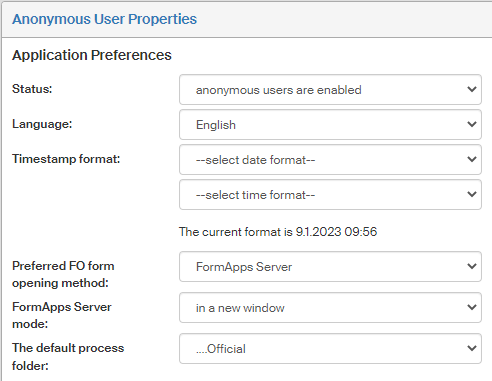
Anonymous access to forms can be globally enabled or disabled. Change this setting using the option Status, where you can choose either anonymous users are enabled, or anonymous users are disabled. If anonymous users are disabled in this place, they will not be able to access any part of FormFlow; if they are enabled, the settings for individual folders and forms will apply.
Use the option Language to set which language version will be displayed to logged out (anonymous) users. The two fields Timestamp format allow you to set how date and time is displayed; an example below shows the current setting.
The option Preferred FO form opening method allows you to select whether to open forms using Form Filler or FormApps Server. This setting will only apply to forms suitable for both the applications, other forms are always opened in the application they are designed for.
The option FormApps Server Mode will apply to forms opened using FormApps Server. It allows you to set whether a new window is always opened when loading a form (the option “in a new window”), or whether the form is displayed over the FormFlow page, that is, the rest of the page will not be accessible until the form is closed again (the option “in a modal window”).
The default process folder allows you to set which form folder structure will be displayed to anonymous users when they access FormFlow.
If you have made any changes, confirm them by clicking Save changes.
Anonymous access to a folder
Anonymous user access to forms can be simplified by enabling or disabling the access to a specific folder. If enabled, the folder and the enabled forms in it will be displayed on the FormFlow page. Note that the folder will only be displayed if anonymous users are also allowed access to any parent folders to this folder.
Enable or disable access to folder for anonymous users:
-
Open the ADMINISTRATION tab, click Processes and then Process management.
-
In the folder tree on the left, select the folder where you want to change anonymous access.
-
Click Folder properties.
-
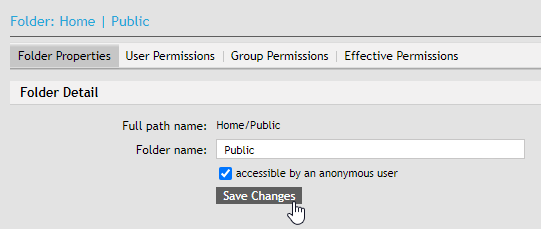
Check or uncheck the checkbox accessible by an anonymous user.
-
Confirm by clicking Save changes.
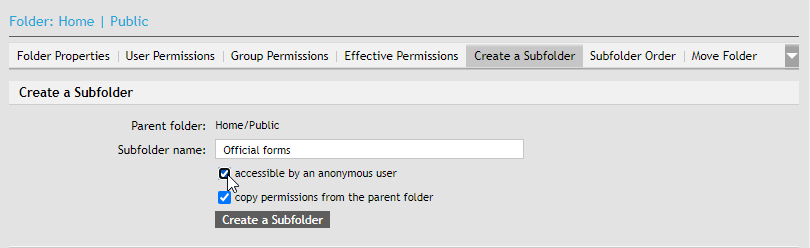
You can also enable or disable anonymous access when creating a new folder on the tab Create subfolder.
Anonymous access to a form
To enable or disable anonymous access to a specific form, do the following:
-
Open the ADMINISTRATION tab, click Processes and then Process management.
-
On the left, select Templates.
-
On the right, in the list of forms, look up a form and click the wrench icon (
 ) on the right.
 -
On the left, click Anonymous.
-
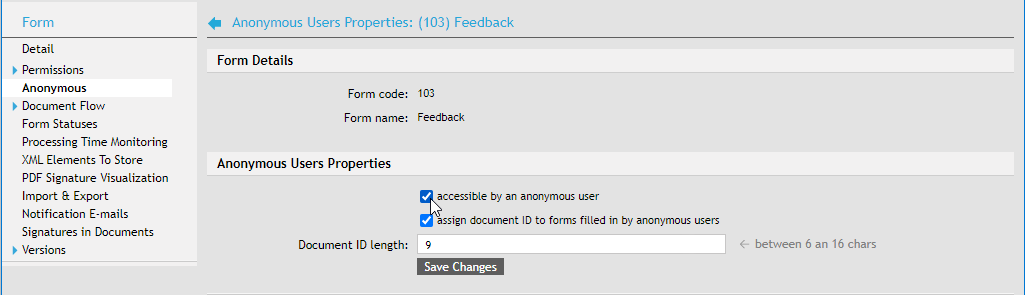
Check or uncheck the checkbox accessible by an anonymous user.
-
Confirm by clicking Save changes.
Anonymous users download the form template directly from FormFlow
If anonymous users download the form directly from FormFlow, then the procedure is the same for them as for regular registered users. The only difference is that anonymous users do not log in – they select a template from FormFlow, fill it out and submit. FormFlow generates the URL using the same mechanism as for logged-in users – it is displayed in the field Fill-in URL for Anonymous Users.
Anonymous users download a distributed form template
A form template can be distributed for anonymous use even outside the FormFlow environment – users can receive the template using electronic mail or download it from a website.
In such cases the FormFlow administrator needs to visit the Anonymous section of form details and look up the value of url_release URL Valid for the Whole Form. This value needs to be passed on to the form template designer, who will enter it in the corresponding URL field. With this addition, the form can be distributed to anonymous users to fill out. The filled-out forms submitted by users return to FormFlow either for direct processing, or to be approved by a censor and then processed.
Example URL for anonymous form processing – the field url_release URL Valid for the Whole Form might contain the following:
http://localhost/602xmlfs/afill.php?id=7bebcf6c47365ccd37fd89ac514b4ed3bb5
Censor for processing anonymous users' forms
A censor is a user (or several users), who receive forms submitted by anonymous users and approve them. They will find such forms in the folder To Be Processed by Me.
The censor will open every form and then:
-
Either approve the form contents and submit it (using
url_release) to FormFlow for processing. -
Or does not approve the form contents, closes the form and deletes it from the folder In Progress by clicking
 Delete form.
|
A censor or censors can be set up in section Censors of Forms Filled in by Anonymous Users in tree section Anonymous in the details of the specific form.
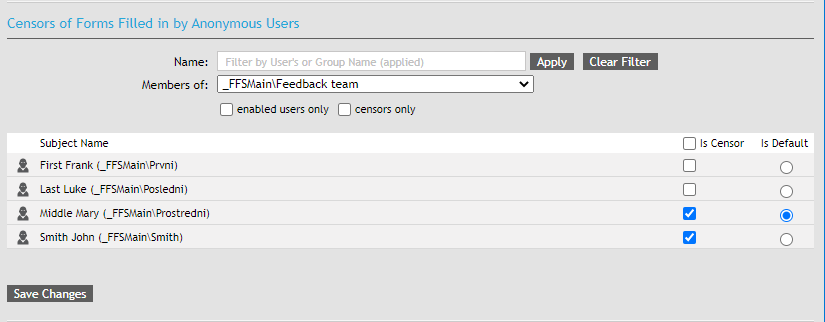
The section contains a list of users and groups who can be granted the censor permission. Grant the permission to individual users or whole groups by checking Is Censor.
You can use the column Is default to select one user or one group that will be considered (or its members will be considered) to be the default censors.