Running Controlled documentation processes
Controlled documentation processes include:
-
Creation:
-
Controlled document creation – document-based (VDD).
-
Controlled document creation – process-based (VDP).
-
-
Approval:
-
Document approval (SD).
-
Signature book (PKD).
-
-
Distribution:
-
Document distribution (DD).
-
Controlled documentation is available to users who are allowed access to the CONTROLLED DOCUMENTATION tab and, if needed, also given access permissions to individual controls. All lists displayed after clicking a ribbon button display only those forms that are placed in the process folders the user is authorized to see.
Permissions to individual ribbon items on the Controlled documentation tab can be assigned to users by a user with the Configuration administrator role.

Running forms from the Controlled documentation tab
To open a form for a specific process, do the following:
-
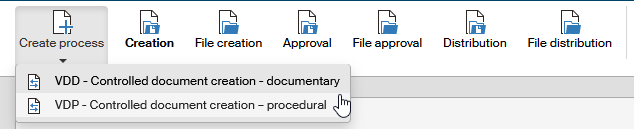
To start a document creation process – Controlled document creation – click Creation and then Create process. Then select from the menu whether to create a document-based or a process-based process.
-
To start an approval process – a Signature book or Document approval – click Approval and then Create process. Then select from the menu which process to run.

-
For Document distribution, click Distribution and then Create process. In the menu, click Document distribution.

Other form running methods
There are three more ways of running Controlled documentation process forms.
Running from a process folder
Do the following to start a document creation process:
-
Open the PROCESSES ribbon tab and click the Folders button.
-
On the left, in section Folders, select the folder you want to use. It can be your personal working folder (e.g., Documentation) or the general Controlled documentation folder with a subfolder, Creation.
-
The button Create process is displayed on the ribbon. Click it to view the available form templates and select Document creation – process. If the template is not available, you are not authorized to use it; contact your FormFlow administrator to give you the permissions.
-
A form opens from the template; see below for more details on filling out the form.
Starting a process from a specific document
Another option is to start from the DOCUMENTS tab. Use it to look up a document you want to place in a process. Check the box on the left of the document row to display the floating window with available operations, then go to section Processes and select the Document creation template. Click Run to open the form and continue as described below. This method is useful if you have already looked up the document because you do not need to look it up again to attach it in the form; the form will open with the document already attached.
If you have selected a single document, its name (without the extension) will be prefilled in the process name in the form (the Name field). If you select two or more documents, the names are not transferred.
Starting a process with a document from management service
The third option of creating a document follows from a connection with the records management service. Controlled documentation in FormFlow is connected to records management, which processes incoming and outgoing mail, registers it and distributes to the people responsible for its processing. Linking these two services gives the option to exchange data and whole documents easily to save manual work. The records management can also provide data such as file plan codes, retention codes and processing methods.
When processing an incoming message in records management, controlled document creation can be run as a follow-up process. In such case a new form for controlled document creation is created automatically and the document attached to it, without having to handle the document in any way (e.g. saving to the computer drive). The procedure of filling out the form and running the revision process is the same as when the form is created manually.
The following text describes filling out the form as if it was completely empty, without a document attached to it.