Delivery types
Click the Delivery types entry to set up delivery and sending methods for traditional paper mail.
Check or uncheck Enabled next to each configuration entry to set whether it is in use.
Click  next to any configuration entry to display a help window.
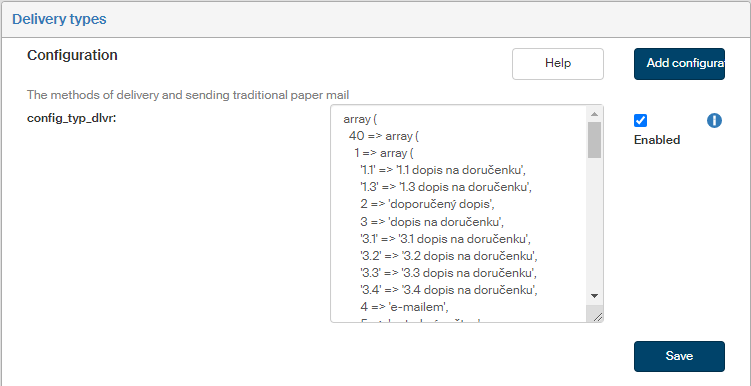
config_typ_dlvr
The methods of delivery and sending traditional paper mail. The configuration is entered in three nested arrays.
Index of the first array is either ID_CERT of the entity, making the configuration apply to the given entity only, or -1 and in that case the configuration is valid for all entities.
Index of the second array is 1 or 2, where:
-
1 = incoming documents,
-
2 = outgoing documents.
Index of the third array indicates the delivery type:
-
1 = ordinary mail.
-
2 = registered mail.
-
3 = mail with a certificate of delivery.
Index 3 can be split into other delivery method types with a certificate of receipt by adding a decimal place, e.g.:
-
3.1 = registered mail with a certificate of receipt.
-
3.2 = insured letter with a certificate of receipt.
-
Indexes 1,2,3 are mandatory, the records management service expects them. Outgoing messages with indexes 4–99 will be sent using the mail room, messages with indexes 100 and up without the mail room. To send outgoing mail using the mail room, the corresponding MSG_OUT form must be set to send using the mail room.
Example setting of delivery method types valid for all entities:
array (
 -1 => array (
    1 => array (
        1 => 'ordinary mail',
        2 => 'registered mail',
        3 => 'mail with a certificate of delivery',
        4 => 'messenger',
    ),
    2 => array (
        1 => 'ordinary mail',
        2 => 'registered mail',
        3 => 'mail with a certificate of delivery',
        4 => 'messenger',
        5 => 'delivery service',
        100 => 'in person',
        101 => 'fax',
        102 => 'public announcement',
    )
  )
);
If you are missing a configuration entry from the list, you can add it. Click the Add configuration button in the upper right corner of the screen. The dialog Add configuration is displayed. It is identical to the window displayed and described in the previous chapter.
Enter the Variable name and Variable value. Select the Variable type from the list, the options are the following: Variable, Define and Array.
Then click Save to confirm the new configuration and its changes.