Some general terms
Process-based and document-based methods of creating documentation
The documentation creation process can be based on the forms Documentation creation – process based (VDP) and Documentation creation – document-based (VDD). There are significant differences between these two processes.
-
Process-based documentation creation is based on a form with information and links to documents, circulating among users following a preset workflow.
-
Document-based documentation creation is different from other processes. The main difference is that it is not the process that circulates, but the DMS document itself.
In general, forms carry not just the document itself, but also additional information, such as the people who take part in its processing, deadlines, etc. FormFlow ensures form distribution among the users and sends e-mail notifications to people who are expected to comment or otherwise take part in the form processing.
Controlled documentation can cooperate with Records Management, so for example a document received by the records management as an incoming message can be easily placed in a follow-up process of document creation or approval.
Sequential and parallel processes
There are usually several people processing a controlled document by approving or commenting on its creation and other changes. There are two ways of distributing the document among them:
-
In a sequential process, the document is handed to individual users for approval (comment) one after another. The group of users responsible for the document is preset, including the order in which they receive the document form or link to the document. As soon as one processor deals with the document (edits, approves, attaches a comment, etc.), the form is automatically forwarded to the next one.
-
In a parallel process, the revision group is set beforehand as well, but without a specific order. A copy of the form (document) is created for each of the group members when the form is submitted, and they can process it immediately, regardless of the other participants. They will attach their statement and submit it, not to another revision group member but directly to the process author. This way the author receives various versions of the document from the other users.
In both cases, the form author can view the form status and when the revision process ends (it is processed by all the preset users), the author is informed of the fact.
The result of a sequential process is a single document, which has received comments from all revision group members. In a parallel process, the author must view all the documents received from revision group members and combine them to create a single final document.
Selecting the work folder
Before you start a process as described in chapter Other form running methods, you need to select the work folder. Note that folders are set up separately for the DOCUMENTS tab and the PROCESSES tab.
-
Click DOCUMENTS or PROCESSES.
-
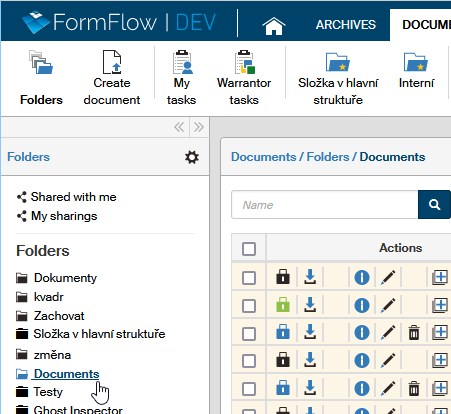
On the toolbar, click Folders.

-
The Folders section will be displayed on the left. Click to select the folder where you want to work.
-
Its contents will be displayed on the right.
-
The toolbar will also display several useful buttons. They will typically include the button Insert document for the DOCUMENTS tab or the Create process button for PROCESSES.
Here is a brief description of the key settings for users with administrator permissions (for more details, see the Administrator’s Manual):
-
How to create a new document folder: the ADMINISTRATION tab – the Documents button – Document folders – in Document folder administration, click Create folder.
In order for users to upload documents to a folder, they must have the necessary permissions set. Open the Administration tab – the Documents button – Document folders – in the Document folder administration, select the Main folder and then look up your folder’s entry on the right. In the Actions column, click Set permissions. Set permissions for users or their groups.
Click the Assign processes to folder button to enable the selected processes for that folder. -
How to create a new process folder: the ADMINISTRATION tab – the Processes button – Processes – select a folder on the left as a parent to your new subfolder (or select Home to create a new top-level folder) – on the right, select the tab Create subfolder. Create permissions to use the new folder for specific users (the User permissions tab) and groups (the Group permissions tab).
The users need to be granted permissions to use process templates in the folder. This setting is on the Templates tab. Only then the Create process button will open a menu of enabled process templates.
If you cannot see a folder or experience issues with documents or processes in that folder, it is most likely an error in the above described settings. A user with administrator permissions can fix these issues.
| You can set a folder as a default, so that you do not need to look it up every time. Click the Preferences button (top right) to display the settings toolbar and then click the Application Preferences button. Select your preferred folders in fields Default process folder and Default document folder. From now on, they will be automatically displayed when you select the DOCUMENTS tab or the PROCESSES tab. You do not need administrator permissions for this setting. |
Notification e-mails
Notification e-mails are e-mail messages that notify FormFlow users of events that take place during processes – for example that the user has, as a revision group member, received a document for revision. Notification e-mails need to be enabled both in the user’s settings and in the process settings.
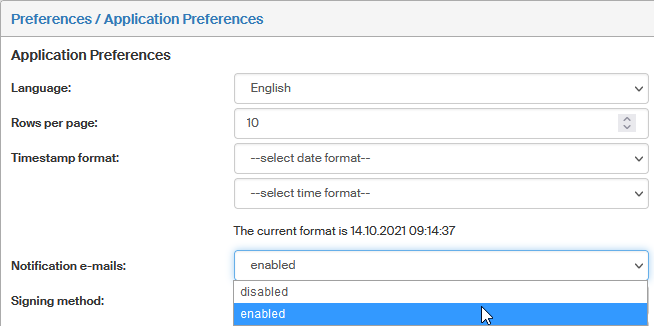
Every user can manage their notification settings by themselves. Select Preferences in the window header to display the user settings toolbar and select the Application Preferences button. In the screen Preferences/Application Preferences, check the setting for Notification e-mails – it should be set to Enabled.
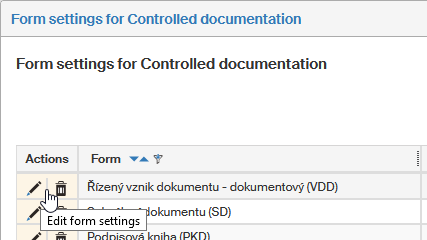
You need administrator permissions to enable notification e-mails process-side. If you are an administrator, open the ADMINISTRATION toolbar, click Controlled documentation and select Settings from the menu. The list of controlled documentation forms is displayed. Look up the process form where you want to edit notifications and click the pencil icon (Edit form settings).
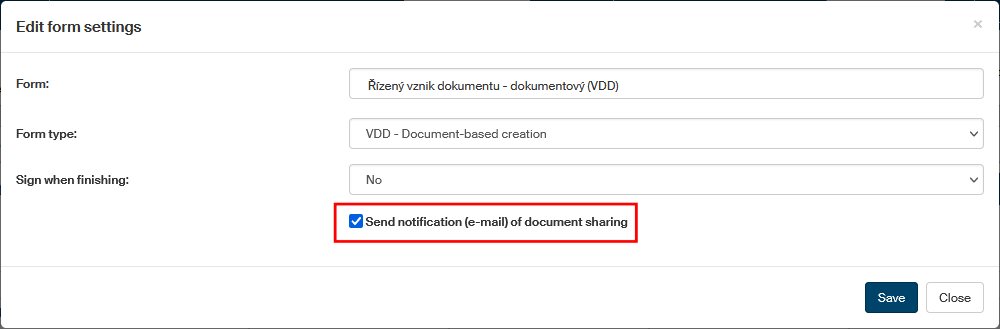
A window is displayed; check that the option Send notification (e-mail) of document sharing is checked. If it is not, check it and click Save.
Marking the revision process
During the revision process, form lists in FormFlow display a group of numbers next to the form name, marking the progress of the process. The marking pattern depends on the process type: whether it is a document-based or process-based documentation creation and whether it is a sequential or parallel process.
Documentation creation: document-based – sequential process
Displayed as: Form name (A/B/C)
-
A – number of users who filled in and forwarded the process,
-
B – number of users skipped (excluded from the process),
-
C – number of users for whom the process was started.
