Signing methods
To attach an electronic signature, you need to have a suitable digital certificate available. The signing process depends on the location where the certificates are stored.
-
Signer – browser addon. The certificate is stored locally, on your computer or smartphone, or on a qualified device (token). The signing is handled by the Signer app in combination with a browser addon.
You can also use another Software602 app – eToken – with this signing method. With eToken, you can sign using remote certificates (e.g. stored in FormFlow) in Signer in the same way as if they were stored locally.
-
Server signing service. The certificate is stored on a server, which means either directly in FormFlow, or FormFlow uses certificates from Sofa. The whole signing process is handled by FormFlow.
This signing method depends on your FormFlow settings and an administrator must give you the corresponding permissions.
If both options are available, you can select your signing method in the window in the field Signing method. If not, the signing method setting is not displayed and Signer is used for all signing.

The signing procedure differs slightly based on the selected method.
Podepisování pomocí Signeru
When signing using Signer, you need to have certificates available on the device you are using to access FormFlow. They can be stored in the operating system certificate store, or on a physical device – token connected to your computer.
In this case FormFlow does not have direct access to your certificates. The Signer app takes care of the signing process. A browser addon is used for a connection between FormFlow and Signer.
Installing Signer
If the extension and Signer application required for this signing method is not installed on your computer, FormFlow will notify you and prompt you to install the required software. You need to install the following:
-
FormApps Extension, which is a browser extension, and
-
Signer, which is an external application cooperating with the extension.
In the first step, install the extension. Click Install extension.
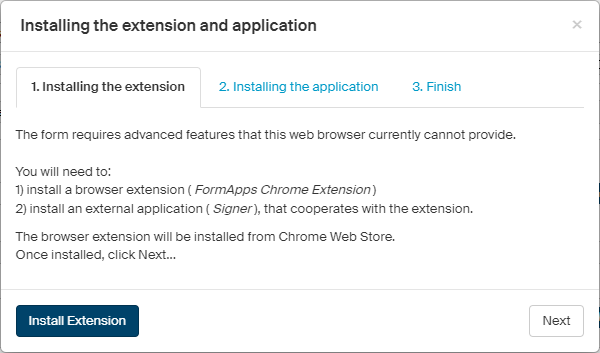
Depending on your browser and its settings, you will be either prompted to confirm the installation or the extension description in the browser store will be displayed with a button to install the extension.
Once the extension is installed, click Next to move to the next step.
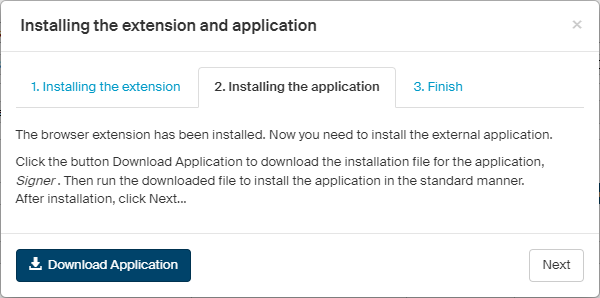
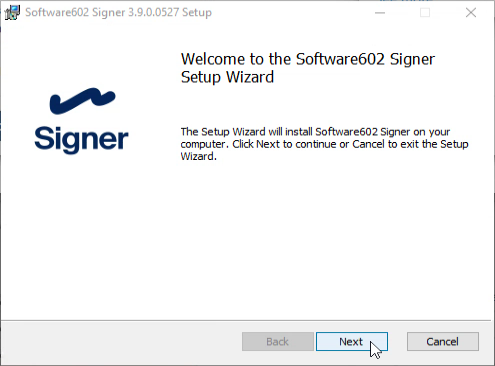
If you do not have Signer installed yet, click Download application and download the installation file signer.msi. Run the installation file. A standard installation wizard opens. Follow the instructions in the wizard to complete the installation.
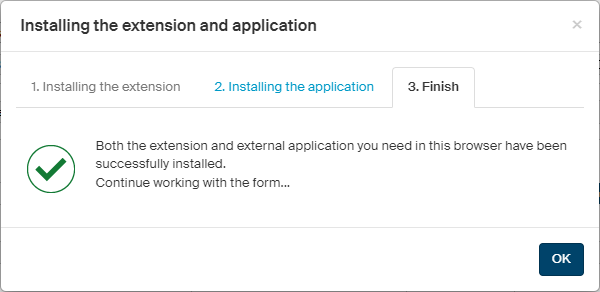
Once the installation has completed, click Next. FormFlow checks that the installation has been successful. The installation of required extensions is now complete and you can continue using the form.
Server signing service
For server signing, certificates are stored at the remote server: either in FormFlow, or in Sofa. The FormFlow administrator sets up which option to use and grants permissions to users who can use these signatures.
Certificates stored on the server will be available on any device you use to connect to FormFlow.
See chapter Signature certificates in FormFlow for information how to request and manage certificates in FormFlow.
If FormFlow uses certificates from Sofa, you cannot manage them in FormFlow, just sign with them. For details on requesting and managing certificates in Sofa, see Sofa documentation, chapter Certificate management (in Czech).