Certificates of delivery
As soon as a paper mail with a certificate of delivery is delivered to the recipient, its certificate of delivery is available. The certificate of delivery must be inserted in the form before the outgoing message form is finished. Because the certificate of delivery is on paper, it needs to be scanned to digital.
There are two ways to do it: in a separate window Certificates of delivery or directly in the outgoing message form.
Inserting a certificate of delivery from the specialized window
Open the Certificates of delivery window by going to . Use the Message field with autocomplete to look up the message.
You can search using message numbers (assigned by the Czech Post). When the message is found, check the recipient details displayed in the window to make sure it is the correct message.
Only outgoing messages that match the following conditions will be found:
-
They are already physically sent, which means their send date is filled in,
-
they were sent "with a certificate of receipt" (if the message already has a certificate of receipt, it can be replaced or downloaded).

Message search in the window is a repeat section, which means you can use the “plus” and “minus” signs to add and look up more than one message. Prepare your scanner and the paper certificates of delivery. For each message, click Scan certificate of delivery.

Scan the document according to your company guidelines.
After you insert the certificate of delivery in the window, there are a few additional options available:
-
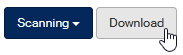
Click Download to open a dialog where you can either display the certificate of delivery in a PDF viewer (or browser) or save it as a PDF file to your drive.
-
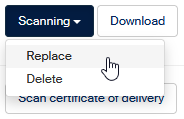
Click Scanning and select Replace from the menu to open a dialog to scan the paper certificate of delivery again (or insert it from a file).
-
Click Scanning and select Delete from the menu to delete the scanned certificate of delivery from the window.
Inserting a certificate of delivery directly in the form
Open the Outgoing document form, view the Messages section and select which one to edit. In the Actions column, click  Edit message.
The lower part of the Traditional paper mail window contains the field Certificate of delivery. Click Select to look up a prepared file with the certificate of delivery scan. Click Save to confirm the selection.

If you open the Traditional paper mail window and the certificate of delivery has been already attached, the following three buttons are available:
-
Delete – deletes the file with the certificate of delivery to allow replacement by another file.
-
Download certificate of delivery – downloads the certificate of delivery to a file to save on your drive (or display in a browser or a PDF viewer).
-
Display certificate of delivery – displays the certificate of delivery contents in a separate window.

Special situations
There are two checkboxes available to mark special cases:
-
Failed to deliver – if the message failed to be delivered to the recipient. The Delivery date field changes to Date of notification of failure to deliver.
-
No certificate of delivery – for situations when the certificate of delivery is not available in paper nor digital form.