Security categories
Documents and records stored in the Electronic records management can be assigned one of the organization’s security categories.
On the left panel in the Entities screen (), make sure the entity you want to edit is selected in the Entities list. Then go to Menu and click Security category. The screen Security category (entity name) is displayed on the right. Set up the entity’s security categories and subcategories here.
Creating a new security category
If you have not created a security category yet, click Create category.

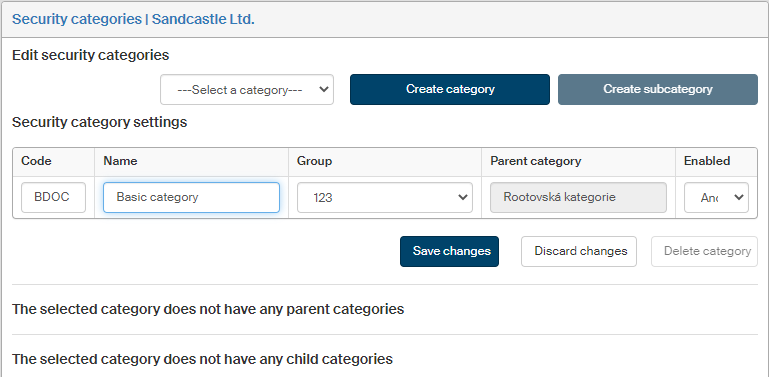
In section Security category settings, define the new security category:
-
Code – unique, short string that identifies the security category.
-
Name – security category identification that will be displayed in forms when selecting a category from the list.
-
Group – user group that will use the category.
-
Parent category – category placement in the category tree. The highest-level categories are listed as “Root categories” and the field is read only.
-
Enabled – only enabled categories (Yes) will be displayed in lists.
Selecting and editing a category
Existing categories are displayed in the list Select a category in section Edit security categories.
For example, if the first category created will be called Basic category, it will be available to select in the field.
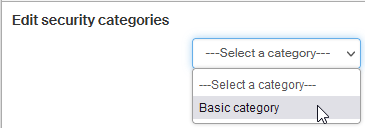
Click the category name to display its description in window Security category. The same controls are available as when creating a category.
In section Security category settings, edit the category description as needed. Then click Save changes to confirm.
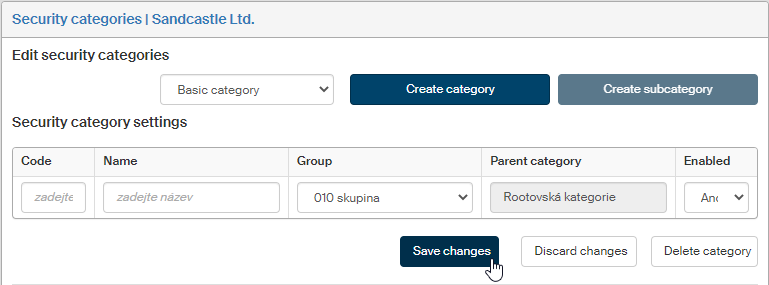
If you change your mind before saving the changes, you can click Cancel changes to return to the previous setting.
Click Delete category to remove the category entry.
If the category has already been used for a document, only some details can be changed. In such a case, the category cannot be deleted either, only disabled (which means it will be not available in lists to use again).
Creating the security category structure
Security categories can be set in a structure of parent and child categories. Use the buttons in section Edit security categories to create the structure.

To place another category on the same level as the current category, set using the Select a category list, click the Create category button.
For example, if you so far have a category called Basic category and click Create category, you can create another category at the highest (root) level – let us call it e.g. Alternative category. Now there are two categories available in Select a category:
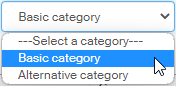
Click Create subcategory to create a new category as a child of the current category – that is, one level lower. If Basic category is the current category, click Create subcategory to create and save a new category called e.g. First subcategory.
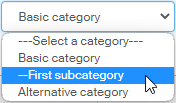
The subcategory will be placed in the category hierarchy below its parent category, as indicated by the dashes before the name in the list.