Hybrid mail
Use this section to set up sending messages using the hybrid mail services run by the Czech Post.
The outgoing message form will then display in the Delivery section an additional option, Hybrid mail (only for letter type messages, that is, “ordinary mail”, “registered mail” and “mail with a certificate of delivery”). Messages sent using this method will be sent to the Czech Post, who will print them out, delivers them as paper mail and returns delivery details to FormFlow.
Service registration
Hybrid mail offers two services, Letter Online and Bulk conversion mail. To use either of the services, you need to register with the Czech Post first. You will receive login details – a name, password and server URL.
Settings
On the left panel in the Entities screen (), make sure the entity you want to edit is selected in the Entities list.
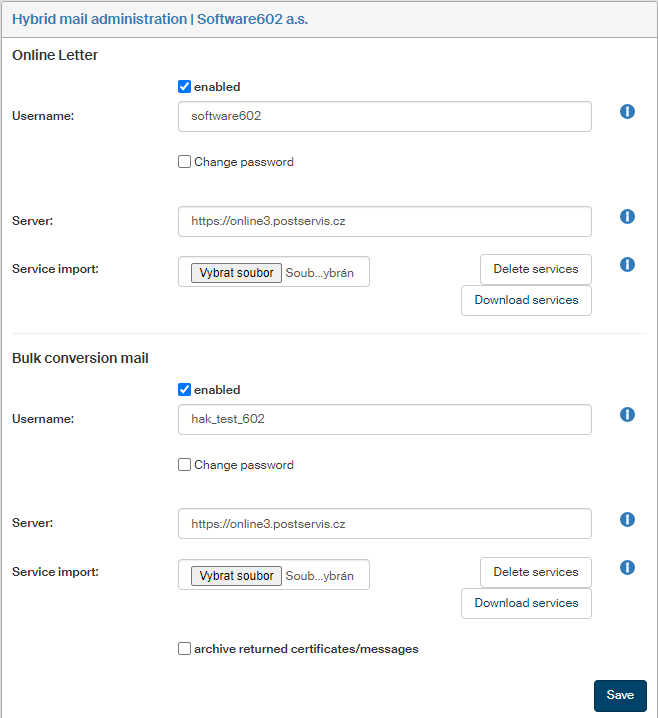
Then go to Menu and click Hybrid mail. The screen Hybrid mail administration (entity name) is displayed on the right. Enter the corresponding login details there. For more details, see chapters Setting up Letter Online and Setting up Bulk conversion mail below.
Then, in Menu again, select Data mailbox settings. In window Data mailbox settings, create a new data mailbox to use for communication with the Czech Post. Enter the corresponding login details you have received from the Czech Post. For more details, see chapter Data mailbox settings below.
Setting up Letter Online
Basic details
If the service is not set up yet, enter the login details in the following fields:
-
Username – enter your username for the Letter Online service.
-
Password – enter your password for the Letter Online service. Once the hybrid mail is set up, this field will be hidden. You can then check Change password to display and edit the field again.
-
Server – Enter the URL for the Letter Online service.
You should receive all these details from the Czech Post when you sign the service contract.
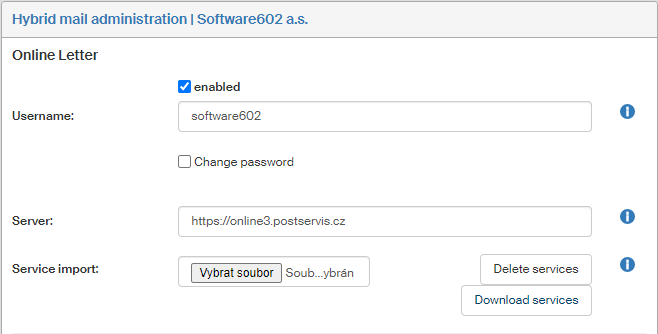
Check enabled to start displaying the Hybrid mail option with these settings in forms immediately. If this field is not checked, the option will not be available in MSG_OUT forms.
Section Service import allows you to import the service description data for the Letter Online from a file, export this data or delete it. The imported services will be displayed next to a traditional address contact as the Services field. The contact is either an ordinary mail, a registered mail or a mail with a certificate of delivery.
Importing service description data
To import service description data, create it as a CSV file (a text file with comma-delimited entries). You can use the attached template. Click the  button on the right from the Delete services button. In the Service import dialog, click Service import example for online letter.
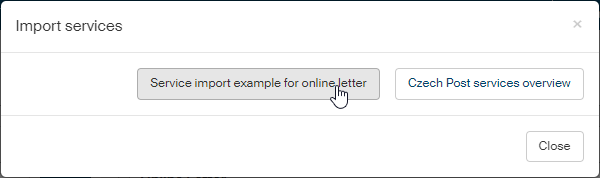
A system dialog displays a query whether to save the example or view it. The file name is HP_DO_sluzby.csv.
You can display the file e.g. in Excel:
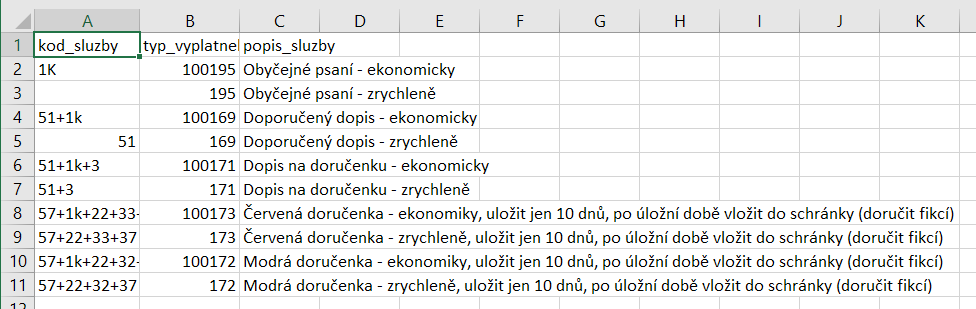
Click the other button in the dialog (Czech Post services overview) to view or download the file HP_seznam_sluzeb.csv with a complete description of all Czech Post services.
To import a service description file, click Browse to look up a CSV file and enter it in the field.

Exporting service description
If you have a service description implemented in FormFlow already, you can click Download services to display or export it. The description file is in CSV format.
Setting up Bulk conversion mail
Basic details
If the service is not set up yet, enter the login details in the following fields:
-
Username – enter your username for the Bulk conversion mail service.
-
Password – enter the password for the Bulk conversion mail service. Once the hybrid mail is set up, this field will be hidden. You can then check Change password to display and edit the field again.
-
Server – enter the URL for the Bulk conversion mail service.
You should receive all these details from the Czech Post when you sign the service contract.
Check enabled to start displaying the Hybrid mail option with these settings in forms immediately.
Check archive returned certificates/messages to archive all the service activities.
Section Service import allows you to import the service description data for the Bulk conversion mail from a file, export this data or delete it. The imported services will be displayed next to a traditional address contact as the Services field. The contact is either an ordinary mail, a registered mail or a mail with a certificate of delivery.
Importing service description data
To import service description data, create it as a CSV file (a text file with comma-delimited entries). You can use the attached template. Click the button on the right from the Delete services button. In the Service import dialog, click Service import example for hybrid mail.
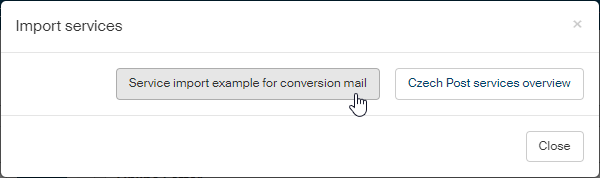
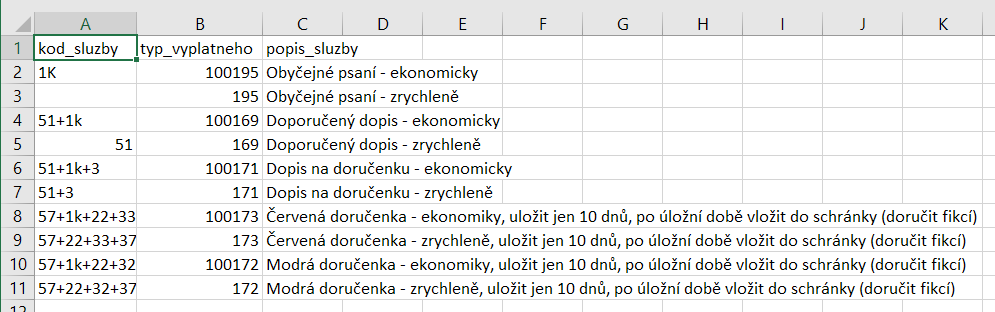
A system dialog displays a query whether to save the example or view it. The file name is HP_DS_sluzby.csv.
You can display the file e.g. in Excel:
Click the other button in the dialog (Czech Post services overview) to view or download the file HP_seznam_sluzeb.csv with a complete description of all Czech Post services.
To import a service description file, click Browse to look up a CSV file and enter it in the field.

Exporting service description
If you have a service description implemented in FormFlow already, you can click Download services to display or export it. The description file is in CSV format.
Data mailbox settings
Set up the data mailbox for contacting the Czech Post in the window Data mailbox settings, available by going to . On the right, click Add a data mailbox. The dialog New data mailbox opens; enter the details for the Czech Post data mailbox.
Enter the name that will be used in the list of your data mailboxes in the field Data mailbox name (e.g. Hybrid mail test).
Enter the seven-character ID for the Czech Post data mailbox you have received on registration in the field Data mailbox ID.
Leave the option Select login type for the data mailbox set to Log in using a name and a password and enter the details you have received on registration in fields Username and Password.
Select the group of users who will have access to the data mailbox and hybrid mail – e.g. EVERYBODY – in the field Group assigned to the data mailbox.
Check Test the connection to request a test of your access to the data mailbox when you click Save changes to save the details.