Organizational units
To process incoming and outgoing documents, organizational units must be attached to the entity and users assigned to the organizational unit. One user can only belong to one organizational unit.
The recipient’s organizational unit can be listed in a data message downloaded from the data mailbox; the organizational unit can be then used in message sorting rules. An organizational unit can be also used as a part of a reference number (ORG_UNIT).
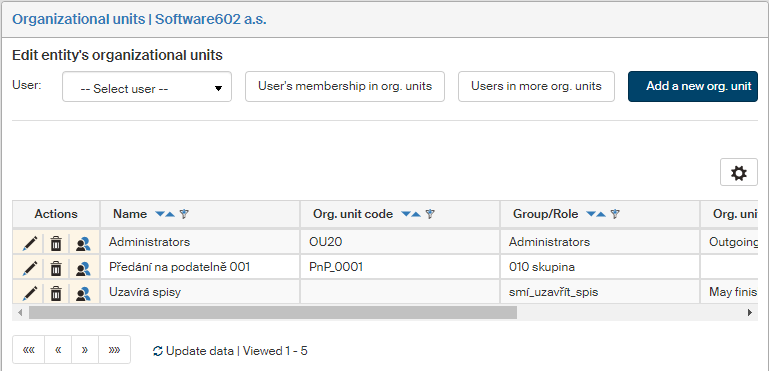
On the left panel in the Entities screen (), make sure the entity you want to edit is selected in the Entities list. Then go to Menu and click Organizational units. The screen Organizational units (entity name) is displayed on the right. It lists the entity’s organizational units, and you can set up new ones here. You can also use the list to check that a user belongs to one organizational unit only.
Creating an organizational unit
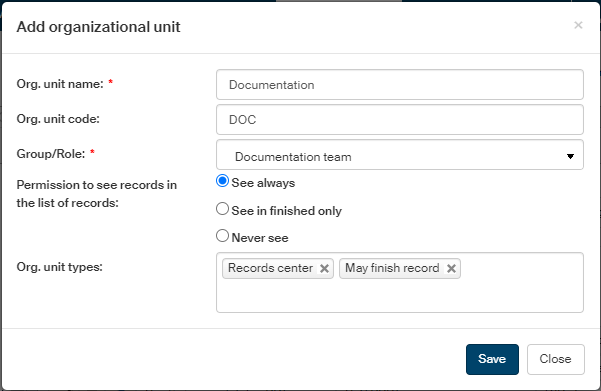
Click Add a new org. unit in the upper right corner to display a unit addition dialog.
-
In Org. unit name, enter the name to be used in lists.
-
In Org. unit code, enter any string to be used as organizational unit identification ($ORG_UNIT$) in a reference number mask.
-
In Group/Role, select a group or role from the Electronic records management.
-
In Permission to see records in the list of records, select whether organizational unit members are authorized to view records in the Record list.
-
In Org. unit types, you can select one or more types from the list to give the organizational unit a role in selected processes, such as the Incoming mail room, Outgoing mail room or Records center. You can select more than one type.
Click Save changes to confirm your edits.
Editing organizational unit
Use the buttons in the Actions column to manage the organizational unit entries:
-
Click
 Edit organizational unit to display an organizational unit edit dialog (similar to the unit addition dialog described above).
 -
Click
 Delete organizational unit to remove the organizational unit entry.
 -
Click
 Organizational unit members to display a list of members for the organizational unit.
 -
Change the order of rows using the arrows in the Change order column.
User testing
A set of controls is available above the organizational unit list. If you select a user from the User list, you can:
-
Click User’s membership in org. units to display a separate window with information which organizational unit or units the user belongs to.
-
Click Users in more org. units to display a list of users who are currently members of more than one organizational unit. Multiple membership should not happen, but it does not stop the records management from working. Membership is displayed in a separate window.