List of archived entities
Archived entity is a general term for files, documents, records and storage units. You can manage these entities using the first four buttons on the Archives toolbar.

-
Files – opens the Archives/Files window with a list of files saved in archival and DMS folders.
-
Documents – opens the Archives/Documents window with a list of documents stored in archival document folders.
-
Records – opens the Archives/Records window with a list of records stored in archival record folders.
-
Storage units – opens the Archives/Storage units window with a list of storage units for collecting records to shred, stored in archival folders.
Newly archived documents and records
A document or record from Electronic records management can be archived when finished, which means it is placed in the Archive.
When a document or record is archived, no notifications are sent out. Once a document or record is available in the archive, you can find it in the corresponding archive lists based on its type:
-
documents in the list displayed by the Documents button,
-
records in the list displayed by the Records button.
You can narrow the lists down further or order them, for example by the archiving date (the column Archived).
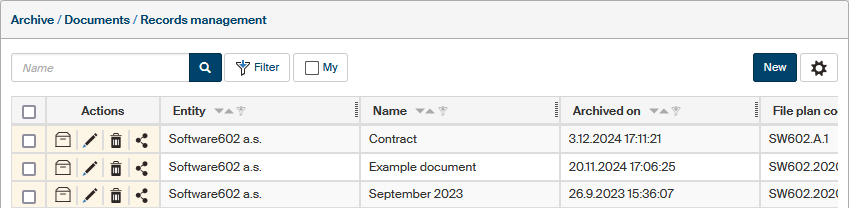
Lists
Select Files, Documents, Records or Storage units on the Archives tab to display a list of corresponding archived entities.
You can then select a folder on the left side of the window to display its contents only. Or select All folders to display the contents of all folders of the corresponding type.
| The Files list shows, in addition to archive folders, also DMS folders (from the document section of FormFlow). |
The main part of the window then displays a table with the corresponding entries.
For a more precise search, use the Filter button. For more details on using the filter, see chapter Filtering.
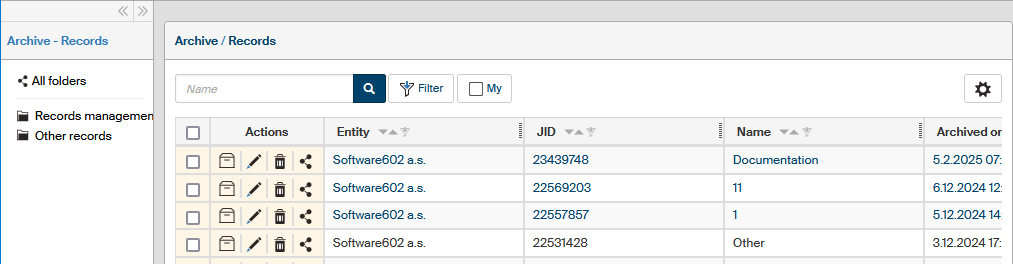
Use the checkboxes in the first column to select entities for bulk processing. A floating window with available bulk operations is then displayed.
The buttons in the Actions column offer the following actions for the archived entities:
-
Click
 Display contents to open the list of files, documents and/or records that are part of the entity.
This button is not available for Files.
Display contents to open the list of files, documents and/or records that are part of the entity.
This button is not available for Files. -
Click
 Edit metadata to open the Edit dialog where you can edit the basic details of the entity, its archiving and retention details, external system data and comments.
 -
Click
 Move to trash to move the entity to trash.
 -
Click
 Share to open the Share dialog with tabs to set up sharing the selected entity to other users, sharing it to groups and roles and an overview of effective permissions to entities as a result of sharing.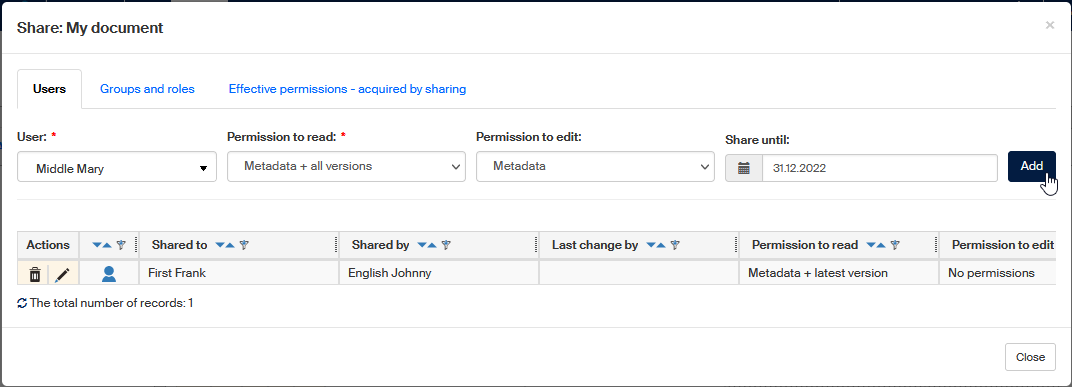
-
Click
 Relations to open the Relations window to view and set up relations to other entities.
The button is not visible in the standard setting; you can add it in the dialog.
Relations to open the Relations window to view and set up relations to other entities.
The button is not visible in the standard setting; you can add it in the dialog.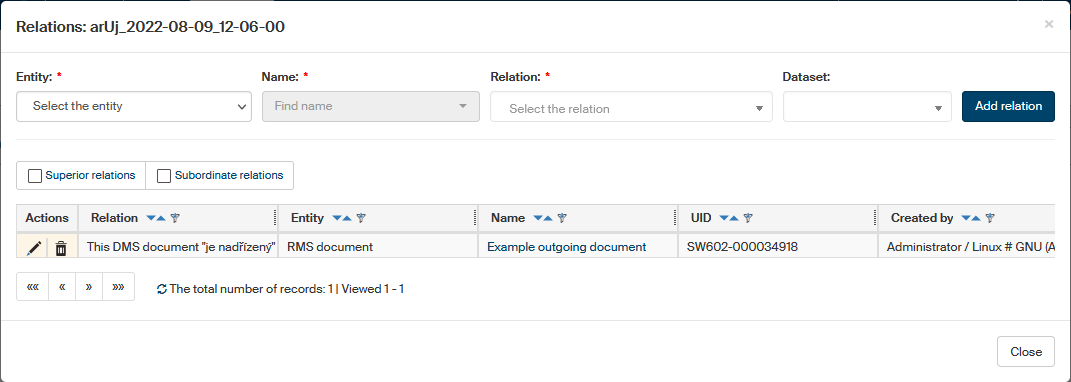
The list of entries in the window (metadata) can be exported in a file of a selected type (CSV, PDF, XML, XLS, XLSX or HTML). Select the format using the option in the bottom right corner and then click Export to run the process. If you select the ZIP format, the resulting export will include a metadata list in CSV or XLSX and a folder with the actual files.
Creating a new storage unit
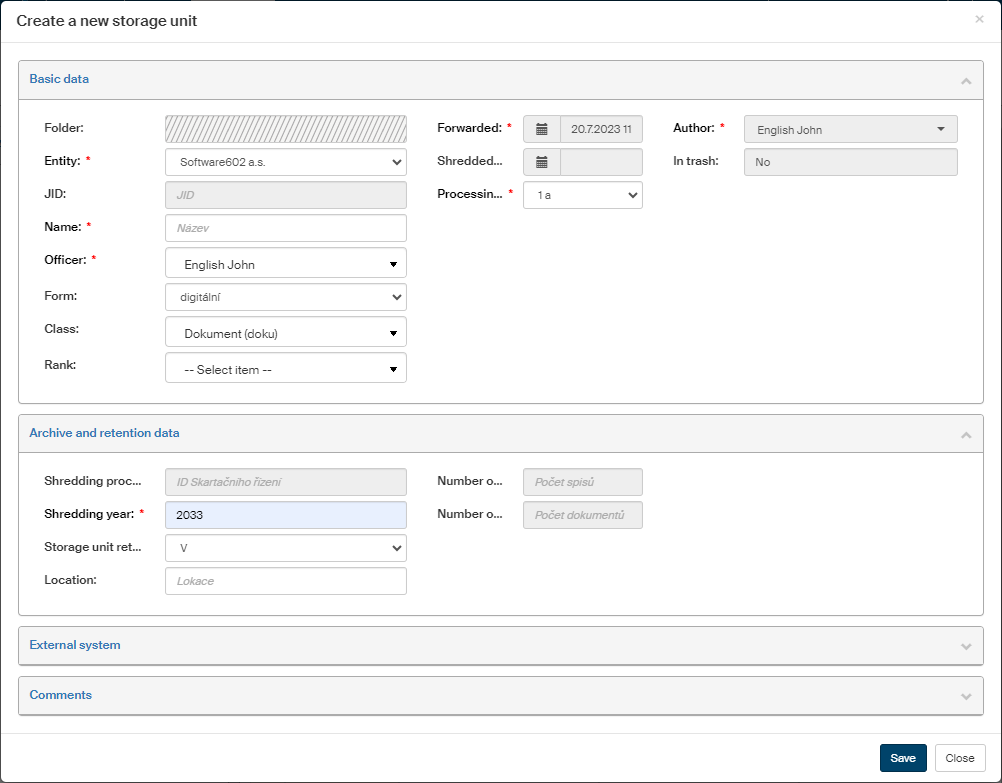
A storage unit is a virtual analogy of a filing box. Each storage unit has its name and other metadata assigned. The metadata include:
-
organizational entity,
-
shredding year,
-
retention code.
Only records and documents with the same values for the above listed trio of metadata as the storage unit can be placed in the unit.
You can use storage units to organize the archive as you prefer, for example by department. If you do not need to organize the archive, creating 3 storage units every year is enough: one for each retention code (A, S, V).
You can create a new storage unit individually and set up its detailed metadata. Another option is to create the units in bulk and automatically insert the corresponding entities in them.
Creating a storage unit individually
-
Display the list of storage units in the Archive.
-
In the folder list on the left, select the folder where to place the new storage unit. This step is required, you cannot create a unit in the overall list.
-
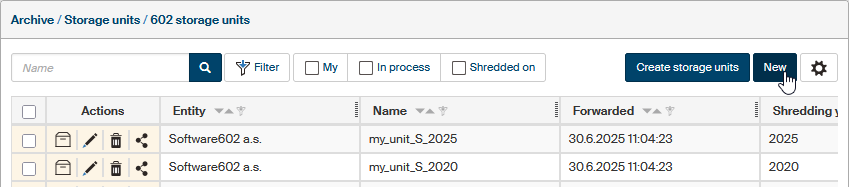
Click New above the list of units.
-
In the dialog Create a new storage unit, fill in the metadata for the unit. Metadata marked with an asterisk is mandatory.
-
Click Save.
Creating storage units in bulk
This way you can create more storage units at once for various combinations of years and retention codes. FormFlow then automatically places the corresponding archived entities (files, documents or records) in them.
-
Display one of the Archives lists: Files, Documents, Records or Storage units.
-
To further narrow down the list of archived entities, select a specific folder from the list on the left or use Filtering.
-
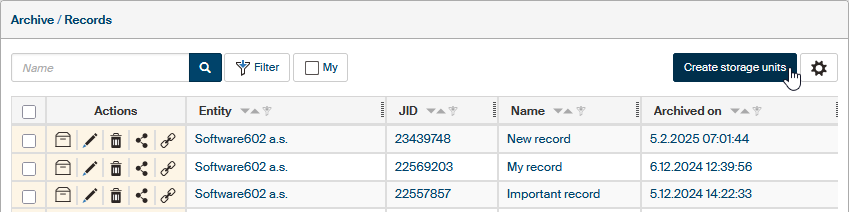
Above the list of entities, select the button Create storage units.
-
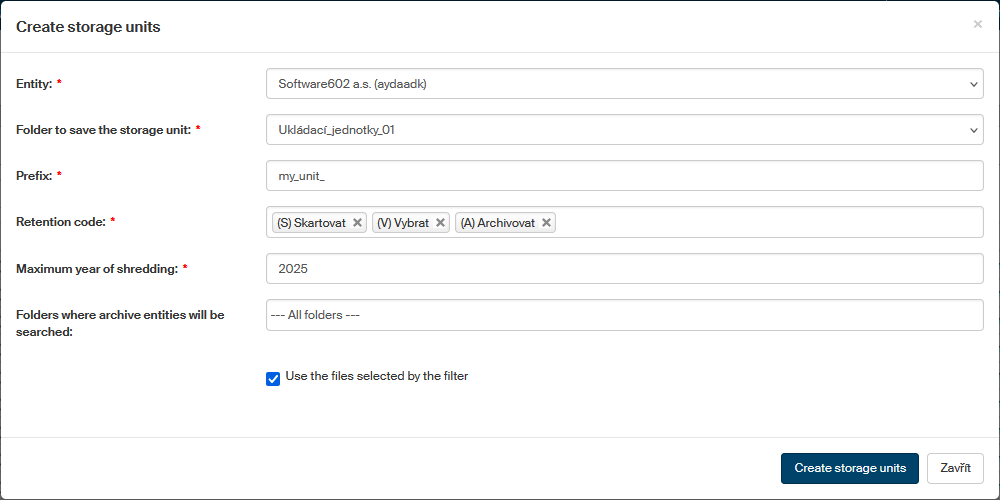
Enter the following details in the Create storage units dialog:
-
Organizational Entity who will own this unit or units.
-
Folder to save the storage unit – a folder in the storage unit structure where the new units will be placed.
-
Prefix – the fist part of the unit’s name; the retention code and shredding year will be appended to it.
-
Retention code – a storage unit will be created for each retention code (or its combination with a year, if needed) listed in this field.
-
Maximum year of shredding – the storage unit or units will be created for entities with the given year of shredding, and/or for older ones if there are such in the archive.
-
Folders where archive entities will be searched – select which entities to automatically place in the storage units.
-
If you have opened the dialog from one of the Files, Documents or Records lists, only entities of that type will be placed in the storage units. You can use this field to further specify a folder whose contents you want to use.
-
If you have opened the dialog from a folder in one of the Files, Documents or Records lists, this field will not be displayed. Archived entities found in this specific folder will be placed in the storage units.
-
When creating storage units in the Storage units list, you can work with all entity types at the same time. You can use this field to further specify a folder whose contents you want to use.
-
-
Use the files selected by the filter – only archived entities currently selected with the filter will be placed in the new storage units.
-
-
Select the button Create storage units. Creating new units and placing entities in them may take a while, but it runs in the background, so you can continue working with FormFlow in the meantime.
Entities in the trash
The Actions column in each list of entities provide the button Move to trash.
Click it to delete the entity, so that it won’t be displayed in common folders.
You can look up entities in the trash using the Filter: select Yes in the field In trash.
The following actions are available for entities in the trash using the Bulk operations panel:
-
Empty from trash – the selected entities are finally deleted with no option of restore.
-
 Restore from trash – the selected entities are moved back among common entities in their original archive folder.
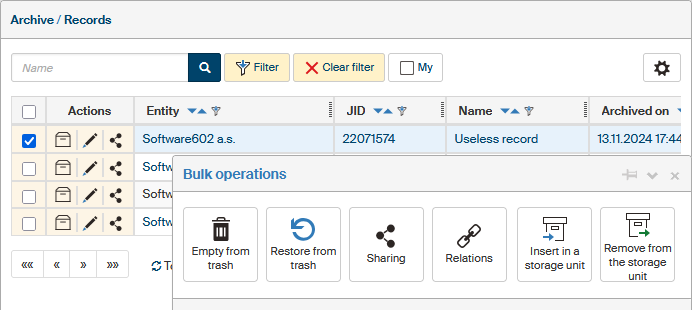
Restoring entities from trash (similarly to the operation of moving entities to trash) is done by a background service. The operation result is not visible immediately, because the request needs to be processed first, and it might take time, for example for records that contain tens or even hundreds of documents (all the files need to be restored, one by one).