Contact list
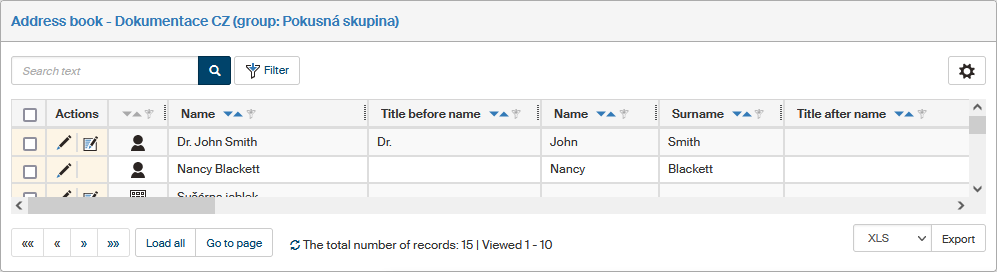
Address book contacts are displayed as a table where every row corresponds to a single contact and every column is one address detail.
-
Actions – the column contains several buttons to handle the entry:
-
 Edit – displays the contact detail.
 -
 Version – displays a dialog window with a list of previous entry versions.
A new version is created when some details are edited (it is not created e.g., with the change of relations, birth number, or labels).
If the button is not available, the entry has not changed since the first save.
Version – displays a dialog window with a list of previous entry versions.
A new version is created when some details are edited (it is not created e.g., with the change of relations, birth number, or labels).
If the button is not available, the entry has not changed since the first save. -
 Relations – opens a window where you can create relations to the entity.
The button is only displayed if it is enabled ().
Relations – opens a window where you can create relations to the entity.
The button is only displayed if it is enabled ().
-
-
Legal form – marks the entry type. Symbol meaning:
-
 Natural person,
 -
 Entrepreneur,
 -
 Legal person,
 -
 Place of business.
-
-
The rest of the columns contain the contacts' identification and address details. You can use filtering to adjust the list of columns, as described in chapter Columns.
A filter is placed above the table, which you can use to look up specific contacts. The filter is described in chapter Filtering.
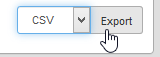
There is an export button placed on the right, below the table of filtered contacts. You can use it to download contacts in a selected format and e.g., process them outside FormFlow.
Select the file format in the first field: you can choose from CSV, PDF, XML, XLS, XLSX and HTML. Then click Export to display the dialog where you can select the name and location for the exported file.