Rule template sets
Rule templates
Rules used in form workflow can often repeat or be very similar. To avoid having to create every rule repeatedly, you can build your own rule library and use it later to create the workflow for individual forms. Rules created earlier can be added to the template library too.
The individual rules in the library are organized in groups, and you can create any number of groups you like. The Stand-alone Templates group is used for the templates that do not have their own group.
Rule template sets
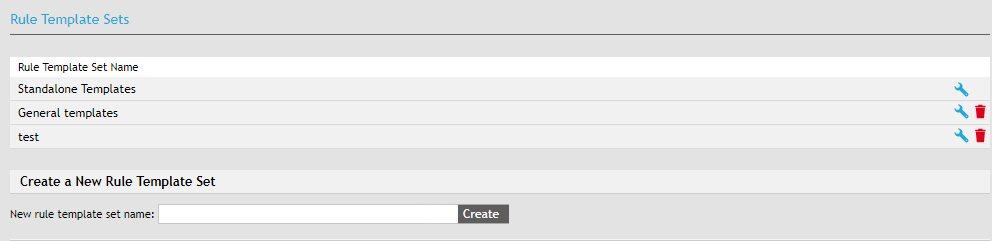
Open the Rule Template Sets screen by going to .
Create a new rule template group by entering its name in the field New rule template set name and clicking Create.
You can delete a group any time by clicking  Delete this rule template set on the corresponding line in the group list.
Click  Modify this rule template set to display the group contents. You can use this screen to order the templates in this group (using numbers in the Order column or the blue arrows placed on the far right), edit () or delete () them.
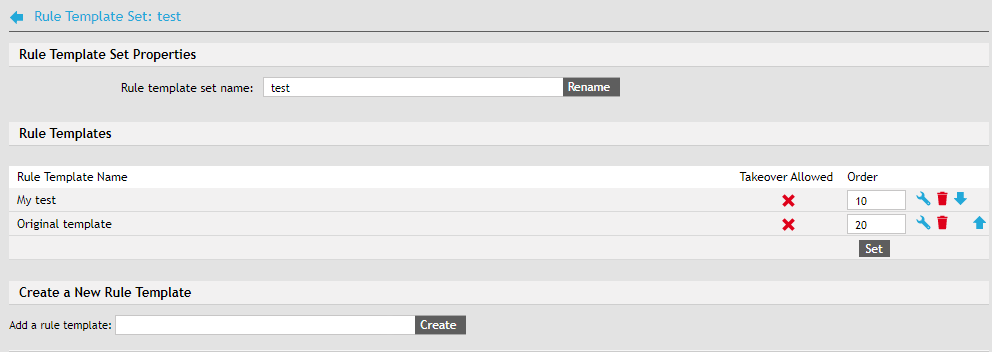
Enter a name in the field Add a rule template and click Create to add a new template in the list. You can then edit it using the button.
Editing a rule template
Click Modify this rule template to display the properties of a selected template.
They are structured the same way as rule properties, and you can also edit them the same way. Editing rules is also described in chapters Setting up the first rule and following.
-
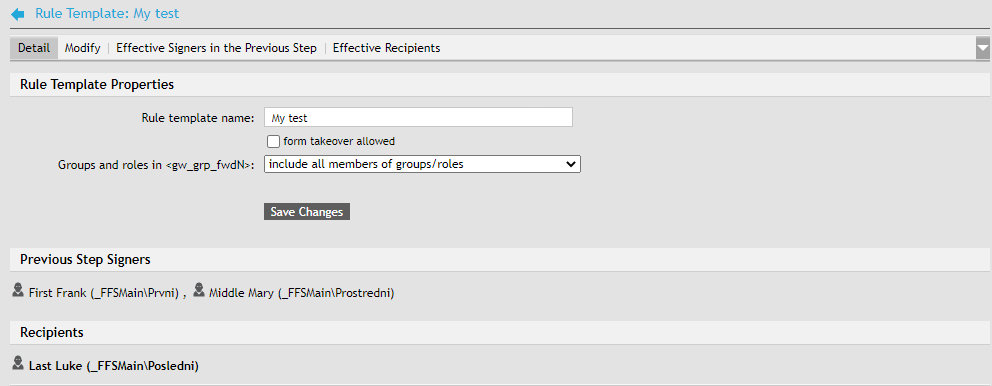
The Detail tab contains its basic properties.
-
The Modify tab displays a list of users, groups and roles who can be set as the signer in the previous step or the recipient.
-
The tabs Effective signers in the previous step and Effective recipients offer a concise list of those who have been assigned these properties. If they received them through membership in a group or role, this detail is also displayed.