Certificates
This section is used to manage access certificates to data mailboxes and certificates for signing automatic replies. A certificate can be stored either in the database server table or in an external certificate store.
On the left panel in the Entities screen (), make sure the entity you want to edit is selected in the Entities list.
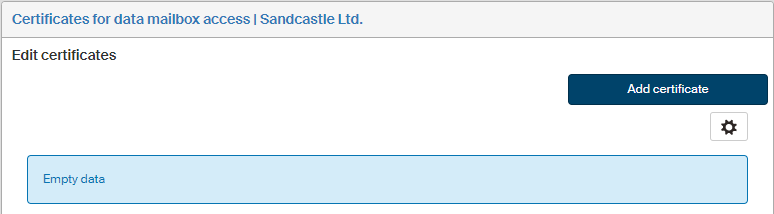
Then go to Menu and click Certificates. The screen Certificates for data mailbox access (entity name) is displayed on the right. Set up certificates here to be used to access the entity’s data mailboxes.
The list is empty by default, and you need to add the certificates there first.
Adding a new certificate
Click Add certificate to display the certificate insertion dialog.
-
Name the certificate in the field Certificate name. This name will be displayed in the certificate list and also in the Data mailbox settings.
-
In Certificate type, select one of the two options: either The certificate will be stored in a database table or The certificate is stored in a Windows store. Other form fields will be displayed based on the option selected here. Both the options are described in the following paragraphs.
The certificate will be stored in a database table
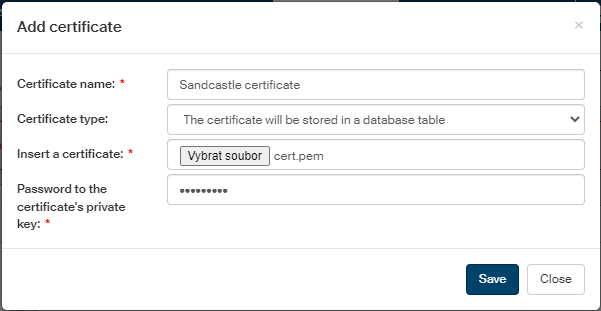
If you choose to store the certificate in a database table, the certificate addition dialog will display the following two fields: Insert a certificate and Password to the certificate’s private key.
-
In the field Insert certificate, click the Browse button to display a file selection dialog and look up the certificate file. The certificate should be in one of the following formats: PEM, P12 or PFX. Besides the certificate, the file must contain the corresponding private key, secured with a password.
-
Enter the private key password in the following field, Password to the certificate’s private key.
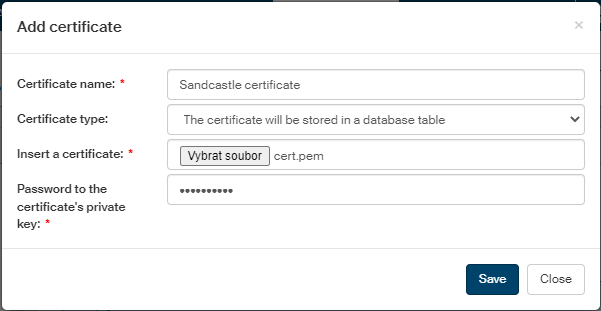
When you have filled in all the fields, click Save to insert the certificate.
The certificate is stored in a Windows store
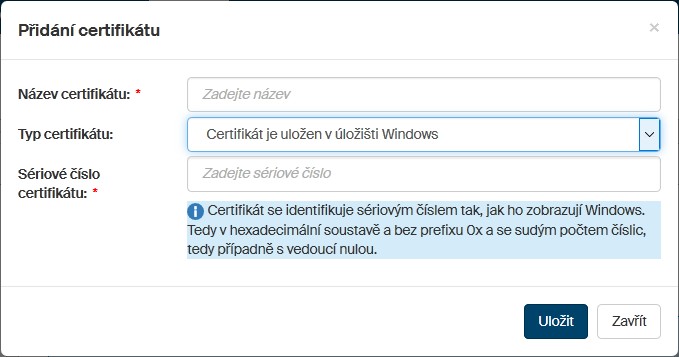
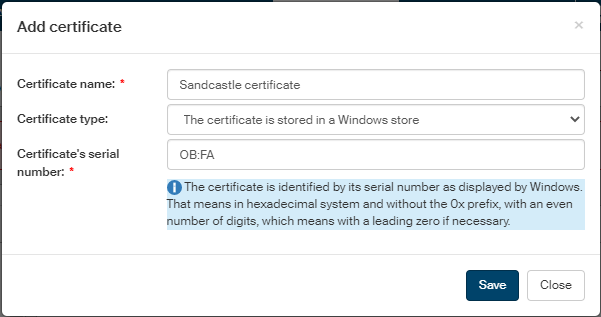
It is also possible to store the certificate in the Windows store. If you select this option, the certificate addition dialog will display another field to specify the certificate. The field is Certificate’s serial number.
-
In Certificate’s serial number, enter the serial number as it is displayed in Windows. This means in a hexadecimal format and without the 0x prefix.
When you have filled in all the fields, click Save to insert the certificate.
The certificate list and editing certificates
The screen Certificates for data mailbox access lists all certificate registered in FormFlow for this purpose. Use the buttons in the Actions column to manage the entries:
-
click
 Edit certificate to display the certificate edit dialog;
 -
click
 Delete certificate to delete the certificate entry.
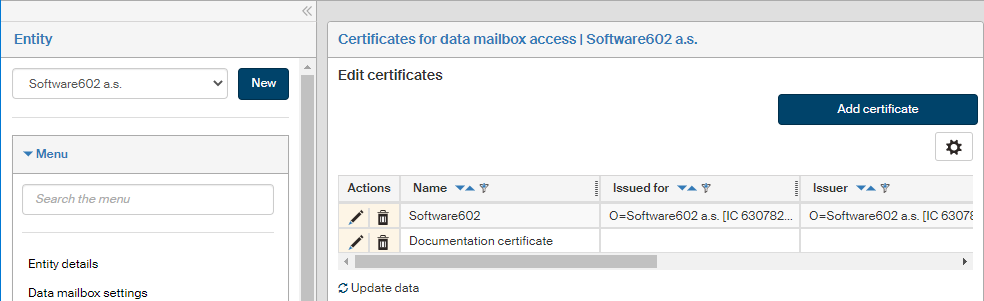
When editing, all the fields can be edited like when adding a new certificate. The dialog reflects whether the certificate is stored in Windows or in the database table.
Click Save to confirm any changes.