Login using 602ID
Registering 602 ID
To set up authentication using 602ID, register and get this ID at: https://id.602.cz.
Then register the public part of your service certificate at the same address. When logged in to the portal, go to and upload the certificate.
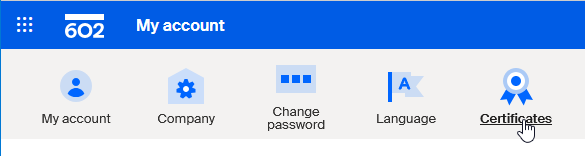
FormFlow settings
Once you have registered your 602ID, continue to set up FormFlow.
-
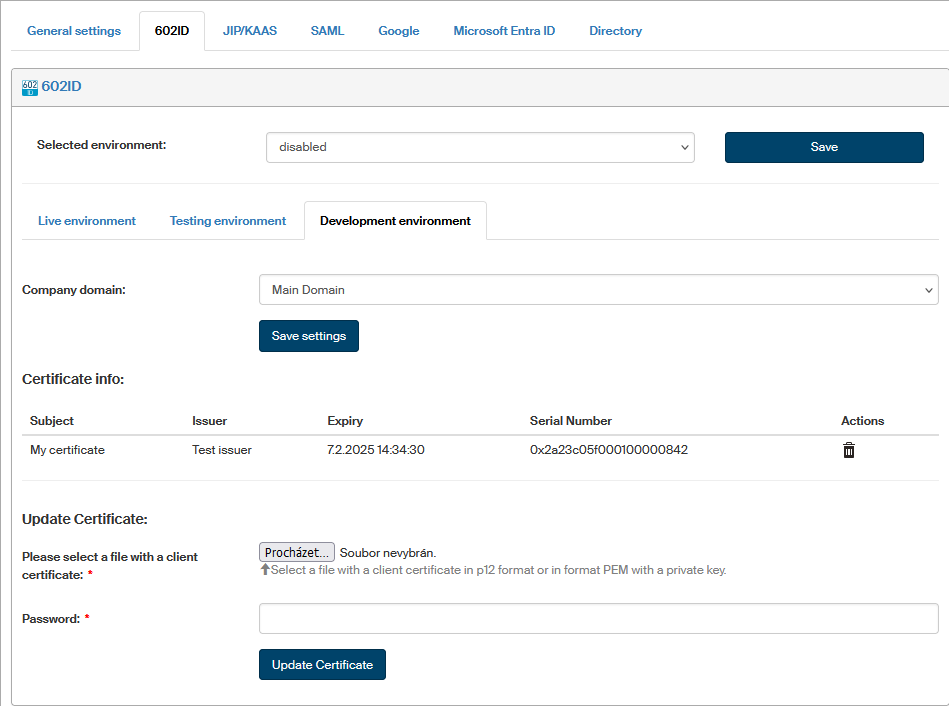
Go to and switch to 602ID tab.
-
In Selected environment, choose which setting below will be used. The option disabled turns off the use of this authentication method.
-
Set up the properties for individual environments (production, testing or development) on their respective tabs:
-
Company domain, where to use the authentication.
-
Install the certificate whose public part is registered in 602ID:
In section Install a new certificate, insert a file with the client certificate in P12 or PEM format, containing the certificate including the private key.
You can get the required format from PFX or P12 using the following command:
openssl pkcs12 -in xxxxxx.pfx -out xxxxxx.pem -nodes -des3Enter the certificate password in the Password field and select Save certificate to confirm. Use similar steps to replace an installed certificate with a new one.
If there is a certificate already installed, you will find its description in section Certificate info.
-
To pass authentication tokens correctly, or redirect them on Sofa end, the URL of the domain where FormFlow is running needs to be added to Sofa whitelist.