Notifications
Use this feature to set up the parameters for notifications sent by the Electronic records management.
On the left panel in the Entities screen (), make sure the entity you want to edit is selected in the Entities list. Then go to Menu and click Notifications. The screen Notifications (entity name) is displayed on the right. The section contains a list of existing notification settings, which you can edit or add to.
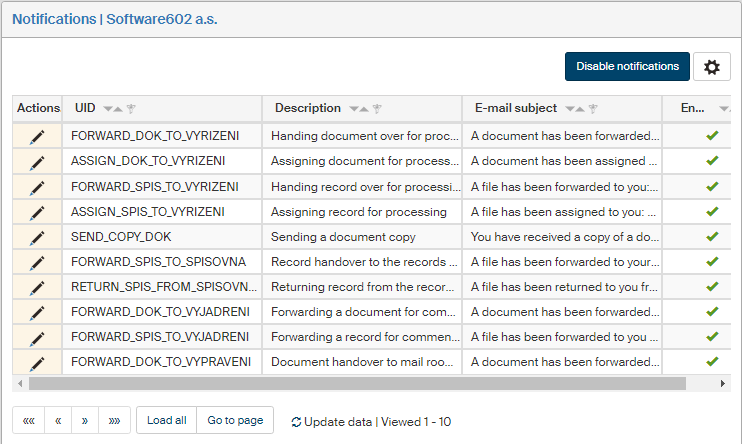
Click Disable notifications to disable all notifications from the records management for the whole entity. The following information is displayed above the list of notifications while they are disabled:

When disabled, the Disable notifications button is replaced by Enable notifications. Use it to enable notifications for the entity again.
Use the button  Edit notification in the Actions column to edit individual notifications – the dialog Edit notification is displayed.
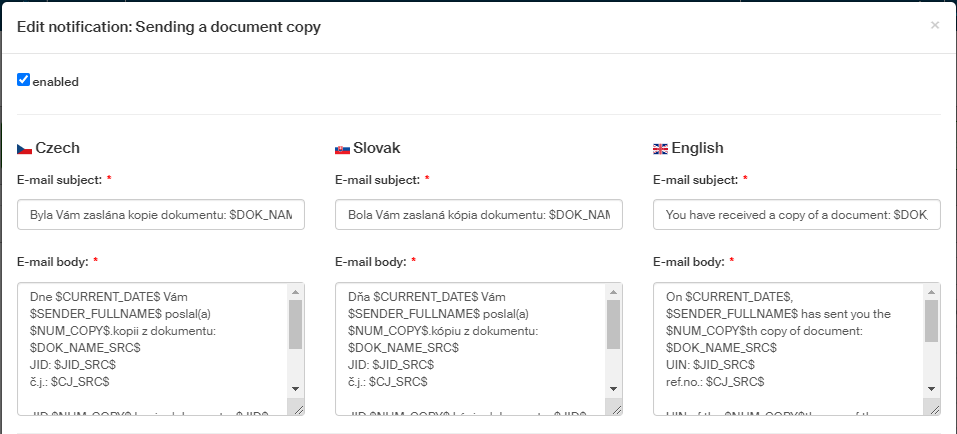
The following controls are available in the dialog:
-
Check or uncheck enabled to enable or disable this specific notification type.
-
In E-mail subject, enter the text to be used as the e-mail subject. You can edit the subject separately for each language.
-
In E-mail body, enter the e-mail contents. There are predefined macros available to use in the text. They are listed in the lower part of the window. You can edit the subject separately for each language.

-
Use the pair of options Do not send to the following users and Do not send to the following groups to select users or groups who will not receive this notification type. Only users and groups assigned to the entity are available in the list.
The following controls are not available for all notifications:
-
The field the document must contain at least one sender/recipient data mailbox. If checked, the notification will not be sent to the selected users/groups, if at least one sender/recipient is a data mailbox.
-
The field the document must contain at least one sender/recipient e-mail. If checked, the notification will not be sent to the selected users/groups, if at least one sender/recipient is an e-mail account.
-
If the field the document must contain at least one sender/recipient paper mail is checked, the notification will not be sent to the selected users/groups, if at least one sender/recipient is a traditional mail address.
-
If the field The sender must be a data mailbox is checked, the notification will not be sent to the selected users/groups, if the message is not sent as a data message.
-
If the field The sender must be an e-mail is checked, the notification will not be sent to the selected users/groups, if the message is not sent as an e-mail message.
-
In field How many hour the user can leave an incoming document unread before a notification e-mail is sent, set the time (in hours) to wait after receiving the message before the notification is sent.
-
In Language of the automatic reply to incoming mail, select the language to be used in an automatic reply.
Click Save to confirm any changes.