Managing server signing certificates
Click  Display certificate in window List of certificate requests to open the window Certificate list with details of your certificates. You can also open the same window by going to .
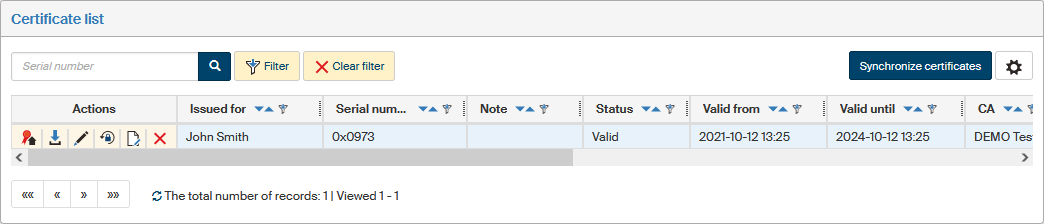
Selecting the default certificate
If you have more than one certificate installed and would like to select one of them as default, go to the Actions column and click the button in the first column –  Select default certificate. The message The default certificate has been set is displayed and the button is hidden from this certificate. You can always change your selection by clicking the button next to another certificate.
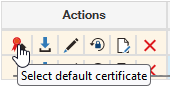

The default certificate will be the one preset in the server signing certificate selection dialog.
Downloading a certificate
Click the button  Download certificate to download the certificate on your computer drive as a CER file.
Changing the PIN
If you need to change the access PIN for your certificate, click  Change PIN. In the dialog Change certificate PIN, enter the current PIN and then the new PIN value twice to prevent any typing errors. Click Change PIN to confirm your selection. The next time you access the certificate, the new PIN value will be expected.
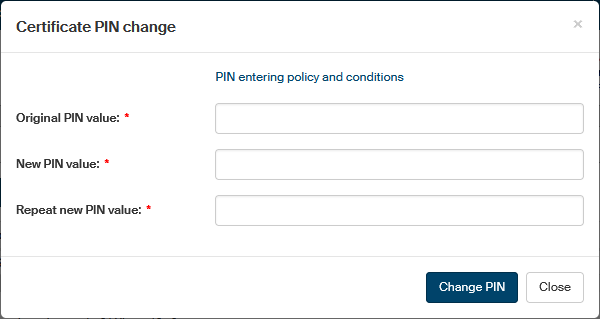
Resetting the PIN using PUK
If you forget your PIN, you can retrieve access to your certificate using the PUK code you have entered in your certificate request. Start by clicking  Reset PIN. In the Reset PIN dialog, enter the PUK value and then twice the new PIN value to prevent any typing errors.
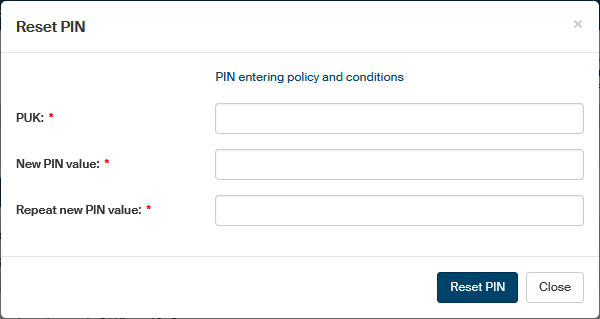
Click Reset PIN to confirm the new setting.
| If you forget both your PIN and PUK, there is no way to retrieve access to your certificate. You will need to invalidate your certificate and request a new one. |
Naming a certificate
Click  Name to open the Name dialog. Enter or change the text describing the certificate in the Note field. Click Change to confirm your selection.
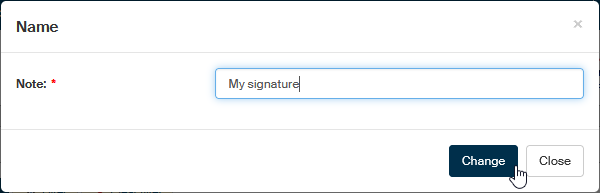
The upper part of the window displays a message The certificate has been renamed and the text you have entered will now be displayed in window Certificate list in the Note column.

Invalidating a certificate
Click  Invalidate to invalidate the selected certificate.
Invalidation means ending the certificate validity before expiry. There can be many reasons to do that, not least of them someone else gaining access to the certificate details.
Invalidate to invalidate the selected certificate.
Invalidation means ending the certificate validity before expiry. There can be many reasons to do that, not least of them someone else gaining access to the certificate details.
| The operation is permanent. |
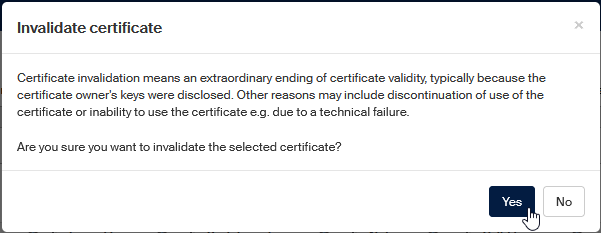
Click Yes and confirm the query to complete the invalidation.
Invalidated certificates show Invalidated in the Status column.
Requesting a multiannual certificate renewal
The FormFlow environment provides the authorized users with the option to request a multiannual PostSignum certificate renewal.
If you have the permissions for the operation granted, you can visit the Certificate list screen () and use the Request certificate renewal button in the Actions column.
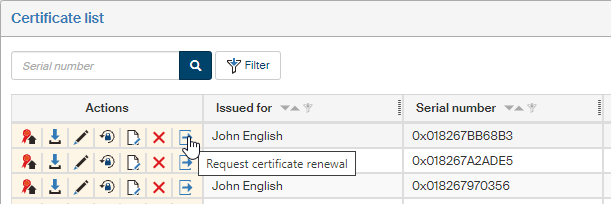
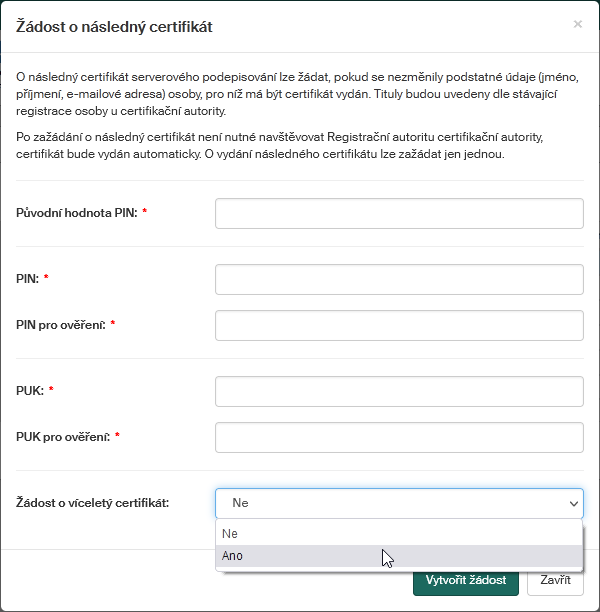
Clicking the button opens a certificate renewal request screen with the option Request a multiannual certificate. The available values are Yes and No (default). If you are not authorized to request a multiannual certificate, the option is not available.
| Issuing a multiannual certificate renewal may be more expensive than issuing a common certificate with one year validity. The price is determined by the contract (yours or your employer’s) with the certification authority. |