Conversion to PDF/A
Open the window Conversion to PDF/A by going to to manage and view files selected for long-term archiving and therefore undergoing conversion to the archival format, PDF/A. Like other windows with document or file lists, this one also supports searching and filtering the displayed files.
The window consists of three tabs:
-
Converted files – displays the list of already converted files.
-
Files to convert – the list displays files waiting for conversion.
-
Invalid conversions – displays files where conversion has failed.
If a filter has been set, only the files matching the filter are displayed.

List of converted files
The list of files under the tab Converted files displays a table with already converted files. The table displays the files' basic identification (File name, Conversion date, Finishing date, Form Code, Form Name and the form serial number (SN)).
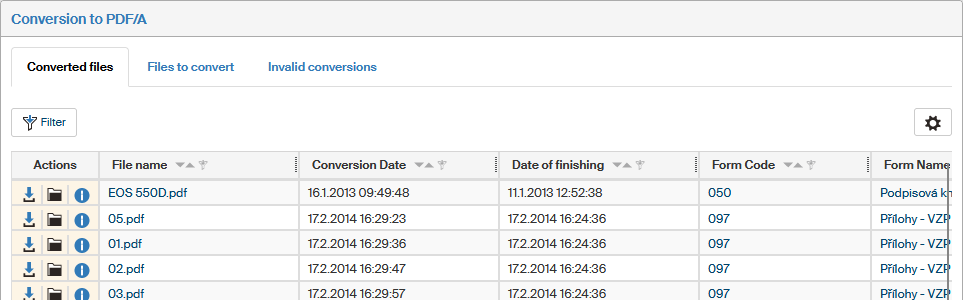
The Actions column on the left contains several buttons to manage the document:
-
 Download file – displays a dialog to save the file.
 -
 Go to process folder – displays the corresponding folder on the Processes tab.
 -
 File information – displays a window with document details (see chapter File information). This button is only available on the tab Converted files.
Use the button  placed on the right above the table to display the filtration and sorting limits for this list.
Filtering
You can adjust the list of displayed files using the filter placed above the file list.
Click Filter and the Advanced search dialog is displayed with the tabs Filter, Conditions and Advanced settings.
Set the required file properties on the Filter tab:
-
File name – displays the files where the name contains the given characters.
-
Form name – displays the files from forms where the form name contains the given characters.
-
Conversion date – only displays the files that were converted in the given period. This option is only available on the tab Converted files.
-
Date of finishing – only displays files from forms finished in the given period.
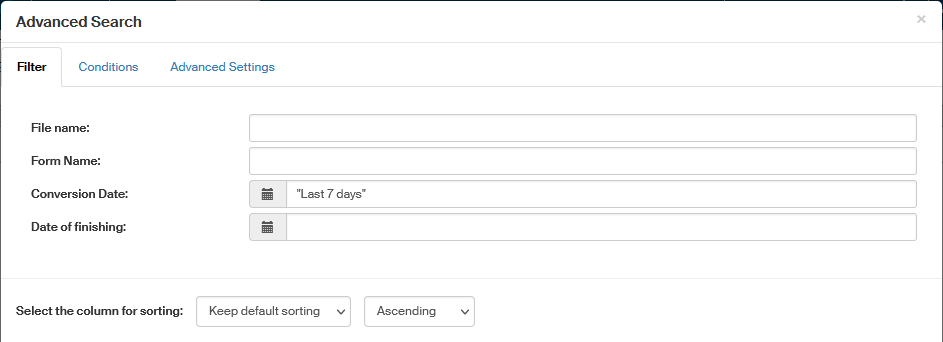
The Conditions tab allows you to set up the search conditions in more detail, such as: look up all files converted before March 2024 and finished in February 2025.
The Advanced settings tab allows you to select what to display when you click Clear filter: either an empty table or unfiltered table.
File information
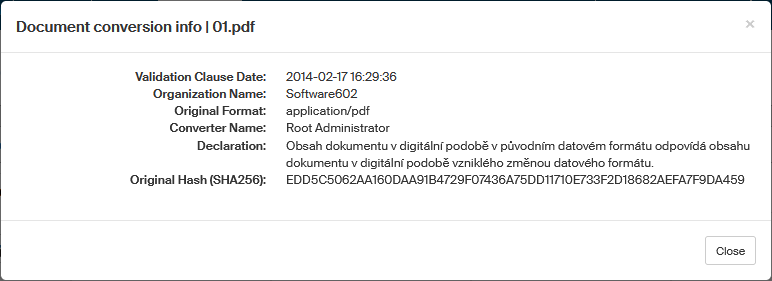
Click in the list of converted documents to display details of the selected document and its conversion:
-
Validation clause date – date of creating the validation clause attached during file conversion.
-
Organization name – name of the organization who performed the conversion.
-
Original format – the original file format before the conversion.
-
Converter Name – the user responsible for file conversion.
-
Declaration – text of the statement verifying that the converted file is identical to the original.
-
Original Hash – hash of the file before conversion.
Files to convert
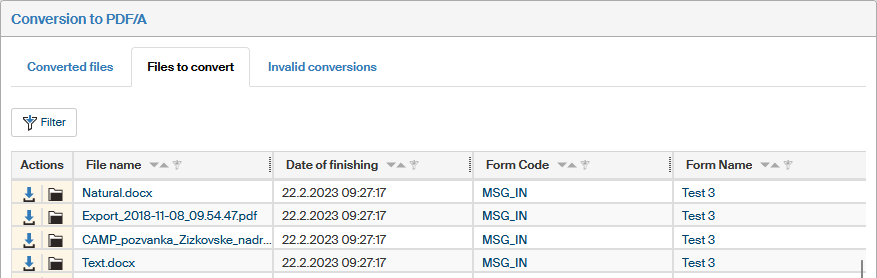
Click Files to convert to display a list of files waiting to be converted to the PDF/A archiving format.
The Actions column on the left contains two buttons next to each entry to manage the corresponding file:
-
Download file – displays a dialog to save the file or open it in a suitable application.
-
Go to process folder – displays the corresponding folder on the Processes tab.
Invalid conversions
If file conversion to the archival format fails, the file is included in the list displayed on the Invalid conversions tab. The list contains similar details as the other tabs, described in chapter List of converted files.
The Conversion status column contains a short error description.
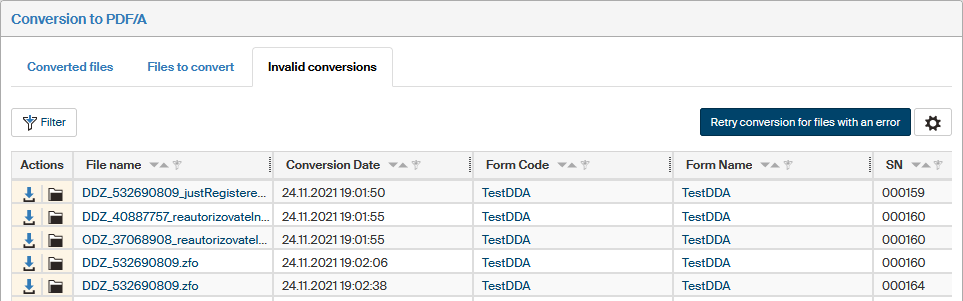
An authorized user (with system operation LTD_ADMINISTRATOR or LTD_EDITOR) can click the Retry conversion for files with an error button on the upper right above the list to start a new conversion attempt for the files on this list.