Setting up the Sofa – FormFlow connector
The connector is used to pass data between FormFlow and Sofa. It can, for example, transfer files from FormFlow to Sofa, where they are signed and then transferred back to FormFlow.
The connector needs to be set up first. The setting is available in section .
Setting up the login details for the external information system
Lists used in the settings below are downloaded from Sofa. This means that you need to start by entering the login details to Sofa. Then select Save to confirm.
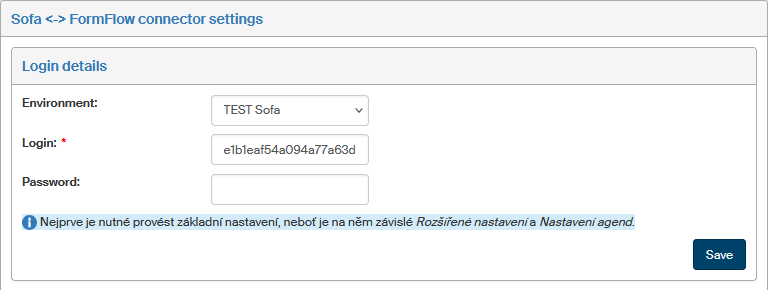
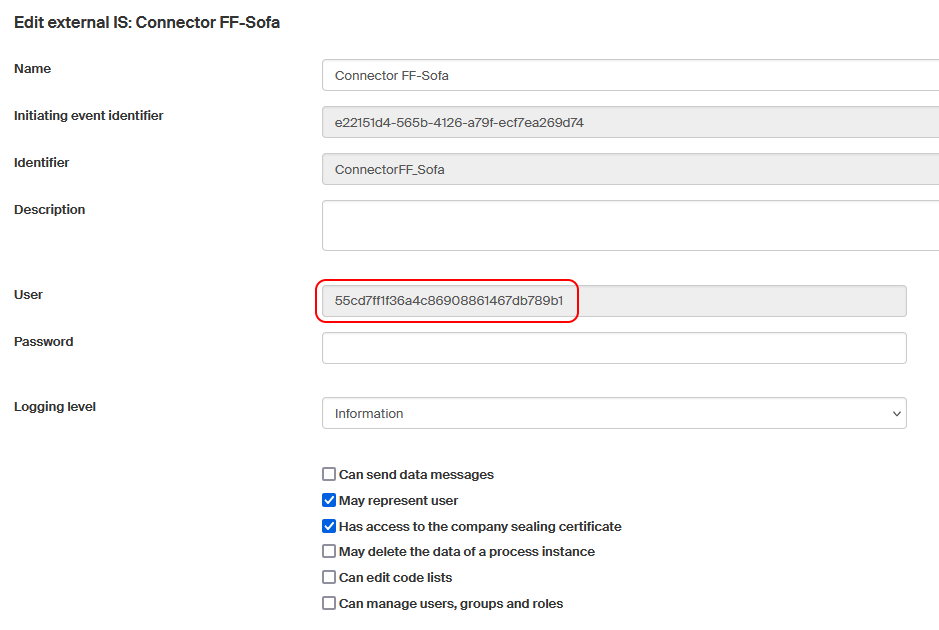
You can find the login details in the detail of the external information system in Sofa administration:
-
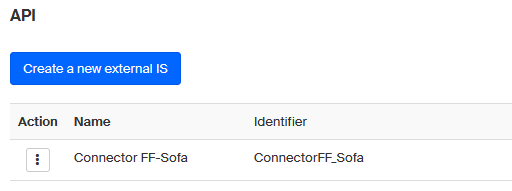
In Sofa administration, go to API.
-
If there is no internal IS for this connector yet, create one.
-
Display the external IS detail. Copy the values from User and Password and enter them in FormFlow in Login a Password fields.
Once the Sofa connection is set up, you can set up the rest of the settings.
Advanced settings
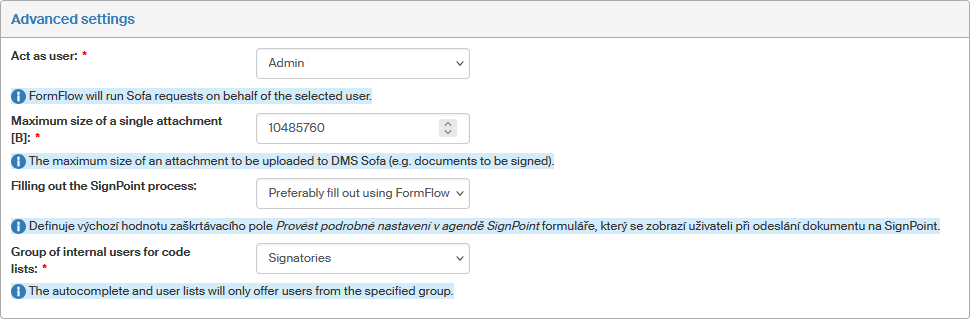
Act as user
In advanced settings, select the Sofa user in whose name to run the external IS' (that is, FormFlow’s) requests. Select the user from the list that contains users from the connected company.
Filling out the SignPoint process
You can also adjust the default setting of the form used for the SignPoint process when signing files. This applies to the bulk operation SignPoint process in the right-side panel in the document section.
-
Preferably fill out using FormFlow – the dialog displays fields to enter all details needed to sign the file.
-
Preferably fill out using SignPoint – the fields are hidden and the details are filled out in the Sofa form.
Users can switch between these two states by checking or unchecking Set detailed settings in SignPoint process. This administration setting determines the default state of the checkbox.
Group of internal users for code lists
Use this field to select the group of users to display in lists. For example when signing files with SignPoint, the signature path lists internal Sofa users. The list is downloaded directly from Sofa based on the group set in this field. The default value is "All users".
Process settings
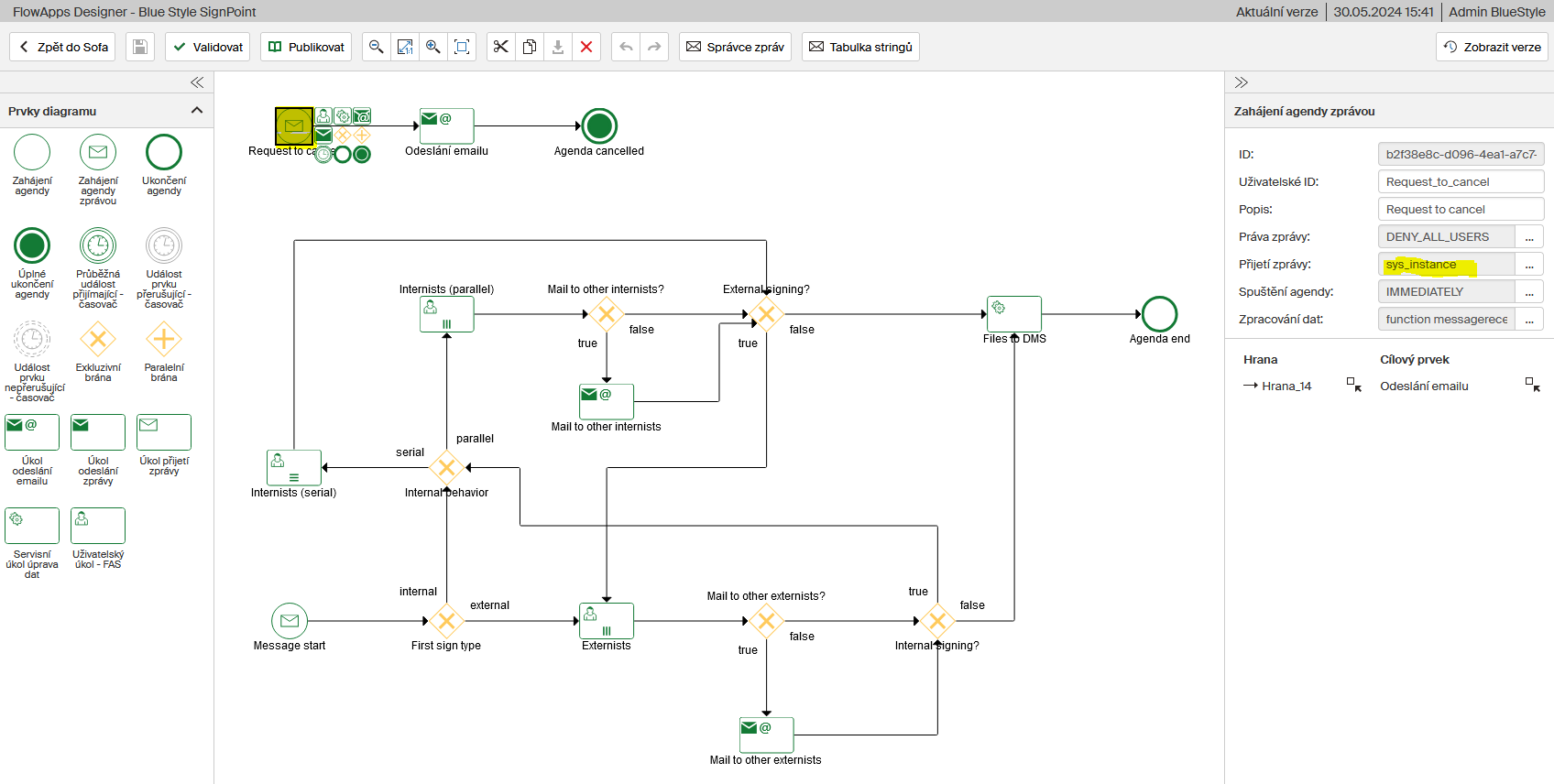
For the connector to run correctly, some details need to be set up for the Sofa processes launched from FormFlow.
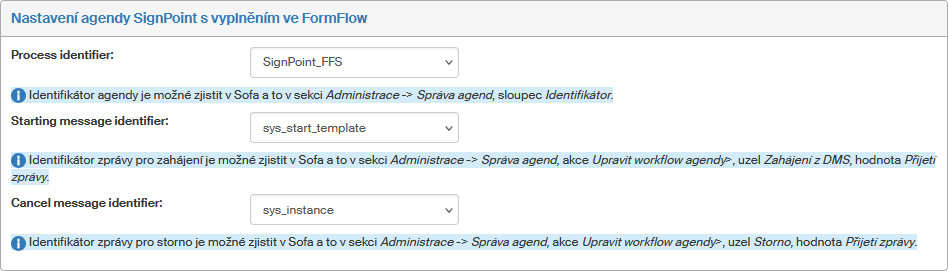
Process identifier
You can find the process identifier in Sofa administration in Process management. Use the value in the Identifier column. The SignPoint processes use the values "SignPoint_FFS" and "SignPoint_API_start":
-
A SignPoint process that is filled out in FormFlow uses the "SignPoint_FFS" identifier.
-
A SignPoint process that is filled out in a Sofa form uses the "SignPoint_API_start" identifier.
Message identifier
Set up the message identifiers for starting and canceling the process as expected by the Sofa process.
You can check the value for the start message identifier in Sofa administration in Process management, action Edit process workflow, node Process start by a message, value "Message receipt".
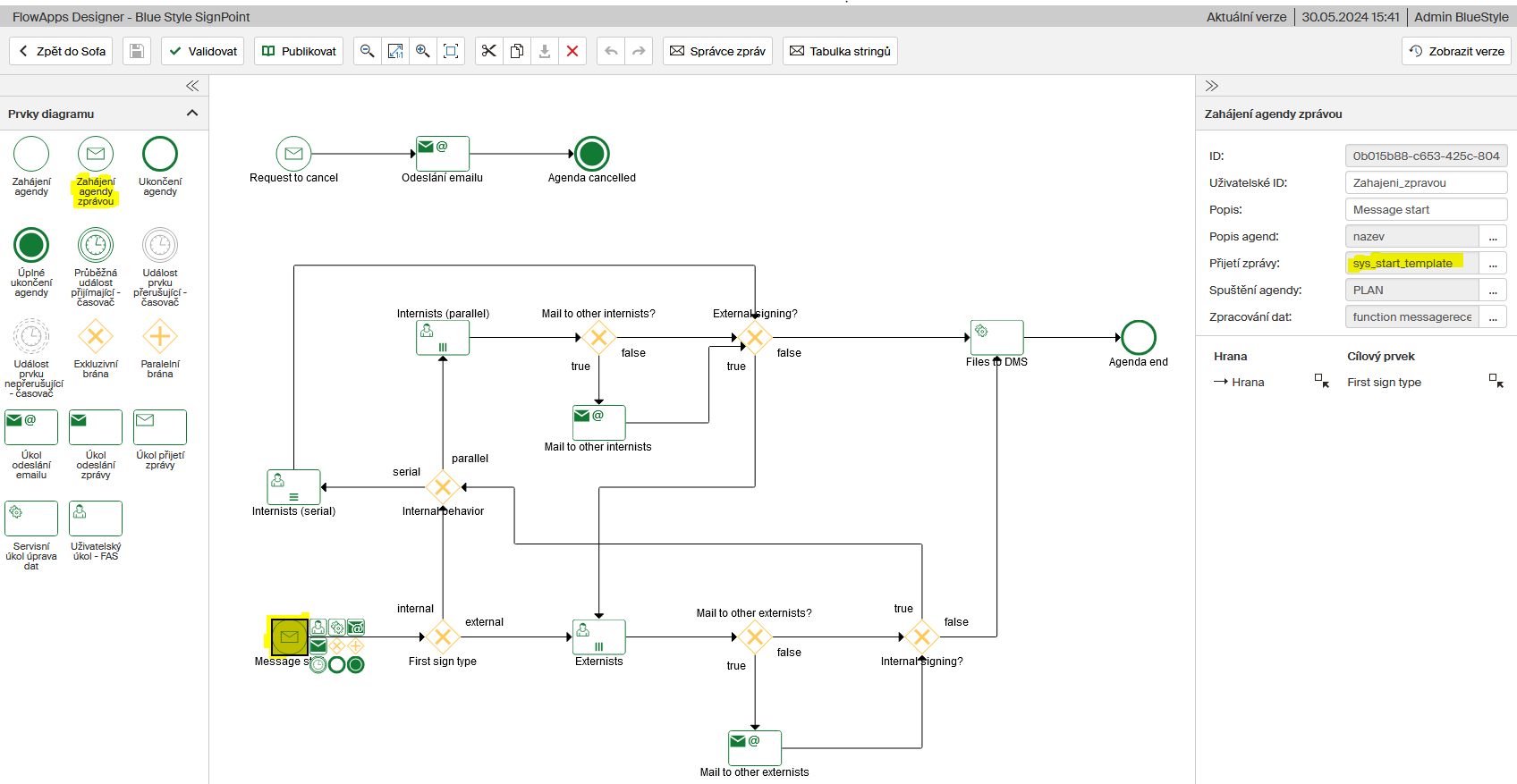
You can check the value for the cancel message identifier in Sofa administration in Process management, action Edit process workflow, node Cancel, value "Message receipt".