Logging in and out
There are several methods of logging in to the application. The application administrator sets which ones are available.
Logging in using a name and password
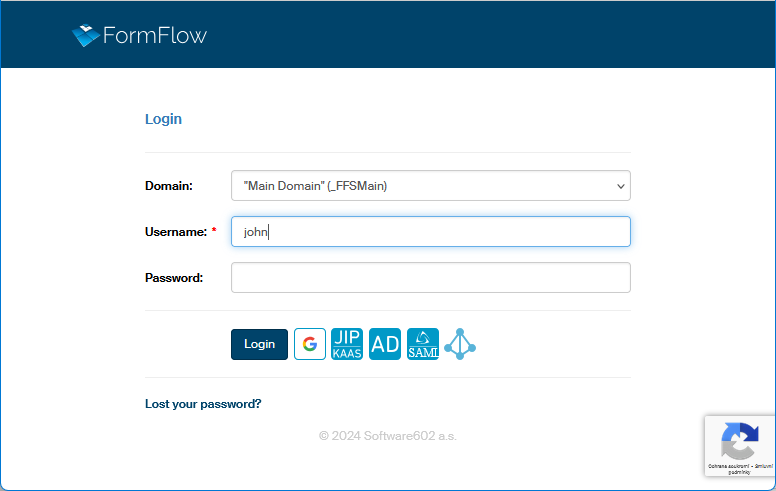
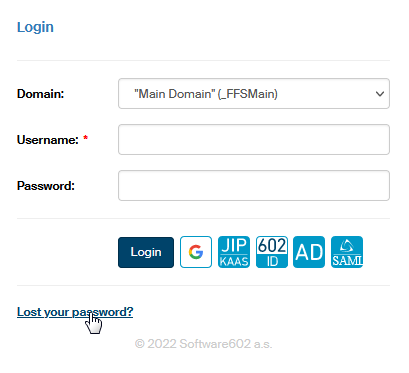
The easiest method of logging in to the application is by entering a username and a password. You will receive these details from the server administrator. Enter the name and password in the input fields Username and Password; if there is more than one domain used on the server, select the appropriate one in the Domain field. Then click Log in.
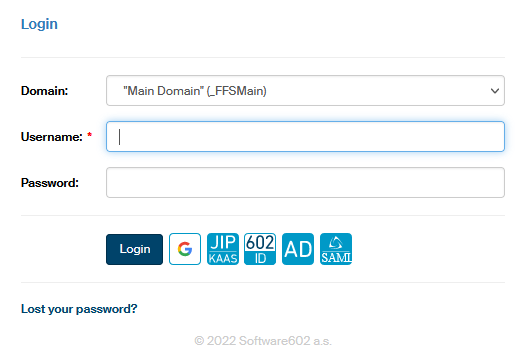
FormFlow checks your login details and if they are correct, you will be logged in.
Password strength requirements
On successful login, FormFlow checks whether your password matches the current password requirements. If the password is weak, the following message is displayed in the upper part of the screen:
"Your current password is too weak, it does not meet all the requirements set for this FormFlow installation. Please change your password to one strong enough as soon as possible".
Go to password settings and change your password to meet the requirements.
Account blocking after incorrect attempts
The administrator can configure FormFlow to temporarily block login options, if a user makes a certain number of incorrect attempts in a row when logging in using a name and password. The number of allowed failed attempts may vary, for example three, one, but also none.
When the allowed limit is reached, the following message is displayed:
"The login has failed. It is not possible to log in to this user account until dd.mm.rrrr, because an incorrect password was used when trying to log in."
When this period expires, you can try logging in again. The blocking period is set by the administrator. It may be just one minute or a whole day – the time when it is next possible to log in is given in the message shown above.
The length of time for which the log-in options are blocked may be progressive – for example after the first unsuccessful login, the account will be locked for a minute, then for five minutes after the second one, 10 minutes after the third one, 12 hours after the fourth one and so on.
If you want to log in during the time the account is blocked (even if using the correct password!), the blocking message is displayed, but the waiting period will not be extended. In the opposite situation (entering an incorrect password again), the waiting period is extended by the next preset value.
Login with Google reCAPTCHA
To improve the security of the login and password reset pages from machine attacks and spam, an administrator can enable Google reCAPTCHA checks.
The currently used version reCAPTCHA v3 does not request any activity from the users. If reCAPTCHA is enabled, its icon is displayed in the lower right corner of the screen and the check runs in the background.
Logging in using automatic authentication
If it is enabled by the administrator, the dialog displays another option, Log in using automatic authentication. If you check it, you will be logged in automatically to the preset user account without having to enter a username and a password. To log in to other than the preset account, enter the username and password in the usual fields.
External authentication
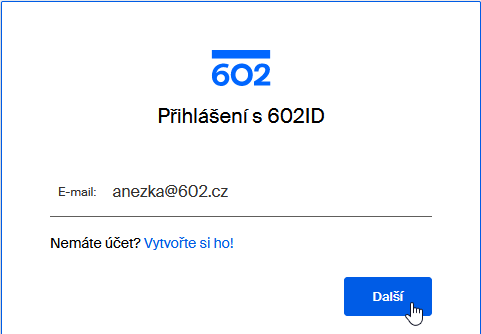
External authentication means logging in using an existing login method to another service, e.g. JIP/KAAS, 602 ID or Google ID. If such an option is enabled by the administrator, a button or buttons with links to the respective services are displayed next to the Login button.
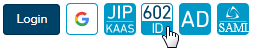
Click the external service button to display this service’s login page. Enter the required login details here and confirm them. When you are logged in, you will be redirected back to FormFlow.
Logging out
If you are logged in, you can log out again by clicking the  Log out button near the upper right edge of the window. FormFlow then switches to anonymous mode, but any time it is possible to log in back again as the same or another user.

If you are not active in FormFlow for a specific time (the default setting is 60 minutes), you will be automatically logged out for security reasons. To continue working with FormFlow, you will need to log back in again.
Switching between user accounts
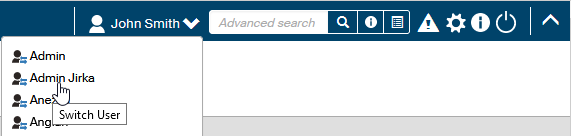
If a user account is bound with other accounts, it is possible to switch between them without having to log out and in again. In that case, you can click the  Switch button to display a list of bound accounts.

To switch, simply select an account from the list and click on the item with a mouse.
For more information on using bound user accounts, see chapter Bound users.
Anonymous user
If it is enabled by the server administrator, FormFlow can be also used by users who are anonymous, that is, not logged in. They can only view one tab, PROCESSES, along with the search function, allowing anonymous users to use the forms the administrator allowed them to access.
Forms distributed to users by e-mail or downloaded from other websites than FormFlow itself are also used anonymously.
Checking or setting up e-mail address
To check or set up your e-mail address, start by clicking My settings in the upper right section of FormFlow window.

On the toolbar, click User Details.

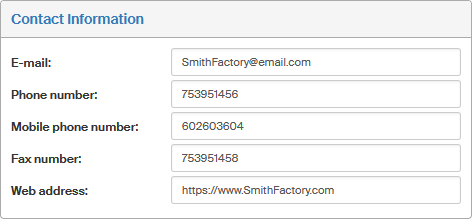
In the next screen, go to section Contact information, check your e-mail address there and adjust if needed. If you have made any changes, confirm them by clicking Save changes.
Requesting a new password
If you forget the password to your account, you can request to be sent a unique link to create a new password. To request a new password, click the link Lost your password? placed at the bottom of the login dialog.
When you click Forgotten password, FormFlow will display the Password reset screen with information how to request a new password. Enter your username in the field Username.
To improve security against machine attacks, the dialog includes a simple calculation question, such as: "How much is eighteen minus one?" Answering this question is mandatory, and you cannot submit the request without it. The question is random and generated automatically with each page display or refresh.
If you do not know the answer or enter it incorrectly, an error message is displayed, and a new security question is generated.
The security calculation is always displayed and neither administrators nor users can turn this feature off.
Click Send e-mail to submit the password recovery request.
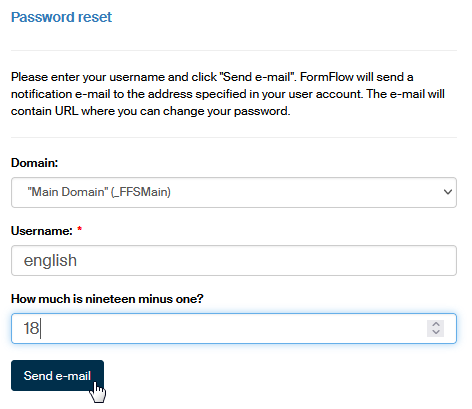
FormFlow will send the reply to your e-mail address. Check your e-mail address settings in the User details screen and its Contact information section. For this reason, it is recommended to fill in your e-mail address in the settings and make sure it is always valid.

A message with a link to change your password will be sent to your e-mail address within a few minutes.
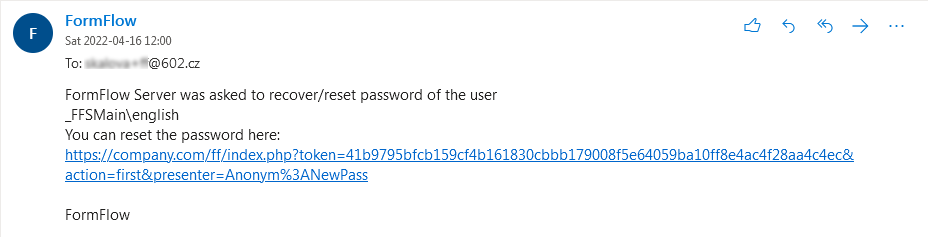
| The link’s validity is limited and when it expires, it will not be possible to use anymore. In such case you can repeat the same steps to request a new link. The expiry time for the links is set by the FormFlow administrator. |

Sending an e-mail does not yet mean the password has been changed. If you remember the correct password at that point, you can still use it to log in. Once you log in successfully, the password change link will expire the same way as if it was too old.
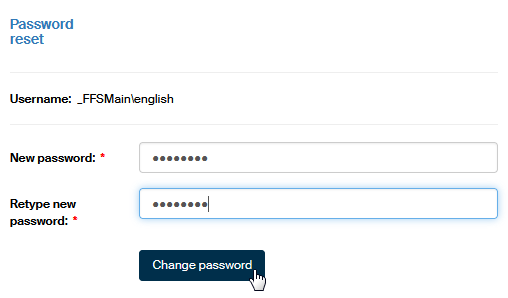
Clicking the e-mail link will display the Password reset dialog for your user account. Enter your new password in the fields New password and Retype new password. Click Change password to confirm the dialog. From now on your original password is invalid and replaced by the password you have just created. At the same time, you will be logged in to FormFlow and can continue your work.