WS configuration
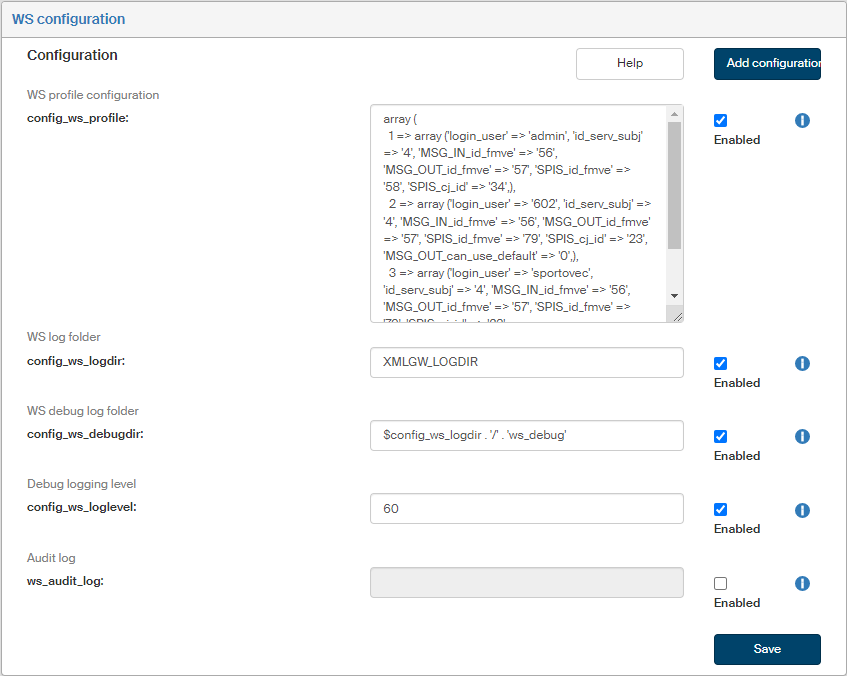
Click the WS configuration entry to set up the ID_profile for web services.
Check or uncheck Enabled next to each configuration entry to set whether it is in use.
Click  next to any configuration entry to display a help window.
-
config_ws_profile
The configuration is entered in two nested arrays. Select a profile ID in the first array index to will be used in the WS request. The second array contains parameters in the format key => value.The following keys can be set:
-
id_serv_subj = entity ID_CERT.
-
login_user = username of the user on whose account the documents/records will be created; if no username is specified, username from the web service authentication will be used.
-
MSG_IN_id_fmve = ID_FMVE for creating an incoming document (MSG_IN).
-
MSG_OUT_id_fmve = ID_FMVE for creating an outgoing document (MSG_OUT).
-
SPIS_id_fmve = ID_FMVE for creating a record (SPIS).
-
SPIS_cj_id = numbering series for creating the record’s file number. Will only be used if the numbering series to create the file number has not been passed on in the WS request.
-
MSG_IN_can_use_default = 1 enables the use of default values when creating MSG_IN, if the values are not passed on in the WS request.
-
MSG_OUT_can_use_default = 1 enables the use of default values when creating MSG_OUT, if the values are not passed on in the WS request.
-
MSG_IN_mail_notify = 1 sends a notification e-mail after creating an incoming document (MSG_IN) to the user assigned to process it.
-
MSG_OUT_mail_notify = 1 sends a notification e-mail after creating an outgoing document (MSG_OUT) to the user assigned to process it.
-
SPIS_mail_notify = 1 sends a notification e-mail after creating a record (SPIS) to the user assigned to process it.
Example configuration for two WS profiles:
array ( 1 => array ('id_serv_subj' => '28', 'login_user' => 'admin', 'MSG_IN_id_fmve' => '2', 'MSG_OUT_id_fmve' => '44', 'SPIS_id_fmve' => '79', 'SPIS_cj_id' => '58', 'MSG_OUT_can_use_default' => '0', 'MSG_IN_can_use_default' => '0'), 5 => array ('id_serv_subj' => '46', 'login_user' => 'admin', 'MSG_IN_id_fmve' => '17', 'MSG_OUT_id_fmve' => '92', 'SPIS_id_fmve' => '83', 'SPIS_cj_id' => '37', 'MSG_OUT_can_use_default' => '1') ); -
-
config_ws_logdir
The folder where WS will be logged; besides an absolute path, you can use the define from FormFlow’s config.php: XMLGW_LOGDIRE.g.: only
XMLGW_LOGDIRorXMLGW_LOGDIR . '/dzhp/'Make sure that the path ends with the
/character and that the folder exists. -
config_ws_debugdir
Debug log folder. Use the path from the “config_ws_logdir” variable, e.g.:$config_ws_logdir . '/debug_ws' -
config_ws_loglevel
Debug log level; if you have configured a folder for debug logging, you can set how detailed the debug logs will be:-
61 - record debug output from all communication and measure time
-
60 - record debug output from all communication
-
50 - record debug output on error - log transferred data
-
40 - errors, warnings, notes and information (default level)
-
30 - errors, warnings and notes
-
20 - errors and warnings
-
10 - only errors
-
0 - no logging
-
-
ws_audit_log
WS creates an audit log for every request in the folder set by the variable$config_ws_debugdir. Every request is recorded in four files: http variables, xml data incoming, xml data outgoing and request duration time. This parameter can disable the creation of audit logs: false = audit logs will not be created.Otherwise, the audit logs will always be created, as long as variable
$config_ws_debugdiris set.
If you are missing a configuration entry from the list, you can add it. Click the Add configuration button in the upper right corner of the screen. The dialog Add configuration is displayed.
Enter the Variable name and Variable value. Select the Variable type from the list, the options are the following: Variable, Define and Array.
Then click Save to confirm the new configuration and its changes.