Permissions to assign
The common method of handing over forms (documents, records), when one user hands the form over to another, who must confirm the takeover first, might be too lengthy in some cases. For that reason, there is also an option to assign the document directly – in that case, the document changes hands immediately. Not everyone can assign document, they must be authorized in this section first.
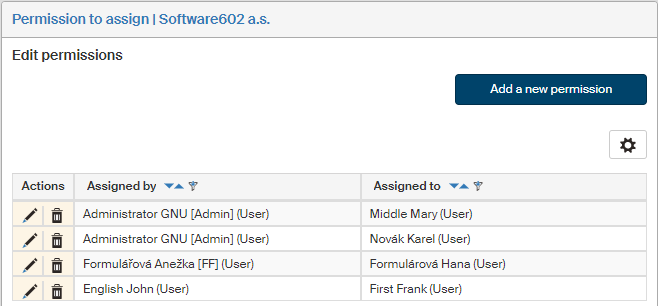
On the left panel in the Entities screen (), make sure the entity you want to edit is selected in the Entities list. Then go to Menu and click Permission to assign. The screen Permission to assign (entity name) is displayed on the right. The section contains a list of existing permissions, which you can edit or add to.
Creating a new permission to assign
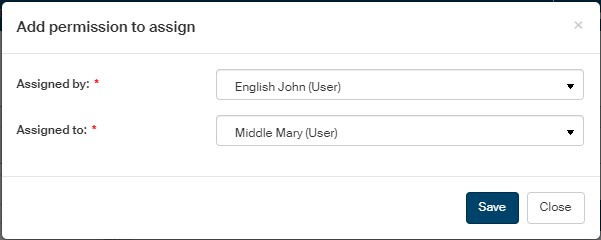
Click Add a new permission above the list of existing permissions to open the dialog.
-
In the field Assigned by, select the user, group or role who will be authorized to assign a document or record to the user selected in the next step. For clarity, the options in the list are marked with information whether it is a user or a group/role.
-
In Assigned to, select the user, group or role who will receive the document or record from the user/group/role selected above. For clarity, the options in the list are marked with information whether it is a user or a group/role.
To confirm insertion or changes, click Save.
Displaying and editing permissions
The Permission to assign screen displays a list of existing permissions. Use the buttons in the Actions column to manage the entries:
-
Click
 Edit permission to display the permission edit dialog. The controls are the same as when adding a new permission.
 -
Click
 Delete the permission to remove the permission.