Processes
This feature is an option to create a new process from the records management forms (Incoming document, Outgoing document) with an attachment. A user can select an attachment and a process to place the attachment in a process automatically.
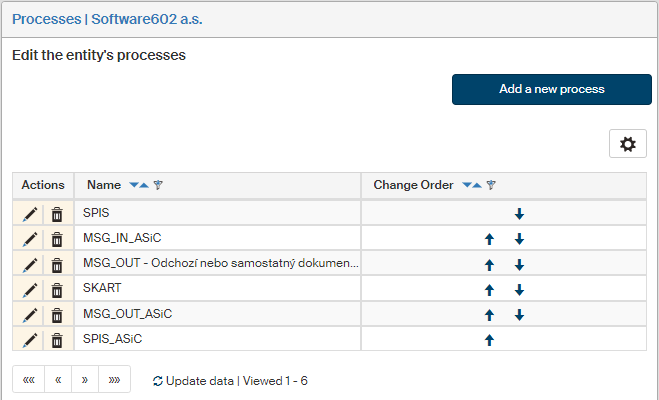
On the left panel in the Entities screen (), make sure the entity you want to edit is selected in the Entities list. Then go to Menu and click Processes. The screen Processes (entity name) is displayed on the right. The section contains a list of existing process definitions, which you can edit or add to.
Adding a process
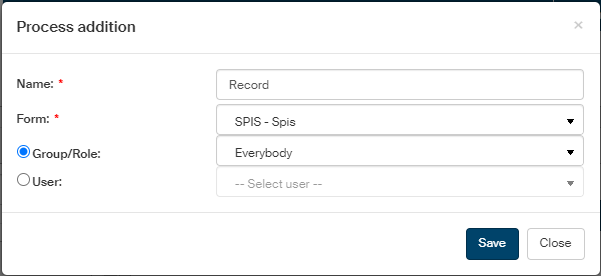
Click Add a new process above the list of existing processes to display the Process addition dialog.
-
The text entered in the Name field should clearly describe the process, e.g. Invoice approval; the name will be displayed in forms in the list of available processes.
-
In Form, select the form template to be applied to the document.
-
Next, select who will be authorized to run the process. Switch between Group/Role and User and then look up a value in the corresponding field.
Click Save to confirm the settings.
Process overview and edits
The Processes screen displays a list of existing processes.
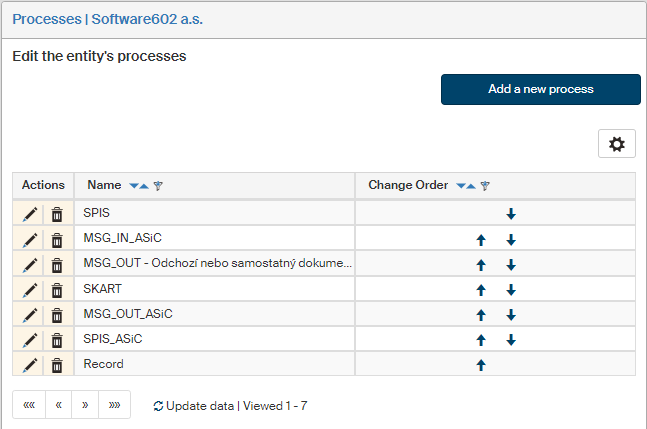
Use the buttons in the Actions column to manage the entries:
-
Click
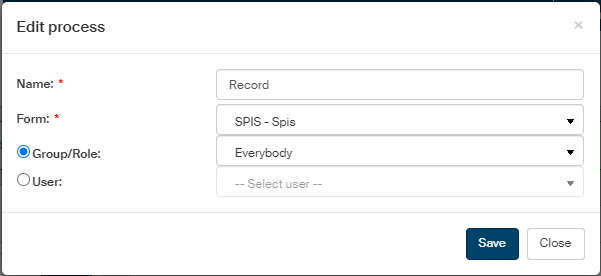
 Edit process to display the process edit dialog.
 -
Click
 Delete process to remove the entry.
 -
Change the order of rows using the arrows in the Change order column.