Dashboard administration
The contents of the Dashboard can be viewed in user or administration mode. Use the button to switch from one mode to another Manage the page, possibly vice versa Disable administration mode. You will find the buttons in the lower left corner of the window.
After switching to the administration mode, the upper right corner of each panel displays several additional buttons:
-
The
 Permissions button displays the screen for granting and removing access permissions to/from users and groups.
 -
The
 Effective permissions button displays a list of users who have been granted at least one of the panel access permissions, either directly or through group membership.
 -
The
 Delete button removes the corresponding panel from the Dashboard window for all users.
 -
The
 Edit button opens the Global Panel Settings dialog, where you can change the name, visibility, and default location of the panel in the window.

Panel permission settings
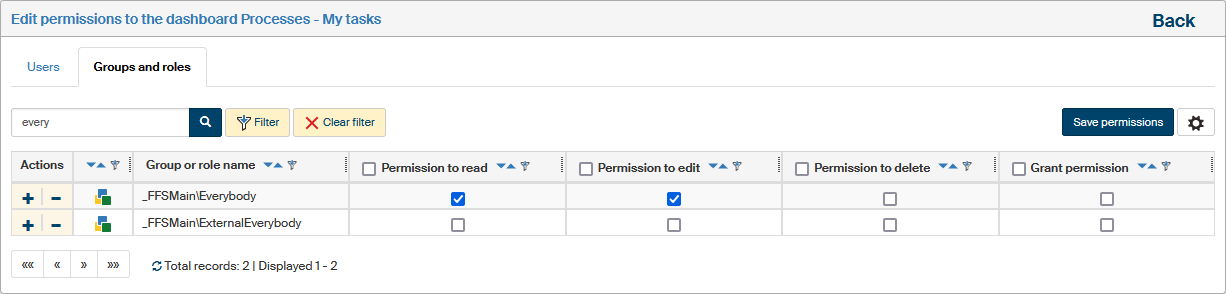
To edit access permissions for any of the panels, click the Permissions button in the upper right corner of the panel. Use the following dialog to adjust the permissions as you need by checking or unchecking the field in the corresponding column.
The dialog is split into two tabs: Users and Groups and roles. You can use the search field in the upper part of the dialog to look up specific users or groups.
Confirm any changes by clicking Save permissions.
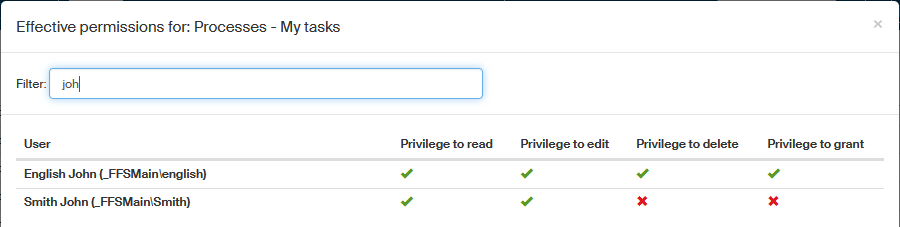
If you just want to check how permissions are assigned, click Effective permissions in the upper right corner of the panel. A table with users and their currently assigned permissions will be displayed. To search in the list, enter a name or a part of it in the Filter field.
Adding a new panel
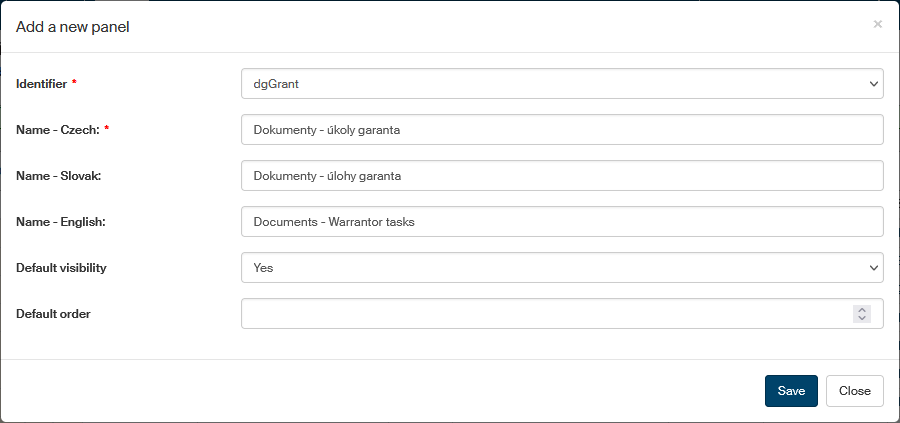
If a panel was removed from the Dashboard window, you can add it back any time. While in administration mode, select the button Add new panel below on the left and then fill out the panel properties.
-
In Identifier, select the panel type identifier.
-
Use the three Name fields to give the panel a name – at least the Czech name is mandatory. The name is displayed in the panel header.
-
If you keep Default visibility set to Yes, the panel will be available to all users immediately after saving.
In Default order, you can optionally select the panel order number, which determines its default location in the Dashboard window.