Locking user accounts on incorrect login
The general FormFlow configuration can be set up so that any user account can be temporarily locked from access and from more login attempts after an incorrect login attempt (wrong password entered).
To set up this feature and its parameters, open the Password restrictions screen by going to .
To enable the set-up password protection parameters as a whole (this includes other features besides locking the account after an incorrect login attempt), check Password restrictions are enabled.

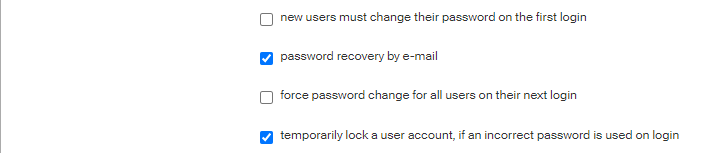
Temporary user account lock based on the parameters is only applied if the checkbox temporarily lock a user account, if an incorrect password is used on login located in the lower part of the screen is checked.
During the lock, the user will be displayed the message Login has failed. It is not possible to log in to this user account until dd.mm.rrrr, because an incorrect password was used when trying to log in. When this period expires, the user may try to log in again.
The following lock parameters can be set up:
-
Failed logins limit – the maximum number of unsuccessful logins that will not yet trigger the user account lock.
-
Temporary lock durations – the lengths of user account locks when the failed logins limit is exceeded. The list of lock durations can be set up so that with increasing number of failed attempts, the lock times increase as well.
Set up both these values in the corresponding fields in the Password restrictions screen.
The option Failed logins limit allows you to set the number of unsuccessful logins using a password that will not yet trigger the user account lock.
If you enter a zero, the account will be locked immediately after the first failed login attempt, the value of 1 means that it will be locked after a second failed login attempt, if the field is set to 2, the account will be locked after a third failed attempt, etc.
Use the option Temporary lock durations to set up the durations for which a user account is temporarily locked after a failed login attempt using a password. The option is a list of semicolon-separated time intervals. Each interval is an integer (number of time units) followed immediately by the character representing the time unit (M = minutes, H = hours or D = days). For example, 30M means the account will be locked for thirty minutes.
An interval placed on the n-th position in the list specifies the duration of a temporary lock after the n-th failed login using a password.
| A failed login is evaluated based on the Failed logins limit setting. If it is set to e.g. 3, the user can fail to log in three times without the account being locked. After a fourth fail, the first account lock is applied based on the first parameter from the lock duration list. |
For example, if the following string is entered in the Temporary lock durations field:
1M;5M;10M;30M;1H;2H;6H;12H;1D
it means that the account will be locked for one minute after the first failed login, for five minutes after the second one, for 10 minutes after the third and for 30 minutes after the fourth. The fifth failed login will lock the account for an hour, the sixth for two hours, the seventh for six hours and the eighth for twelve hours. If the user fails to log in for the ninth time, their account will be locked for a whole day.
If the user wants to log in at the time the account is locked (even if using the correct password!), the lock message is displayed, but the waiting period will not be prolonged. In the opposite situation (entering an incorrect password again), the waiting period is prolonged by the next preset value.
If the user succeeds to log in using the correct password after the lock period has expired, any subsequent failed attempts are counted from the beginning again.
List of failed attempts at login using a password
To view the list of failed login attempts, go to . Only users with the corresponding permission can access the command and view and manage the list.
The usual filtering options and ordering by columns are available for the screen contents.

Click the button Delete logins older than a month to reduce the list to entries from the last month. On successful deletion, the message Older logins have been deleted will be displayed. It is not possible to delete entries newer than one month.
List of temporarily locked user accounts
To view the list of temporarily locked user accounts, go to . Only users with the corresponding permission can access the command and view the list.
To improve user password security, the administrator can set up requirements on using passwords. If option temporarily lock a user account, if an incorrect password is used on login is enabled, the temporary user account lock described here will be triggered for accounts where someone has attempted to log in using an incorrect password. Only an administrator can then unlock the account for the user.
The list of locked accounts can be filtered by the IP address (the REMOTE_ADDR_LCAC entry), login name (DOMAIN_AND_LOGIN_NAME_LCAC) and whether the given pair is currently being locked (that is, based on the value in column ACCOUNT_LOCKED_UNTIL_LCAC – the NULL value means “not locked”, a value of DATETIME type means “locked until the given date and time”). The list basically displays the contents of the XG_LCAC table. The list can be ordered by any column.
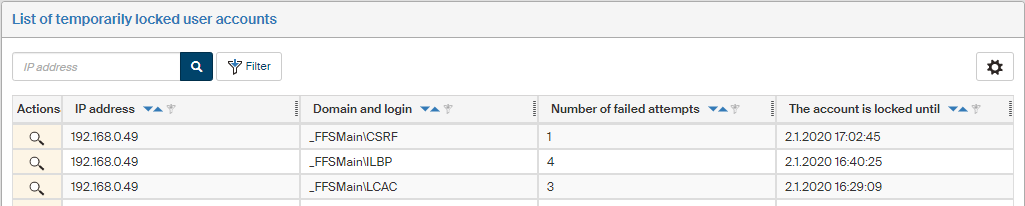
The Actions column contains a magnifying glass button for each entry, which can be used to display a list of failed attempts for the given combination of IP address and login name. The list will be displayed in a separate modal window List of failed logins.
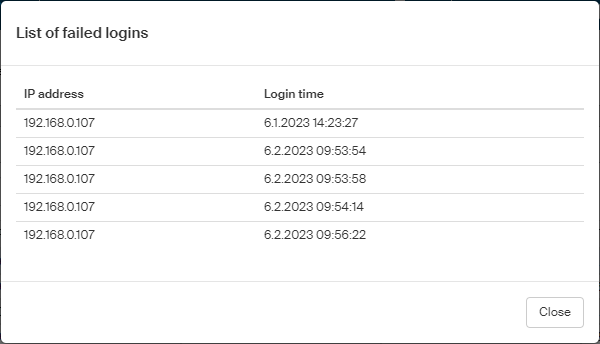
Displaying a specific locked user account
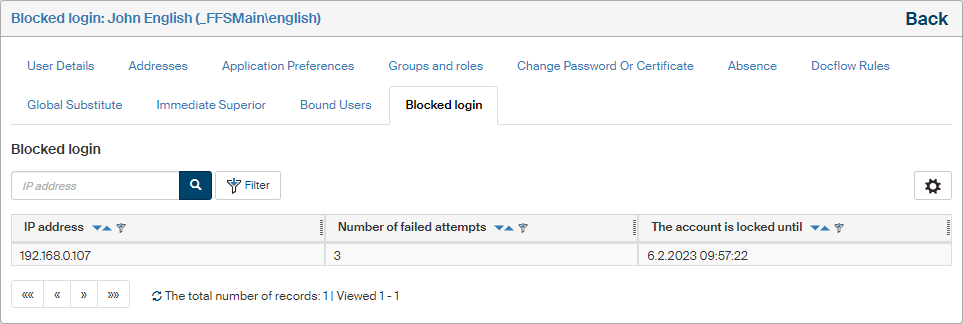
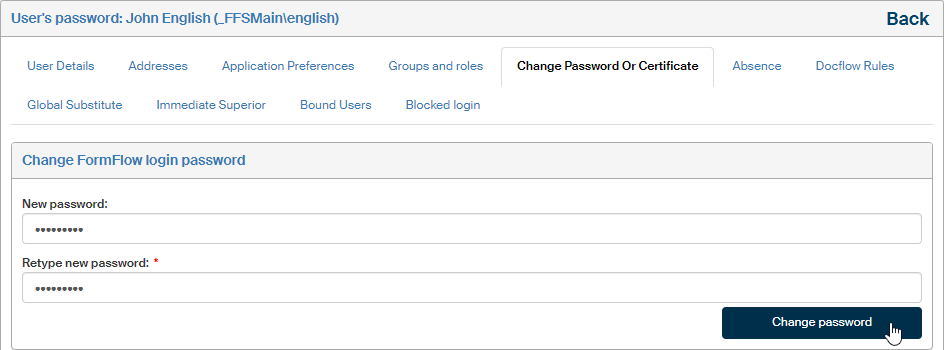
An administrator can view the details of a lock for a specific account in user administration in section Blocked login in the user account details. The lock can be removed by changing the password – then the user can log in immediately.
As an administrator, you can view the list of IP addresses from which login attempts are currently blocked. To view the list, go to . Look up the user in the list (you can use filtering), go to the Actions column and click Edit user.
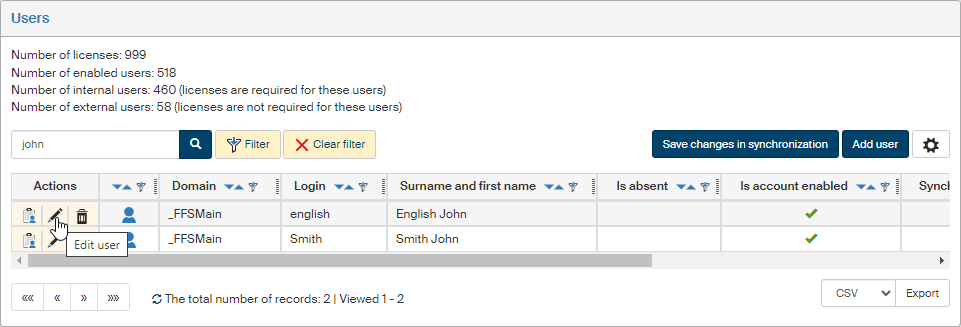
In the user detail, open the Blocked login tab.
The list displays from which IP addresses (REMOTE_ADDR_LCAC) login attempts are blocked, for how long (ACCOUNT_LOCKED_UNTIL_LCAC (note that if the value is NULL, there are no blocks for that IP address) and how many incorrect attempts in a row were made from that IP address (FAILED_LOGINS_COUNT_LCAC). You can use these details to order and filter the list. Only users with the corresponding permission can view the list.