Document-based document creation – parallel process
| If you are not sure, take a look at the difference between process-based and document-based documentation creation, or between sequential and parallel approval processes. |
The process in general
The process can be summarized in the following steps:
-
When the form is filled out and submitted to the process, a copy is created for each of the revision group members at the same time.
-
The users can edit the document contents independent of the others' progress and upload the new version in the folder similarly to the above-described sequential process.
-
When the edits are completed and the process unlocked, the documents from all revision group members are forwarded to the process author. Then the author clicks the Finish process button in the form to finish the whole process.
-
The author opens the process, which is still on their desk, and can see which reviewers have processed the document and which are still working on it. The author can download all the edited documents to create the final document. * Another option is to download the edited documents directly from the list in DMS folder, create the final document version and upload it back to the DMS.
-
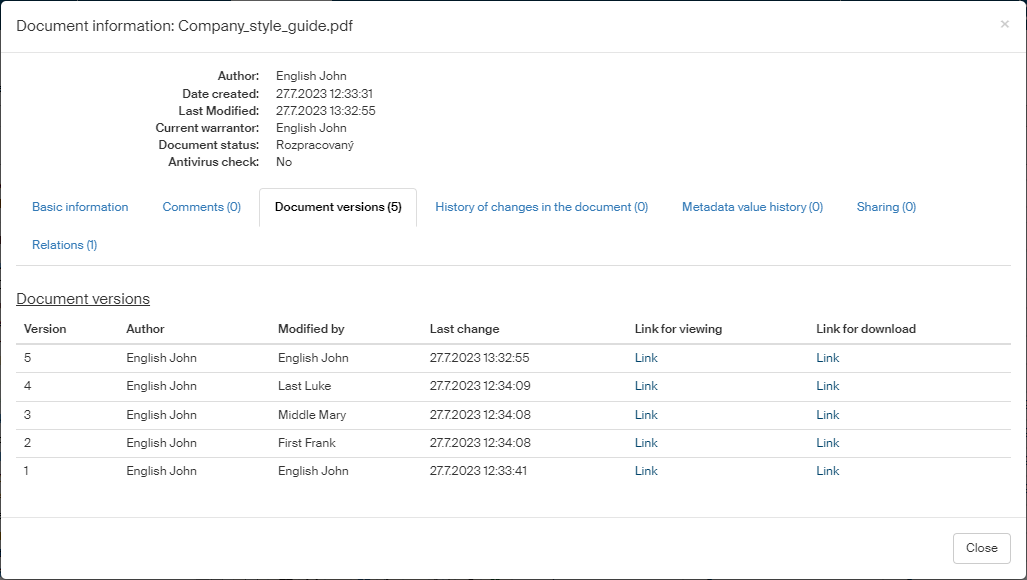
As the process is finished, all the copies created for revision group members are deleted from the document folder, and they are added as versions to the original document (the document used to start the process); each document version shows who was its author (the user who uploaded the edit). These versions can be found in the DMS document folder if you click
 Informace o dokumentu and open the Document versions tab.
The process author fills out the form
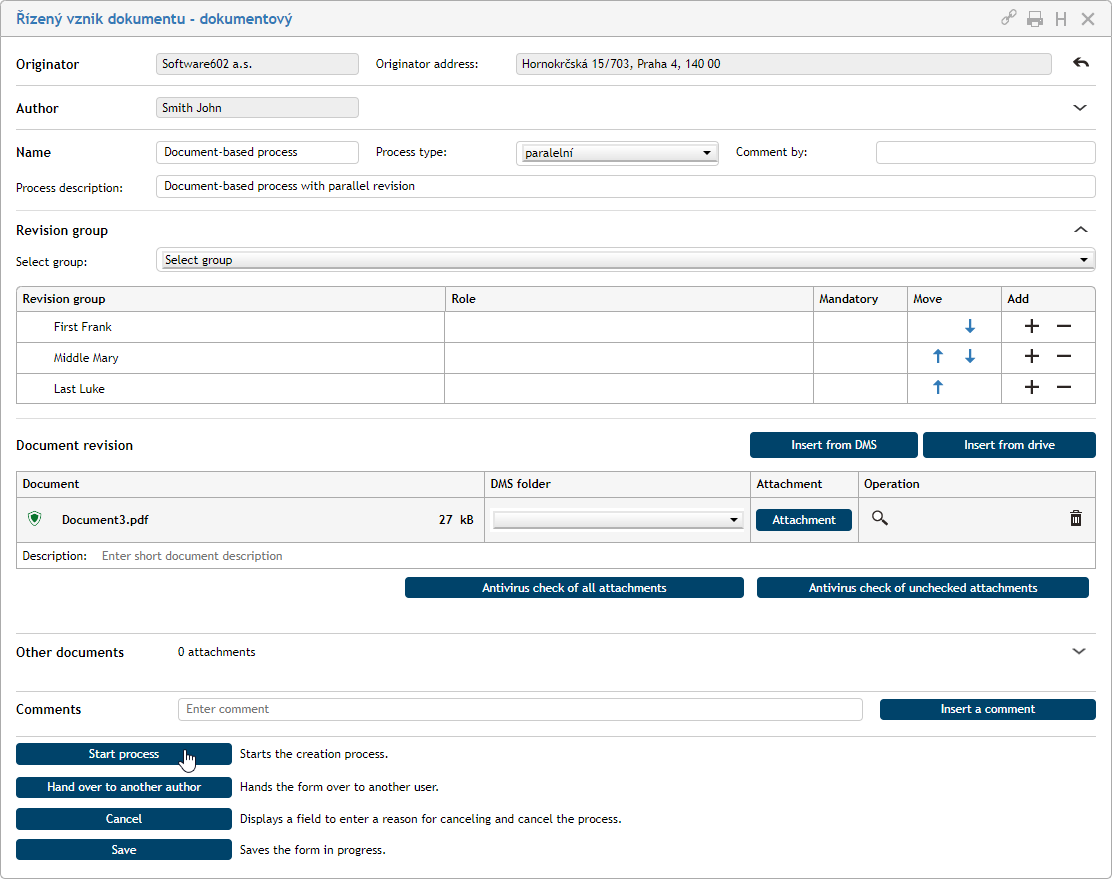
The same as for the sequential process, the process author clicks the PROCESSES tab and then the Folders button on the toolbar. On the left, in section Folders, she sets the folder where she will continue her work. Then the author clicks Create process and selects Document creation – document-based from the list of processes.
This action opens the window Document creation – document-based with the corresponding form. The process author starts filling out the form. The procedure is the same as for the sequential process, the only important difference is the setting of Process type – this time to parallel.

Setting up the revision group, attaching a file (or files) for revision and, optionally, attaching comments and additional files are the same as for a sequential process.
Then click Start process to submit the completed form to the process.
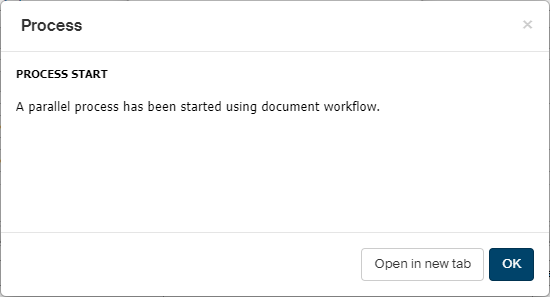
Confirm that you want to start process by clicking OK in the Process query window.
The revision process
The process participants – revision group members – receive an e-mail notification about the request to review the document, along with a link to the document in the document folder.
The author after the process start
The process author can see in the form that copies of the file were sent to all revision group members. Their progress is also displayed here. In the beginning, all of them are shown as Processing the document.
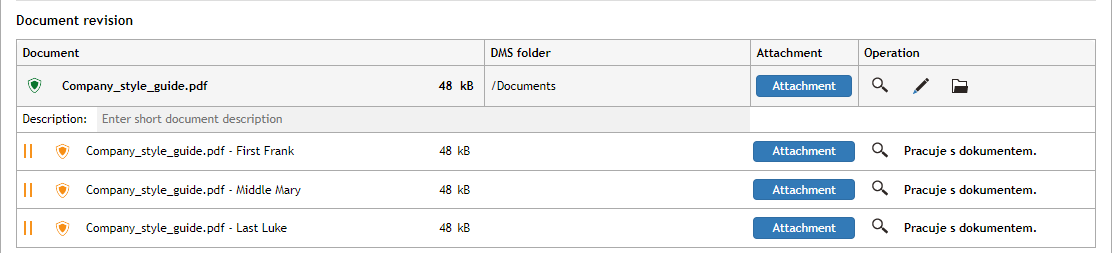
The process author can also see in their document folder the original document version (with a black lock icon) and a copy of the document for each (in our example, three) revision group member (they have not started processing it yet, the lock is black and red).
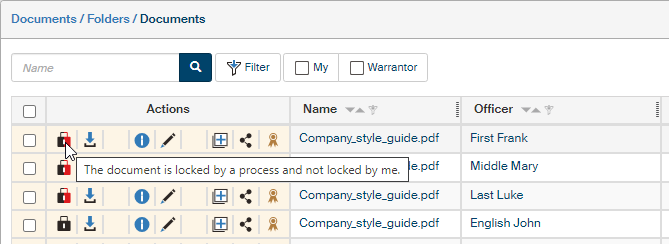
Revision group members processing the document
Each member of the revision group can also see the original document entry and all copies for the reviewers. The copy intended for that specific revision group member has a black and yellow lock; this is the copy the reviewer will use. The button Download for editing is only available for this one copy.
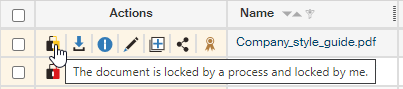
The reviewer downloads the document, edits it and uploads again the same way as with the sequential process.
When the user edits the document and clicks the lock symbol, the document entry in the table changes – the lock symbol turns black and the button Download for editing is not available anymore.

The process author can now also see the document lock in black.

If the author opens the form, they can see which revision group members have completed their work and who has not.
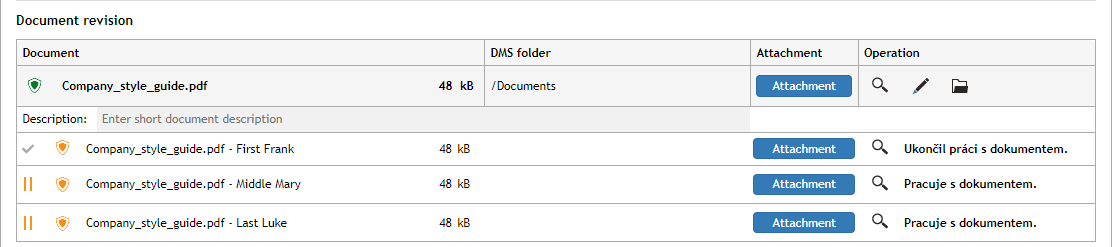
The document is gradually processed by all revision group members.
The form author creates the final version
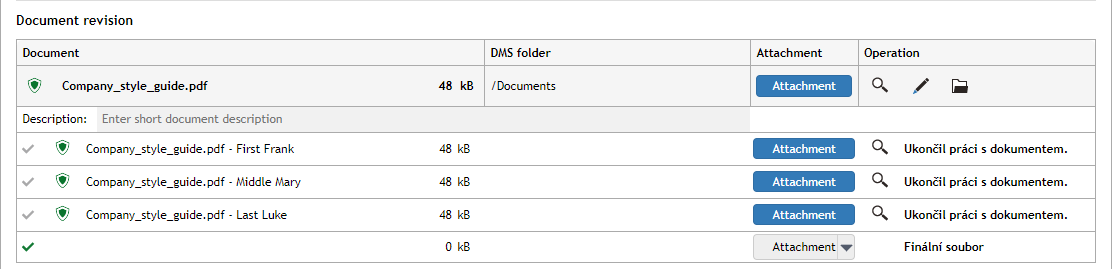
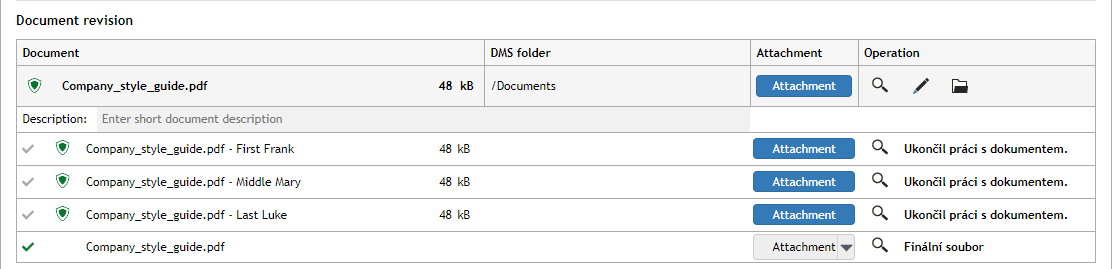
The process author opens the process form and can see that all revision group members are marked Completed processing the document. The author can click Attachment to open or save all versions of the revised documents and use them to create a final document. If viewing the edited document is enough, the author can click the magnifying glass button to display the preview.
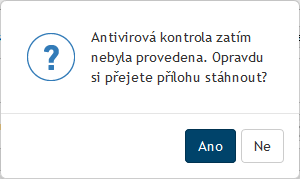
If an antivirus check has not completed for a document, the user will be notified about it with a query asking whether you are sure you want to handle an unchecked document.
Then the author clicks the gray Attachment button to upload the final document in the document folder.
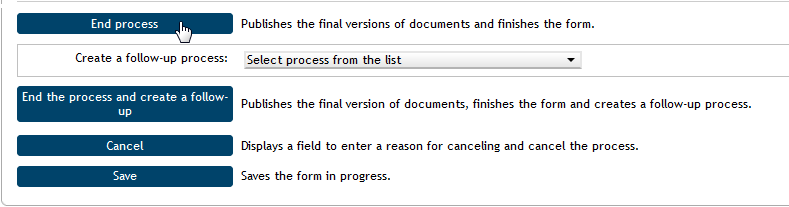
The process can be finished directly (Finish process) or at the same time open a follow-up process, using the final document version in it (Final version and finish the process).
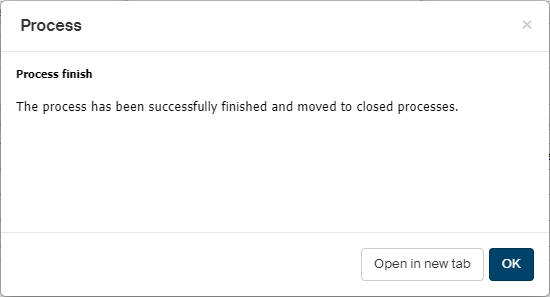
After confirming the query in window Process, the process is finished and archived.
A blue lock for the final document entry in the folder means that the document is now unlocked for editing. Clicking the button Document information in the entry for the original document opens the Document information window.

Click the Document versions tab to view entries for the document versions – the original one, those uploaded by the revision group members and the final one. Links in the two columns Link for viewing and Link for download are available for each version to display the preview or download the document and open it in the corresponding application (in our example, in Word).
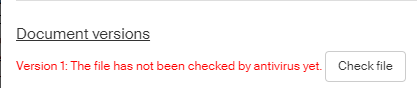
| If the document has not been checked by the antivirus, a message Version 1: The file has not been checked by antivirus yet will be displayed along with the Check file button. |