Editing a document
When processing a document in FormFlow, you might need to edit it and insert the new version in the system.
There are two ways to do it. You can download the document, edit it as you need using the corresponding application (e.g. Word, Excel, etc.), then open the metadata edit dialog and insert a new version of the file (see chapter Creating a new document version). The other option is available for Microsoft Office files and requires a special extension. The document is locked as soon as you download it for editing, so that no one else can edit it before you upload a new version and unlock the document again.
Simple insertion of a new version
This editing method is available for all file types.
-
Look up the document, go to the Actions column and click
 to download the file on your computer drive.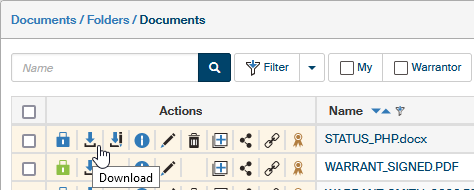
-
Edit the document as you need and save it.
-
Click
 in the Actions column to display the metadata edit dialog.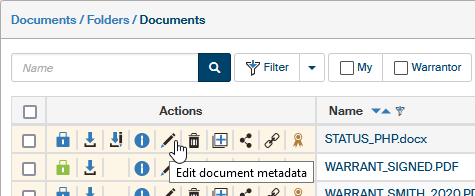
-
The lower part of the Edit document screen contains the controls for creating a new version of the document from the current version. Use the field with the current file name and the New version button to select a new file. Clicking the button will allow you to upload and save an updated file with a new version of the document. The rest of the buttons, placed on the right, are used to handle the current document version (the magnifying glass button to display the document for viewing, the Download and Download for editing buttons allow downloading the buttons on the local computer).

To insert a file with a new document version, click the New version button. A file selection field is displayed. Click Select to open a system file selection dialog, look up the file and insert it. You can also drag the file from another application using a mouse cursor. If you select a wrong file by mistake, you can click
 to remove it from the dialog and then look it up again. You can also insert a file from an existing template: select one by clicking From template. For more details, see chapter Inserting a document from a template.
If a document is long-term preserved (locked by the qualified storage process), new versions cannot be created, and the version insertion controls are not displayed in the metadata edit screen. There is another check performed when uploading the file, and if you are not authorized to insert a new version, e.g., when the document is finished, the operation will be refused. -
To insert a new version of the document, click Save in the bottom right corner of the Edit document screen.
You can click  Document information to open a screen with the same title and check the Document versions tab to view the details of existing document versions.
Downloading a document for editing
You can only edit documents this way if they are Microsoft Office documents, that is, files of DOC, DOCX, XLS, XLSX, PPT and PPTX types. The extension for Microsoft Office – a macro providing these functionalities – needs to be installed on your computer first. You will find it on the application’s (e.g., Word or Excel) ribbon as an additional tab, named FormFlow. For details on this extension and its settings, see chapters FormFlow Office Extension (Windows) and FormFlow Office Extension (macOS).
If you have the extension installed and set up, click  Download for editing to download the document.
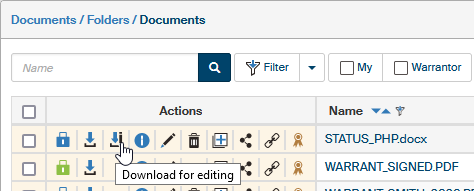
Clicking the button will display a dialog with the options to download or open the document. If you choose to open the document, it will be loaded and displayed in the corresponding Microsoft Office application. Based on your security settings, a warning might be displayed in the upper part of the application window, notifying you that the file has been downloaded from the internet and as such may be dangerous (containing viruses). To edit the document anyway, you will need to allow it first by clicking Enable editing.

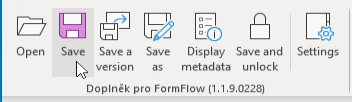
Edit the document as you need. Within the application, go to the FormFlow tab and click one of the buttons:
-
Save – your current edited version will be saved to FormFlow, but the document will stay locked for your edits. Use this button, if you want to save your changes so far, but plan to continue working on the document later. The document version will not change, the changes will be saved in the current version.
-
Save version – use this button to save a new version that will be saved to FormFlow. The document will stay locked for your edits.
-
Save as – the document will be saved as a completely new document. The original document will stay locked.
-
Save and unlock – your edited version will be saved to FormFlow and the document handed over to the next user in the revision group, with editing allowed. Use this button if your revision of the document is completed. The document status changes in the following way:
-
The document is being edited in a controlled documentation process (e.g. documentation creation). Then after unlocking, the lock will be displayed in black and red (before unlocking, it is black and yellow).
-
The document is being edited for another reason than controlled documentation (e.g. to enter additional data, etc.). In that case, the lock is yellow first (due to the download) and turns blue when saved and unlocked.
-
As soon as the document is unlocked, other users can start working on it.