Looking up the contact in ARES, ISDS, ROB and ROS
When adding a contact to the Address book, you can start by looking it up in one of the ARES, ISDS, ROB or ROS databases. Use the found details to create a new entry; then you can edit it or add more details.
Looking up a contact in the ARES register
To use the ARES register, click the Search in ARES button placed on the toolbar on the ADDRESS BOOK tab.

You can search based on the entity name or identification number. Simply enter the details in fields Name or Identification Number and click Search.
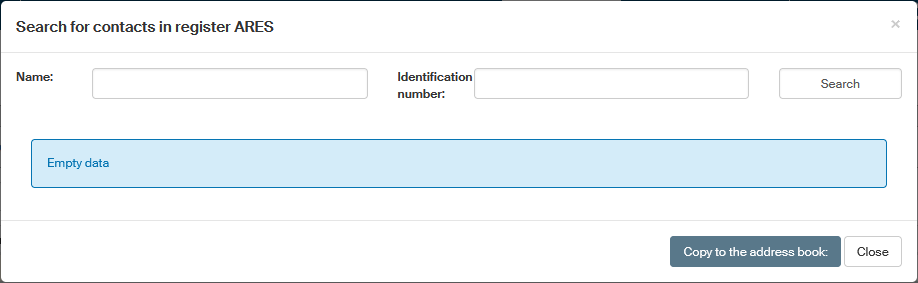
If no entry is found for the values you have entered, a Notice window displays the message No record has been found in ARES.
Conversely, there might be too many entries found (try entering the surname Novák in the Name field). A notice is then displayed that such a search could get your IP address blocked.
If your search is successful, the results are displayed as a table below the search field. There may be a single result or more of them. Note that if you enter e.g., "602", the search results include not only the company Software602, but also entries of buildings with 602 in their addresses, etc.
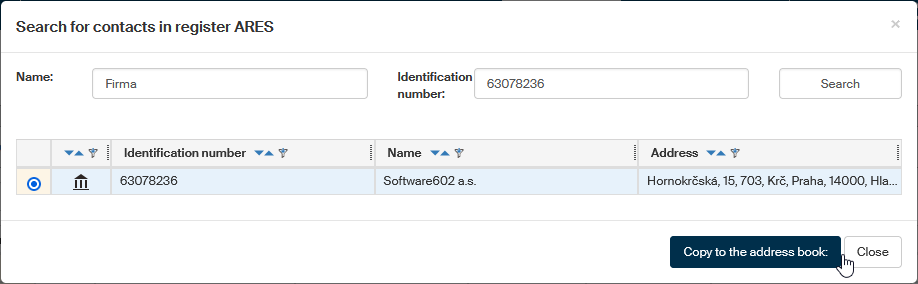
To insert one of the found addresses in the address book, click the leftmost field in the table to select it. Then click Copy to the address book.
A window Subject creation is then displayed in the address book, where you can edit the details as you need and then save the address the same way as you would when inserting the entry manually.
If the same subject is already registered in the address book, FormFlow will display a list of conflicting entries. You can use column filters to order the entries. Then choose whether to create a new entry from the record found in ARES (the button Create new) or whether use it to edit one of the existing entries (select the entry and click Edit selected).
Looking up a contact in the DMIS
To look up an entry in the Data Mailbox Information System, click the button Search in DMIS placed on the toolbar on the ADDRESS BOOK tab.

Use the data mailbox ID to search. The procedure is similar to the one when searching in ARES. Use the Search field to enter the contact’s data mailbox ID or identification number, or a unique name. Then click Search.
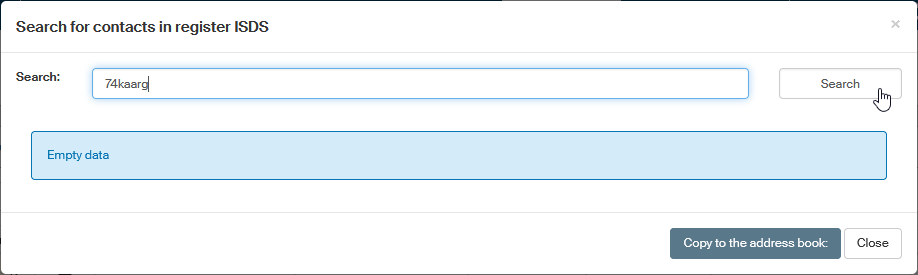
If no entry is found for the values you have entered, a Notice window displays the message No record has been found.
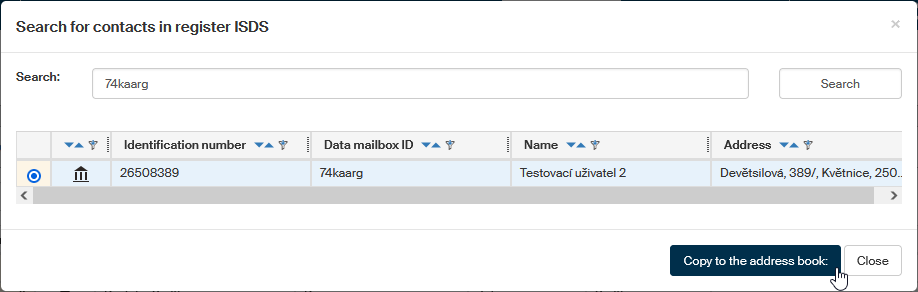
If the search is successful, a list of matching entries is displayed. Select the entry you were looking for and click Copy to the address book to create an Address book entry.
Looking up a contact in the ROB register
To search in the Register of inhabitants, click the Search in ROB button placed on the toolbar on the ADDRESS BOOK tab.

The dialog Search for subjects in register ROB is then displayed. Enter the person’s first name, surname and date of birth in the three entry fields. All the three fields are mandatory. Then click Search.
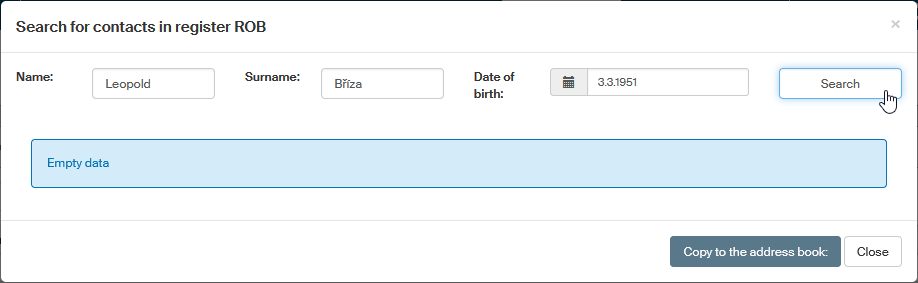
A query Select profile to search the basic registers is then displayed. Select the profile and enter the reason why you are searching in the register (mandatory). Click Select.
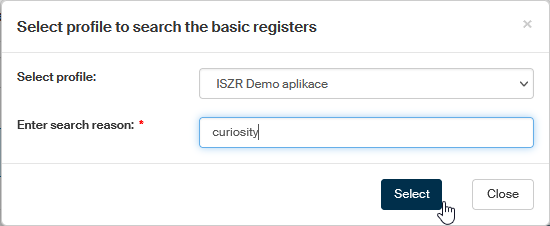
If no entry in the Register of inhabitants database matches the entered combination of details, a message is displayed.
If the search was successful, a list of matching results is displayed – there can be more than one.
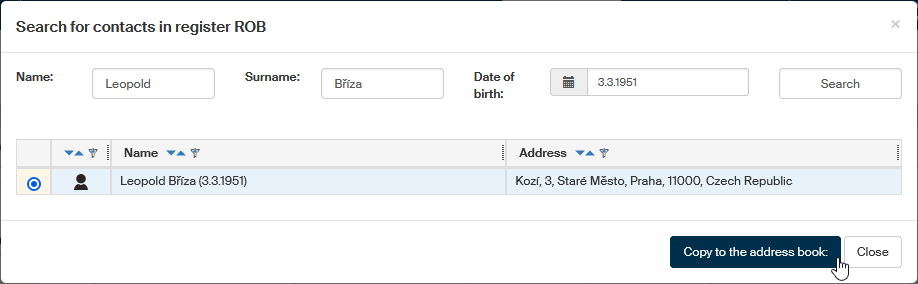
Click the button in the leftmost field to select the entry (even if there is only one) and click Copy to the address book. A window Subject creation in the FormFlow Address book is displayed, where you can edit the address before saving it.
Looking up a contact in the ROS register
To search in the Register of persons, click the Search in ROS button placed on the toolbar on the ADDRESS BOOK tab.

The dialog Search for subjects in register ROS is then displayed. Enter the searched legal person’s identification number in the search field. Then click Search.
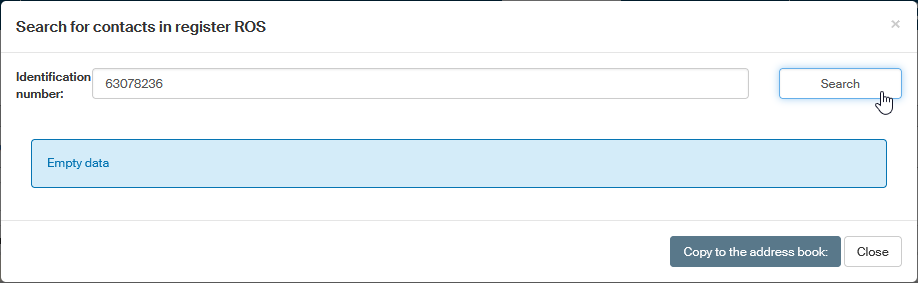
A query Select profile to search the basic registers is then displayed. Select the profile and enter the reason why you are searching in the register (mandatory). Click Select.
If no entry in the Register of persons database matches the entered combination of details, a message is displayed.
If the search was successful, the details of the matching contact are displayed.
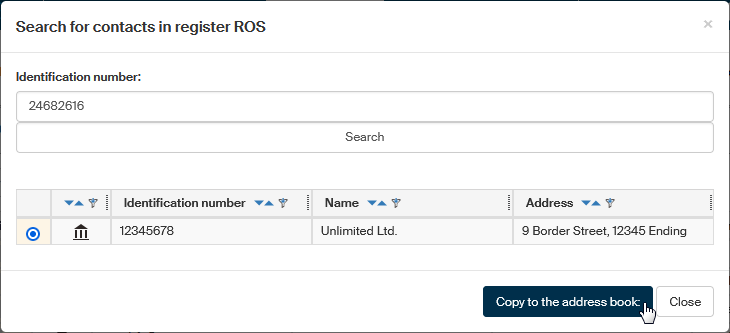
Click the button in the leftmost field to select the entry (even if there is only one) and click Copy to the address book. A window Subject creation in the FormFlow Address book is displayed, where you can edit the address before saving it.