FormFlow Office Extension (macOS)
FormFlow Office Extension for the Mac operating system is an extension to MS Office applications, specifically MS Word, Excel, PowerPoint and Outlook. This extension communicates with the document section of FormFlow (described in chapter Documents) and some processes, for example when creating controlled documentation (described in chapter Controlled documentation processes).
The extension for Word, Excel, and PowerPoint contains the following common buttons:

Open from FormFlow
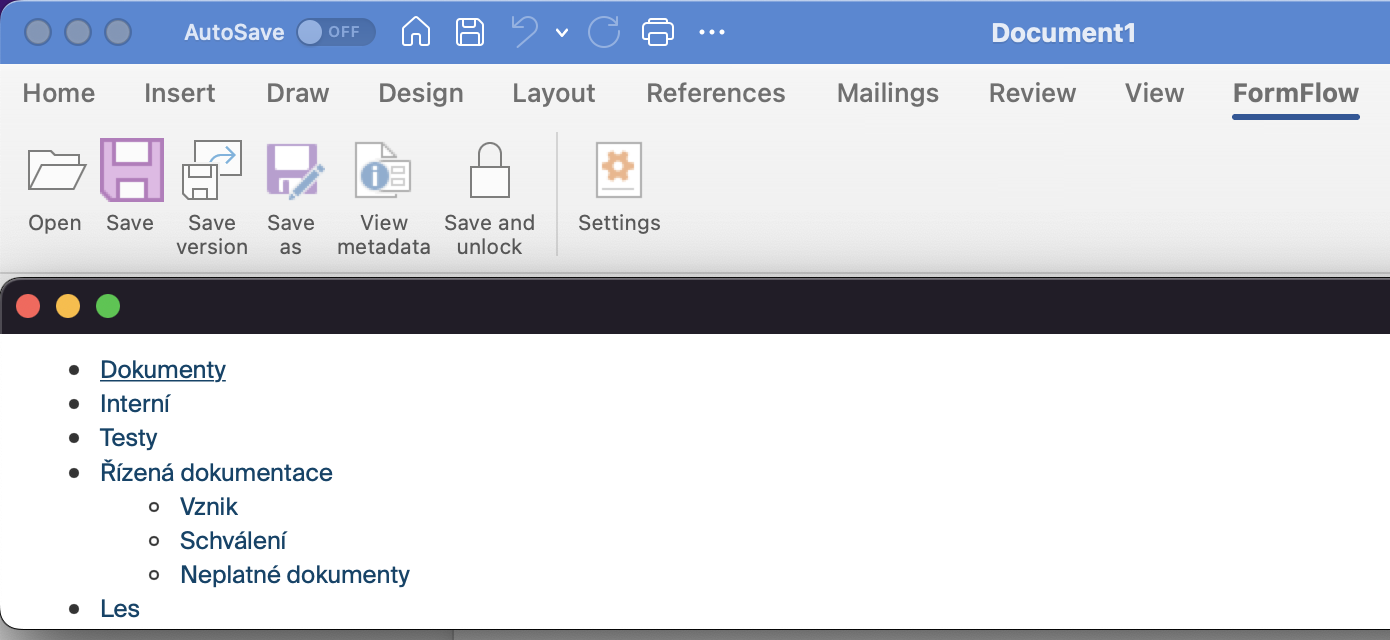
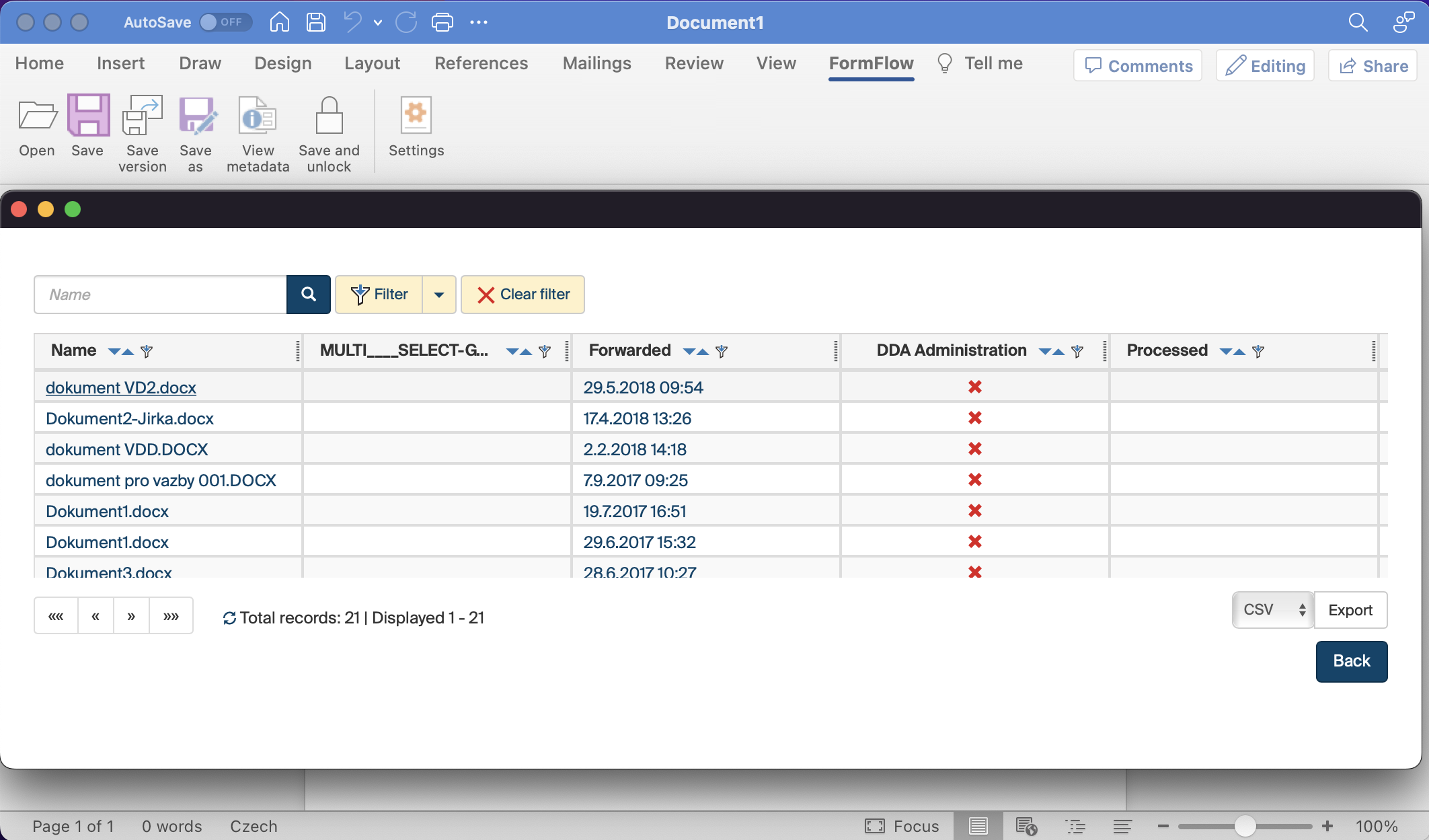
To open a file from ECM (the document section of FF), click Open. An adjusted web page is then displayed with the option to select individual folders and then also specific documents.
If you have a file on your drive which contains an ID (which means that it has been downloaded from the document section using the web interface and the Save for editing button), the extension detects it on opening the file and activates.
Applies to Word, Excel, and PowerPoint.
Save file
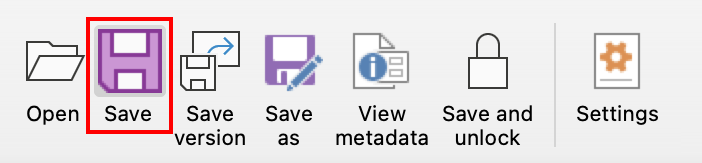
Click Save to save the data of the current file from the document section of FF. The behavior is similar to standard saving of an open document, e.g. in Word.
Applies to Word, Excel, and PowerPoint.
Saving a version
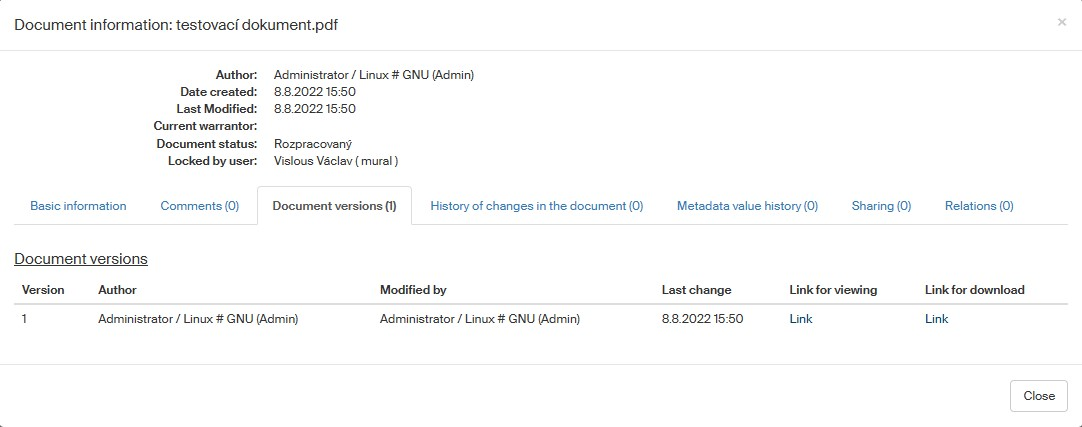
Click Save version to save the current file’s data and create a document version.

A document version can be viewed in the document section ().
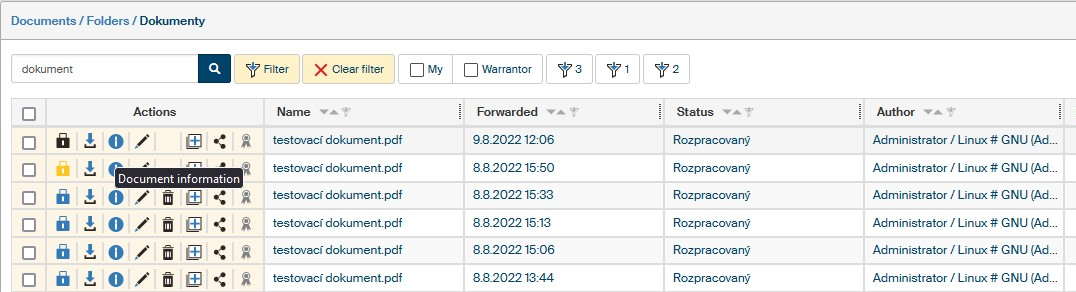
Click  Document information, then select the Document versions tab.
Applies to Word, Excel, and PowerPoint.
Saving to a specific folder
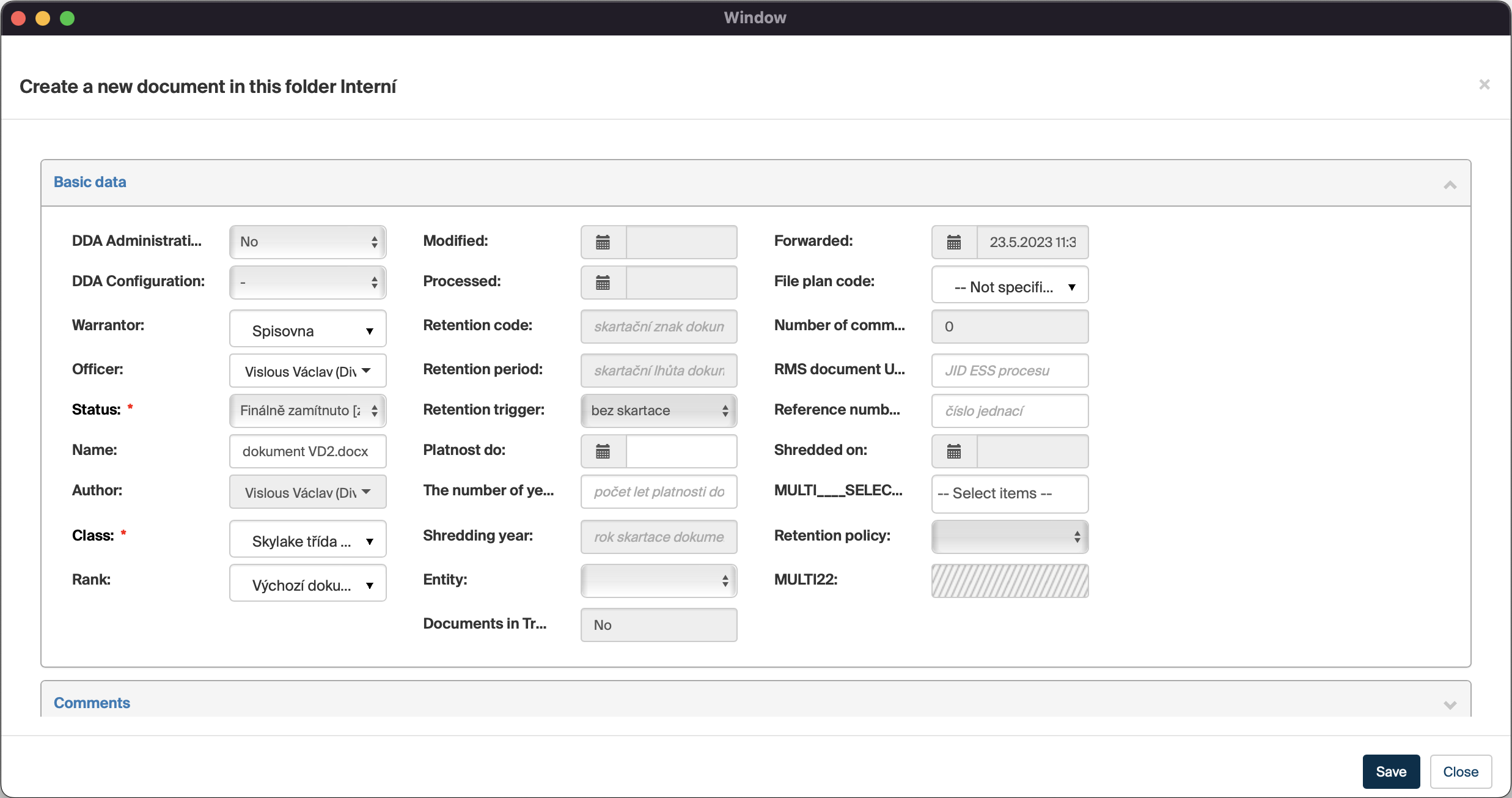
Click Save as to open a dialog with an option to select the document folder where to save the document.


When you select a folder, a window is displayed with document metadata to be filled in.
Applies to Word, Excel, PowerPoint, and Outlook.
Displaying metadata
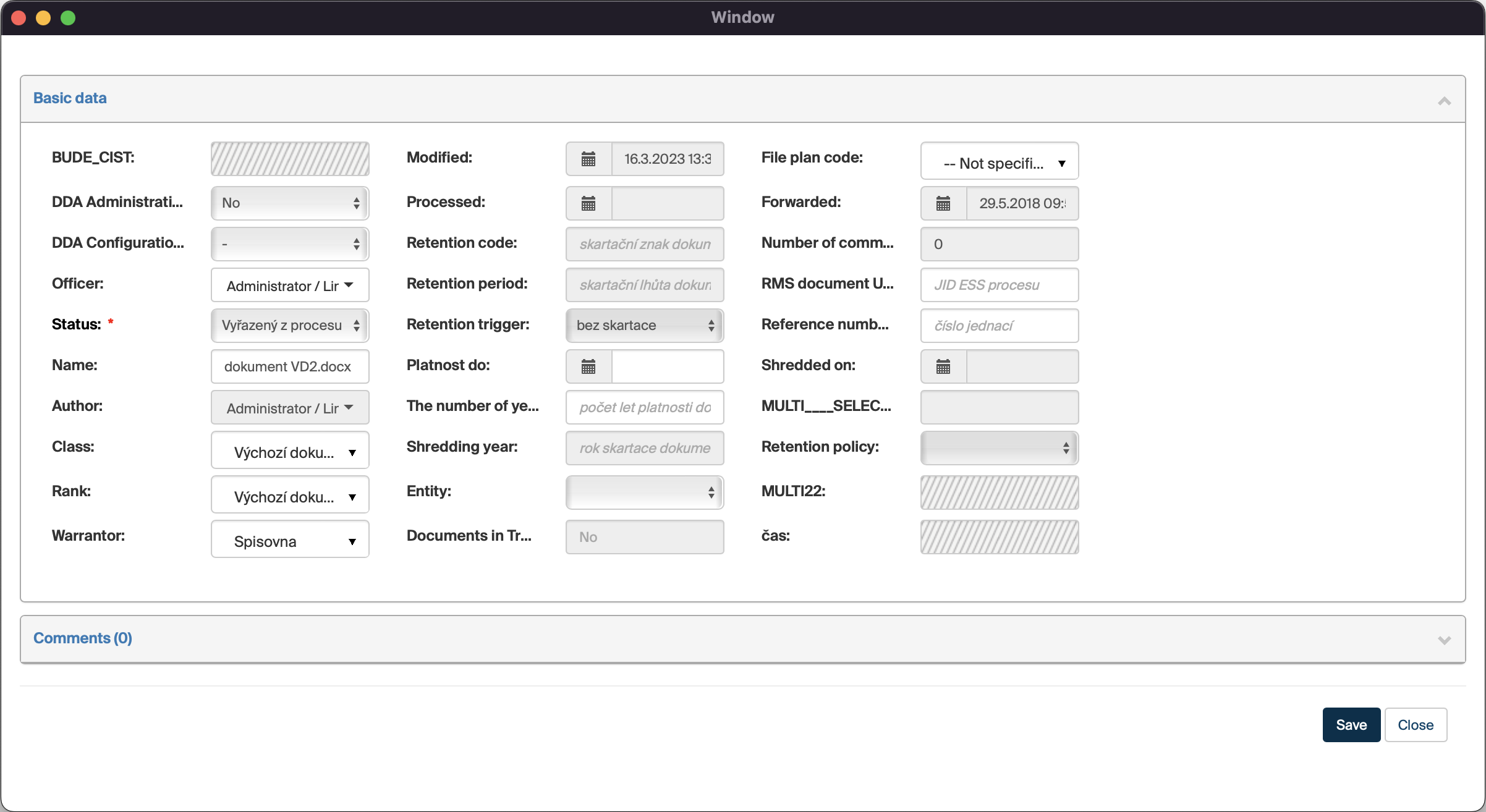
Click Display metadata to display a window where you can edit the document metadata.
Applies to Word, Excel, PowerPoint, and Outlook.

Saving and unlocking a file
Click Save and unlock to save the current file’s data and unlock it to allow other users to use it.
Applies to Word, Excel, and PowerPoint.

Locked document:

Unlocked document:

Settings
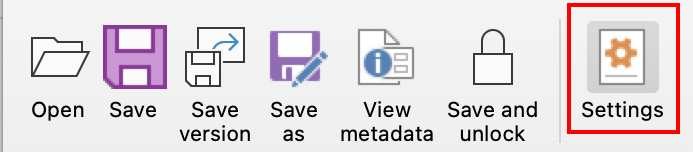
Click Settings to manage common settings for all the extensions (Word, Excel, PowerPoint and Outlook). The details listed are the website URL, username and a password. For SSO authentication, only the URL is needed. SSO authentication is not available for the Safari browser.
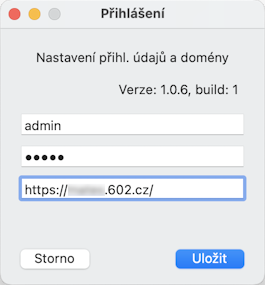
If you need logging, create a file named ECM.LOG on the user’s desktop. As soon as the file is created, the application starts logging.