Office templates for messages
Office templates for messages can provide message details – its identification (Subject), originator, sender and recipient details to be used to create the message envelope.
Template overview screen
To open the Office templates for messages screen, go to . The screen displays a list of existing templates and the controls to edit them and create new ones.
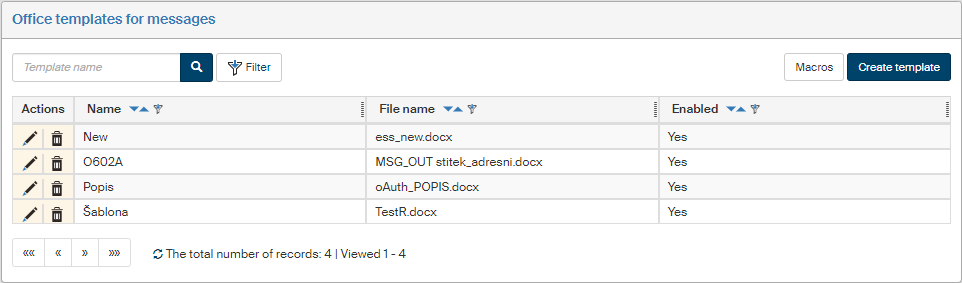
There are two buttons available in the Actions column for each template:
-
 Edit template – opens the Edit template window where you can edit the template details.
 -
 Delete template – deletes the template and removes the item from the list of templates.
Creating a new template
To add a new template, click Create template in the upper right corner of the screen.
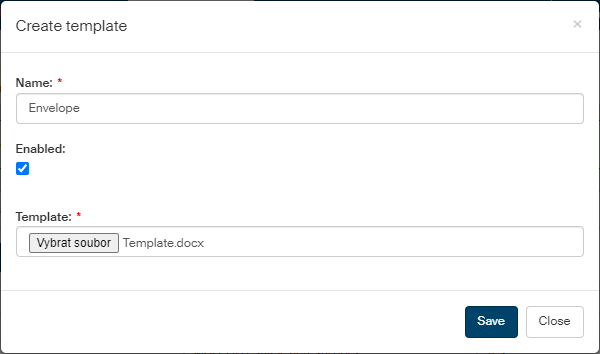
You will need to bring a document in Office format that contains the template itself.
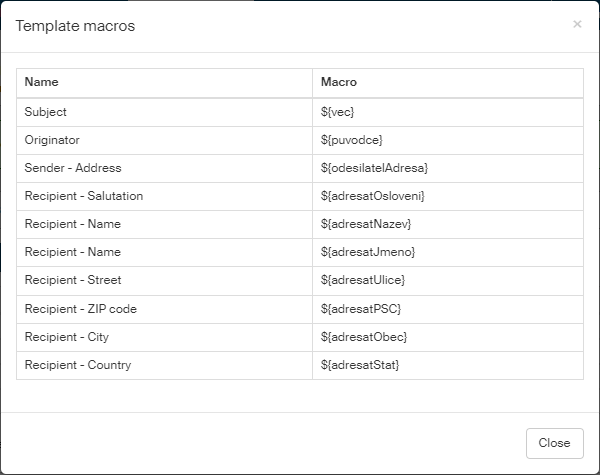
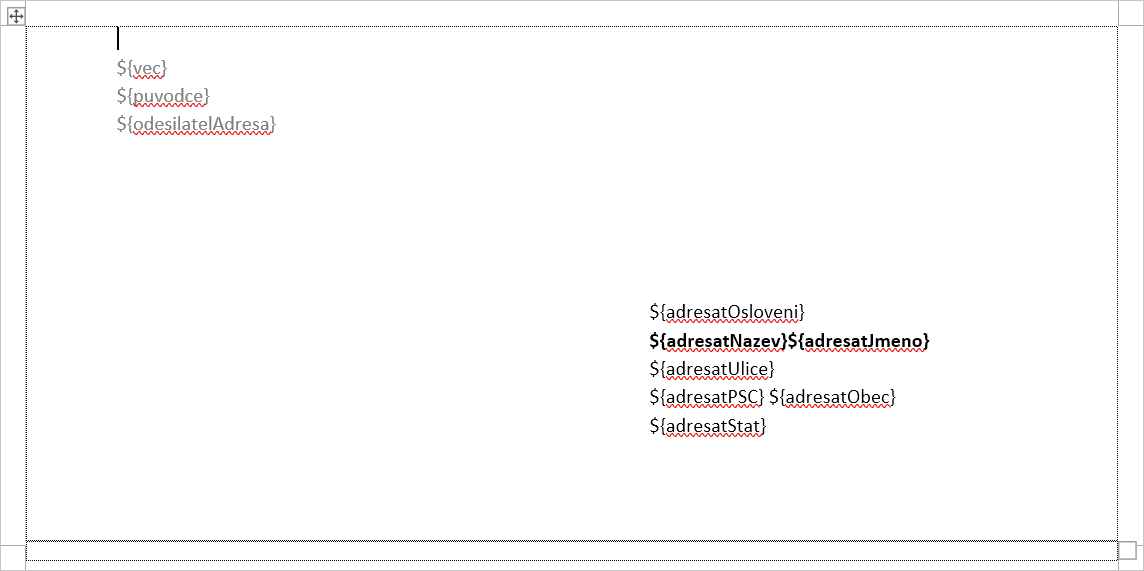
The template file should contain, apart from common contents, also variables, so-called macros. Inserting a macro means that a corresponding value from the message will be inserted at that point in the template.
Macros start with the dollar sign ($) and you can click the Macros button to view a list of available macros.
Here is an example of the contents of a DOCX file to create an envelope:
Now you can add a new template using the Create template dialog.
-
Enter the template name in the Name field; it will be displayed in the list in the Office templates for the Address book screen.
-
If Enabled is checked, the template is available to users.
-
In the Template field, click Browse to select the Office file containing macros and other template contents.
A message framed in green will notify you about a successful addition of the new template.
Editing an existing template
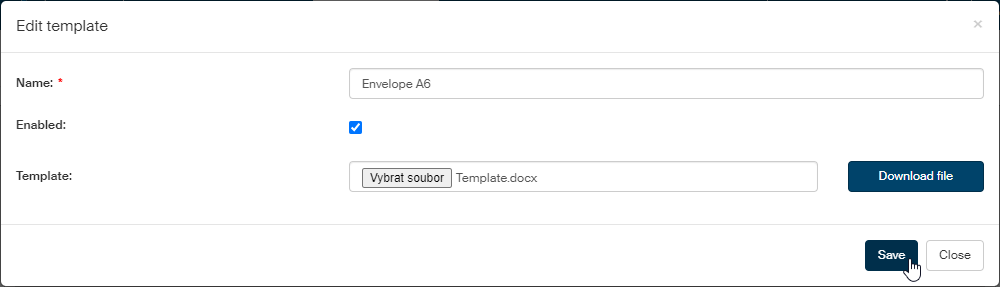
You can edit the name of an existing template, attach a different template file or change its availability using the Enabled checkbox.
Click Edit template to open the dialog with these properties.
Click Download file to load the file with the template contents in the corresponding application, where you can edit it, save and upload back to the template.
If a template is not used anymore, you can click Delete template to remove it from the list.