Security parameters
Use the Security parameters screen () to set the Logout timeout, which will allow the system to log a user automatically out from FormFlow, if the given time period has passed since the user’s last action. The default value is 60 minutes. If the value is set to 0, there is no time limit.
You can improve login security by checking https connections to FormFlow must require valid user certificates.
If a user requests password change, a link is sent to their e-mail address which will allow them to create a new password. The link’s validity is always limited, and you can enter the time in minutes in field Lost password token validity.
Access to FormFlow can be limited to selected IP addresses. List the IP addresses that will be allowed access in section IP filter for user login, devices with a different IP address will not be able to connect to FormFlow. You can enter both IPv4 and IPv6 addresses. Separate the addresses by spaces. If you can include a whole network or subnetwork address, you do not need to list all addresses separately, just use *.
Example: To enter the network from 192.168.0.0 to 192.168.255.255, which includes 65 024 addresses, you do not need to list them all. Simply enter 192.168.*.* in the field. Note that all the asterisks must be entered, which means 192.168.* is not a correct entry. The same principle applies to IPv6.
Use the field Error message e-mail recipients to specify a group of users who will be informed by e-mail if there are any issues – for example if writing to the database fails, etc.
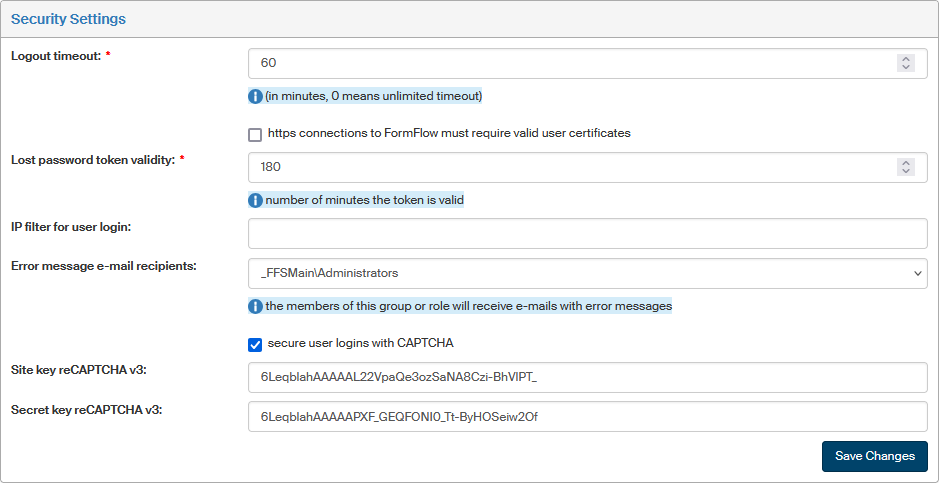
To enable Google CAPTCHA during user login, check secure user logins with CAPTCHA and enter the corresponding keys in Site key and Secret key. The service is described in more detail in chapter Login using Google reCAPTCHA.
Pseudonymization
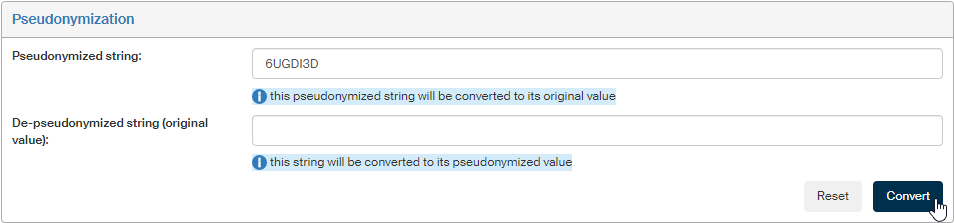
The Pseudonymization helps the administrators to find their way in FormFlow log files more easily. If you place a pseudonymized string, e.g. “6UGDI3D“, in the Pseudonymized string field and click Convert, the De-pseudonymized string (original value) field will display the legible value, e.g. an IP address.
The method can also be used backwards, that is, place any text in the De-pseudonymized string (original value) and convert it to a pseudonymized value.
Exception encryption
The Exception encryption section displays a Password for exception decryption. This password can be used to decrypt exceptions on another FormFlow that the one that created the logs. There is a PHP script for log file decryption, located at FormFlow\utils\decrypt_logs.php.
The instructions for use are placed directly in the decrypt_logs.php script.
