My absence
The window opened by clicking My absence on the tab My settings allows you to set your planned absence in advance. If you do so, processes addressed to you in the given period (except the “path” process in ERMS forms) will be automatically forwarded to your substitutes.

Set the absence by specifying the start and end dates in the fields Absent from and Absent until and clicking Create.
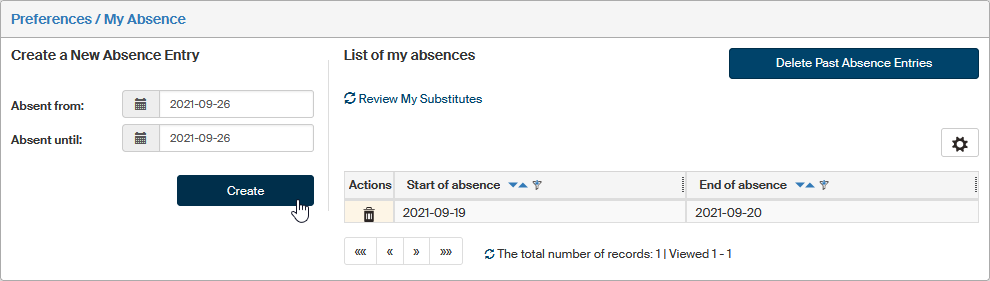
Use the button Delete past absence entries to delete outdated entries (those that have already passed) from the list of absences. Any entry can be deleted at any time using the button  in the Actions column.
Click Review My Substitutes to check if there is a form forwarded to your substitutes that you have not taken over yet.