Qualified storage
The window Archive – Qualified storage provides easy access to all files managed by the Long-term Digital Archive module, including search and filtering.
Users with system operations LTD_ADMINISTRATOR and LTD_AUDITOR assigned can view all the files, users with the system operation LTD_EDITOR assigned can view their own files and those of their subordinates.
Filtering
You can further adjust the list of displayed files.
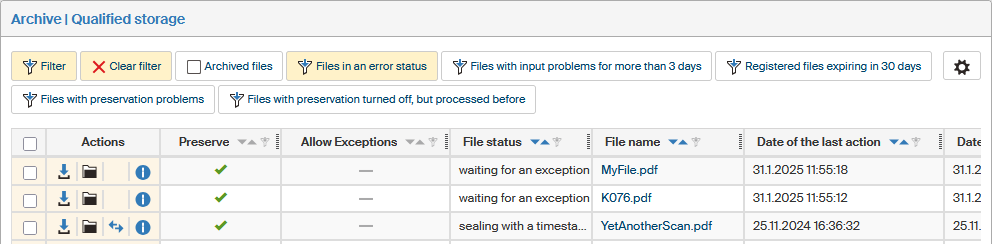
One of the options are predefined filters of files with issues, placed above the file list.

Additionally, you can set up your own filter. Click Filter to open the Advanced search window. Enter your required file parameters here: you can use various identifiers as well as properties related to the preservation status.
-
File name, File identifier, Attachment identifier, Form name, Form identifier, SN (form serial number) – the form and file identification details.
-
Attachment identifier – used for file analysis.
-
Form – the template used to create the form.
-
Days to expiry – displays files with validity expiring earlier than the given number of days.
-
File status – displays files in the specified status.
-
Preserved – use this option to filter out files placed in the qualified storage process, although this feature is disabled for their form template. This is a way to find files that do not need to be preserved anymore.
-
Entity – if you are managing files for more than one entity, you can use this field to filter file based on their assignment.
-
Date of the last action – displays only files whose qualified storage preservation (change of state) took place in the given period.
-
Date of finishing – only displays files placed in the qualified storage in the given period.
-
Expiry date – only displays files that expired or will expire in the given period.
-
Problem files – displays only files associated with one of the preset filters of files with preservation issues.
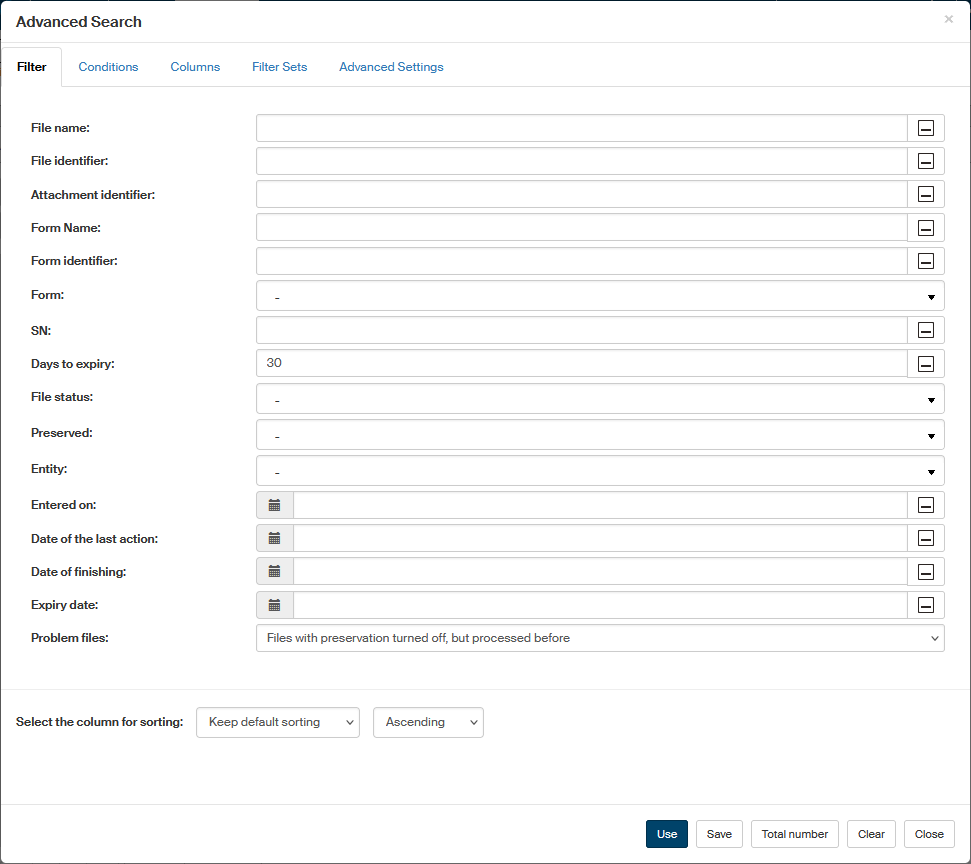
The other tabs in the Advanced search dialog can be used to further narrow down the filter or to adjust how the results are displayed, similarly to filtering on the Documents tab. The filter is described in chapter Advanced search.
File list
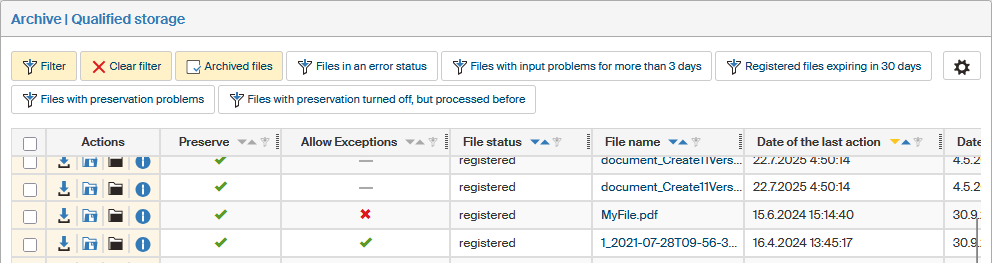
The list in the Qualified storage screen displays files stored in the archive. Every row corresponds to a file and the columns to individual details kept for the files.
Each entry starts with a checkbox for bulk operations, the Actions column with several buttons and, in the rest of the columns, details of the individual files.
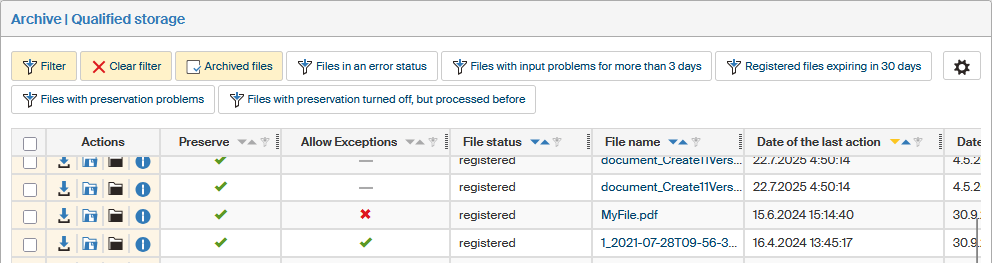
Buttons in the Actions column provide the following features:
-
 Download file – displays a dialog where you can save the file in a selected folder or open it in a suitable application.
 -
 Go to file folder – click to open the file folder (only if the filter is set to Files with preservation turned off, but processed before).
 -
 Go to process folder – click to open the process folder () where the process with the selected archived entity was initiated.
 -
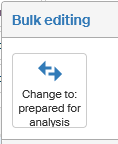
 Change file status to: prepared for analysis – if file analysis or preservation has failed, click the button to return to the start of analysis/preservation to retry the operation. The button is not available if the filter is set to Registered files expiring in 30 days or Files with preservation turned off, but processed before.
 -
 File information – displays a window with document details).
The individual table columns display the files' basic identification (File name, Form Code and Form Name, the form serial number (SN)). Listed are also archiving and long-term preservation properties:
-
Preserve – indicates whether the file is included in long-term preservation. You can change the setting using bulk editing.
-
Allow exceptions – indicates whether an exception has been given to a file that otherwise would not meet the criteria to be included in long-term preservation. You can change the setting using bulk editing.
-
File status – current status of the file.
-
Date of finishing – date the form was finished and the file placed in long-term preservation (Qualified storage).
-
Date of the last action – date of the last file status change.
-
Expiry date – date when the attached time stamp expires.
If you click the file identification details, FormFlow will offer you the file for download.
Bulk editing
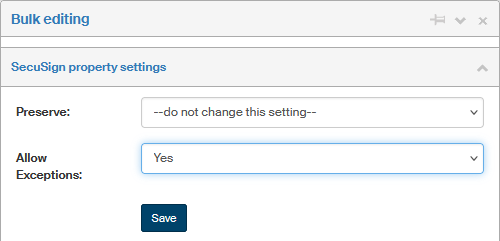
Check the box in the leftmost column for one or more table entries to display a floating window Bulk editing with a list of operations you can run for all the selected files at the same time.
Operation SecuSign property settings is available for all files. You need to have the corresponding permissions, which is system operation LTD_ADMINISTRATOR or LTD_EDITOR, to run any of these operations.
-
Preserve – if set to Yes, the file is included in long-term preservation. Set to No to remove it from long-term preservation.
-
Allow exceptions – if not set, the file will only be preserved if it meets all requirements to be included in the long-term preservation process. Change the setting to Yes to make sure the file will be preserved even if it does not meet all the requirements.
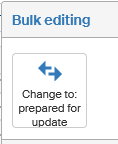
If a property can be changed for all selected files, the corresponding button is displayed in the Bulk edit window. Click the button to change the status for all the selected files.
File information
The dialog window opened by clicking File information displays an overview of the file status sorted into several tabs.
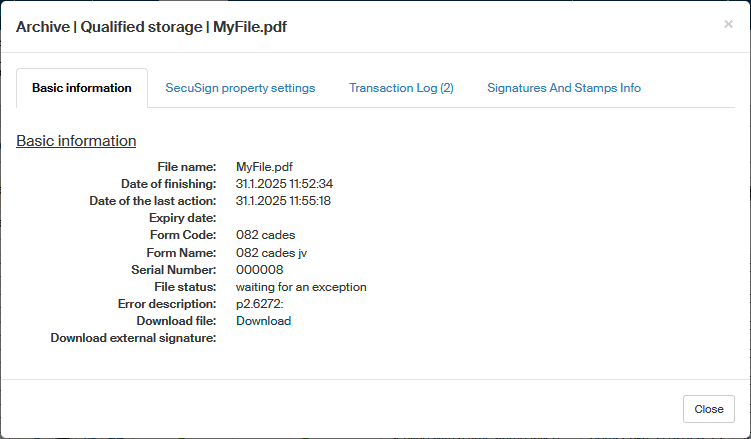
In addition to basic identification, it contains three tabs with more details: SecuSign property settings, Transaction log and Signatures and stamps info.
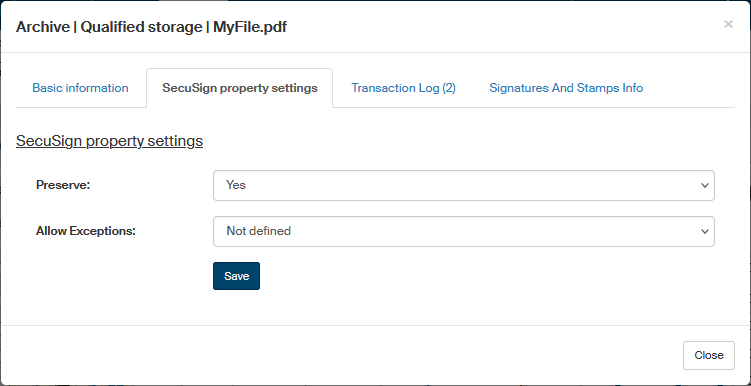
SecuSign property settings allow changing the options Preserve and Allow exceptions:
-
Preserve – if set to Yes, the file is included in long-term preservation. Set to No to remove it from long-term preservation.
-
Allow exceptions – if not set, the file will only be preserved if it meets all requirements to be included in the long-term preservation process. Change the setting to Yes to make sure the file will be preserved even if it does not meet all the requirements.
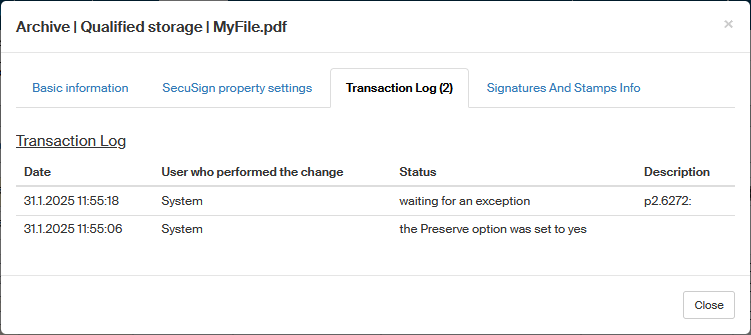
Transaction log is a list of file status changes that took place during its preservation.
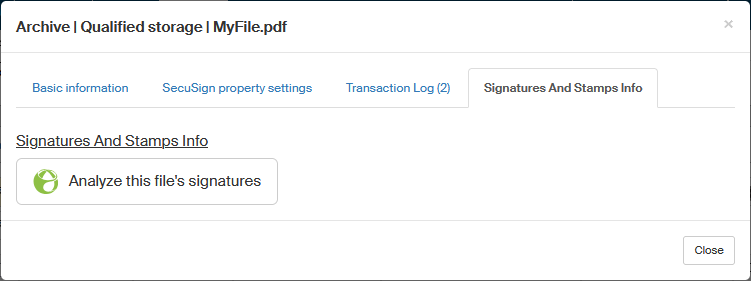
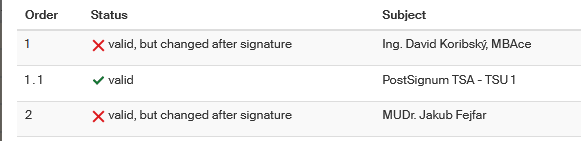
The Signature and stamp info tab displays details on attached electronic signatures, electronic seals and time stamps. Click Analyze this file’s signatures. The system displays a table with details such as who issued the signatures, whether they are valid or when they expire.
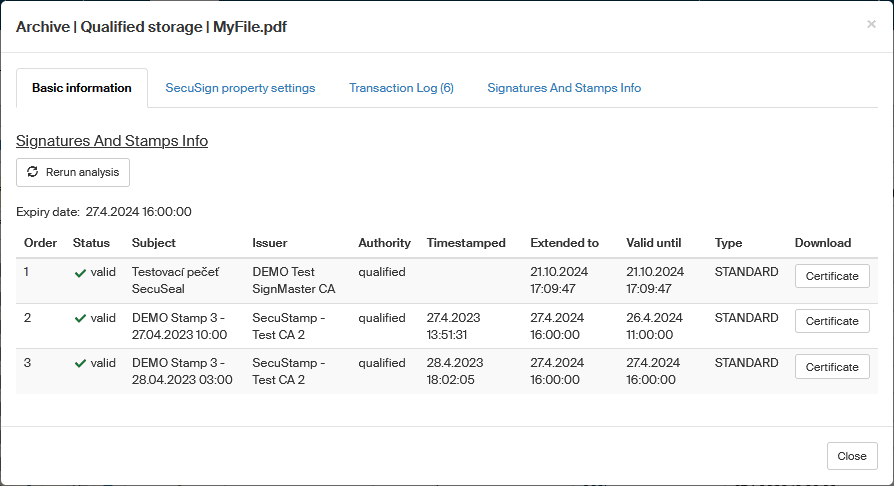
If the file has changed since the signing and time stamping, signature analysis in the Qualified storage will display the fact.
Errors
Apply the preset filter Files in an error status to display a list of long-term preserved files where an error occurred during automatic processing.
Each one of them now needs to be considered and manually set how the system will treat it. For example, give an exception to files that have not passed the requirements for long-term preservation to include them in the process anyway.