Deleting and restoring processes
Processes can only be deleted by their authors. Only the author can see, in their view of the process folder, a trash bin  Move to trash icon next to the processes they have created.
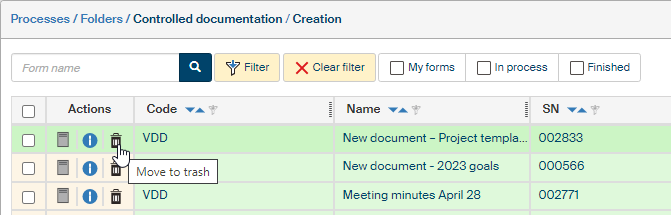
To prevent accidental deletion, a confirmation dialog is displayed first: "Are you sure you want to move the form to trash?"
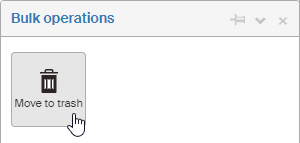
If you check one or more processes, you can delete them all at once by going to the Bulk operations window and clicking Move to trash.
The deletion process is similar to deleting files in Windows. The deleted process is “moved to trash” first and then the trash can be emptied. Or you can restore processes from the trash.
There is no separate Trash folder in FormFlow, the deleted files stay in their original folder, but they are hidden. To show them, use the Filter. Click Filter to open the Advanced search screen on the Filter tab and check Deleted forms.
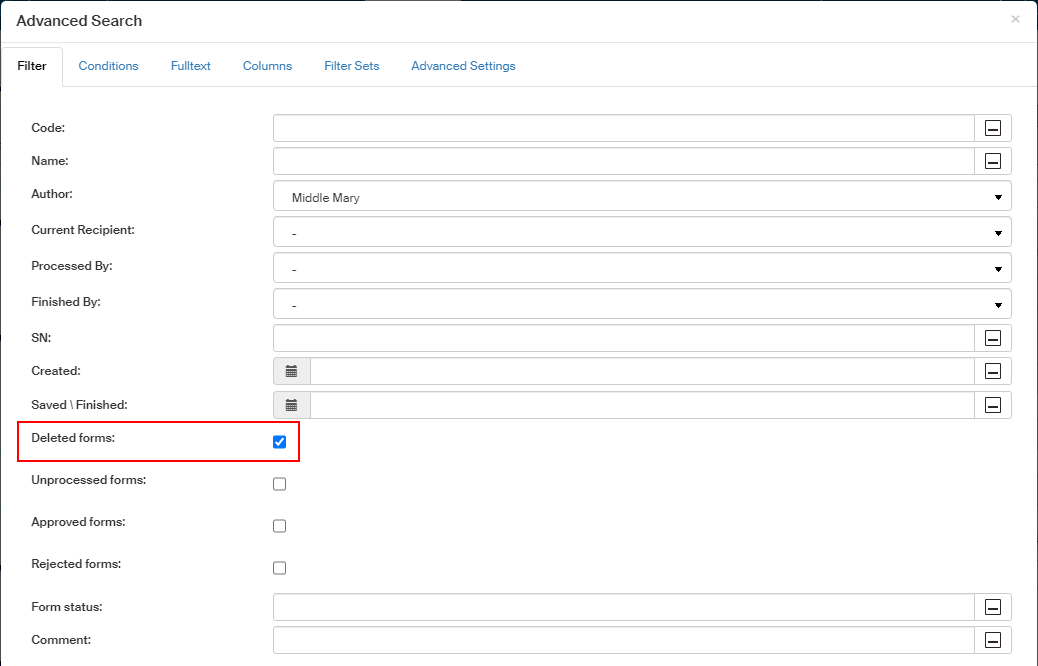
If you use this view often, consider saving this filter setting as a new button next to the other filter controls. In Advanced search, click Save. In the dialog Save as a new set, name the filter (for example Deleted processes), check Display as tag and save.
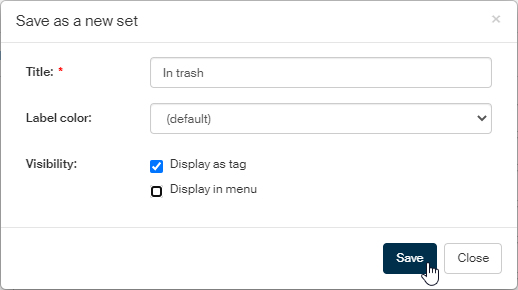
A new button is created and you can use it to easily display the Trash contents in the folder.
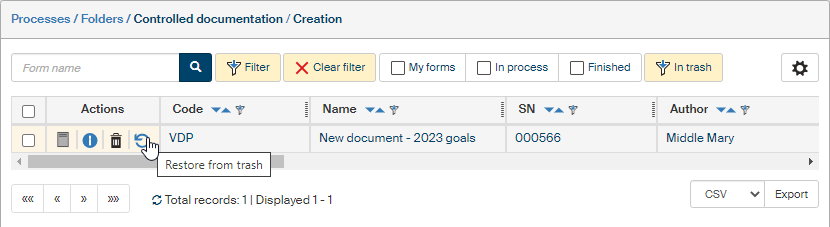
-
The trash bin
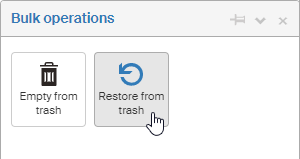
button now means Empty from trash and clicking it will delete the process permanently. -
Alternatively, you can click the button next to it,
 Restore from trash. Confirm the query "Are you sure you want to takte the form out of the trash?" and the process is restored – now it will be visible in its original folder as before the deletion.
It is also possible to select more than one process and restore them or permanently delete (empty from trash) all at once using the Bulk operations window.