Grid administration
General settings for the whole application
The Grid administration screen () can be used to set up the default rules for displaying grids, which means the tables with lists of entries that are displayed in various parts of FormFlow (for example lists of documents, processes, forms and so on, as well as various administration interfaces).
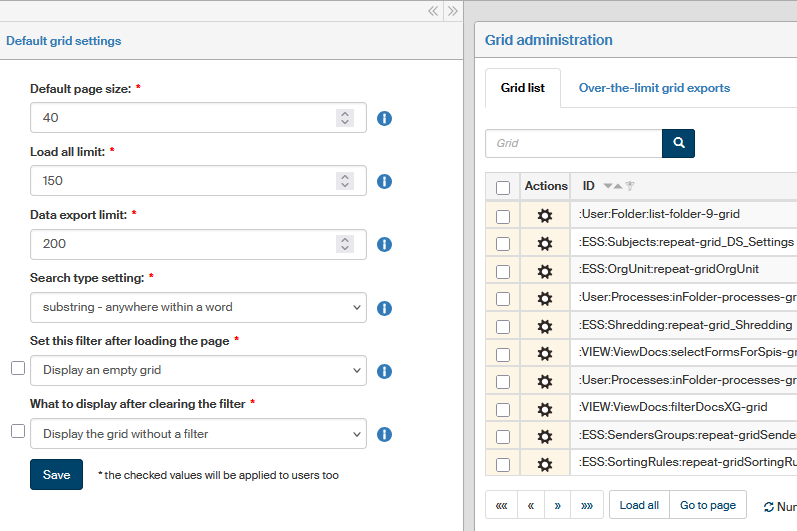
The section on the left – Default grid settings – contains general rules. You can adjust the following values:
-
Default page size – number of entries to display on the page when a grid is first displayed.
-
Load all limit – when this limit is exceeded, the features for sorting and filtering already filtered lists (the column filter in the table header) will not be available. You can find more details in chapter Javascript controls.
-
Data export limit – the maximum number of entries that can be exported from a grid (if the grid supports export). This value should take into account system resources provided by the server.
This limit does not apply to users with permission GRID_UNLIMITED_EXPORT, who can export any number of entries. -
Search type setting – specifies how to treat the search string when searching:
-
string – searches for the entered text at the beginning of a word;
-
substring – also searches inside words, which means that any part of a word can be looked up, not just the beginning;
-
user choice – the default search type is string (from the beginning of a word), but it is possible to search for a substring by entering the wild card character
%(e.g.%word).
-
-
Set this filter after loading the page – this option allows the choice whether to display an empty table (grid) when a page first displayed, or an unfiltered table, empty table with the advanced filter window or the table with the last used filter. This setting is applied if the checkbox on the left of the entry is checked.
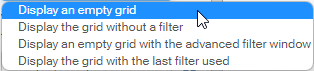
-
What to display after clearing the filter – use this option to select whether to display an unfiltered table or an empty table when the filter is cleared. This setting is applied if the checkbox on the left of the entry is checked.
Grid list
The right part of the screen displays a list of all grids available in FormFlow.
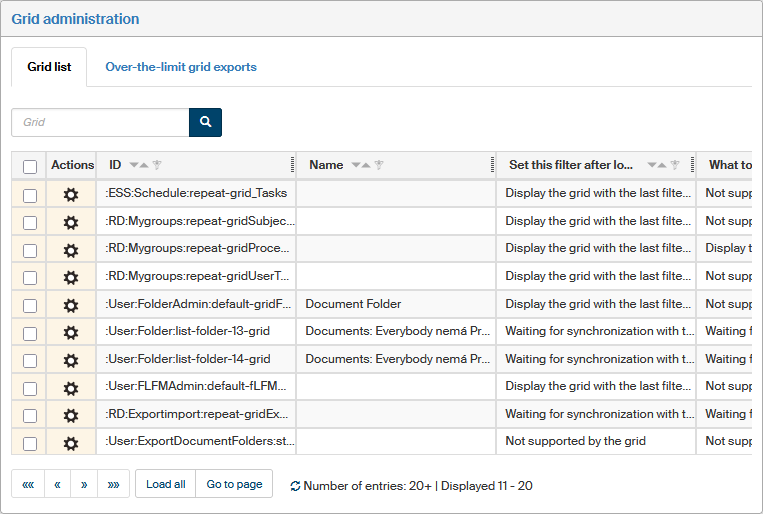
To handle them, use the button in the Actions column:
-
 Administration – displays a dialog with individual settings for the grid.
Individual grid settings
The preset global settings can be adjusted for a specific grid and individual users or groups.
There are two ways you can access this setting:
-
on the Grid administration tab, in the grid list, click the
Administration button next to the selected grid, or -
when viewing the grid, click
Grid administration on the right above the table.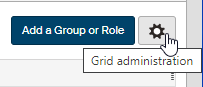
Whichever method you use, the same dialog displays.
Start by selecting one of the tabs, Users or Groups and roles, in the upper part of the dialog.
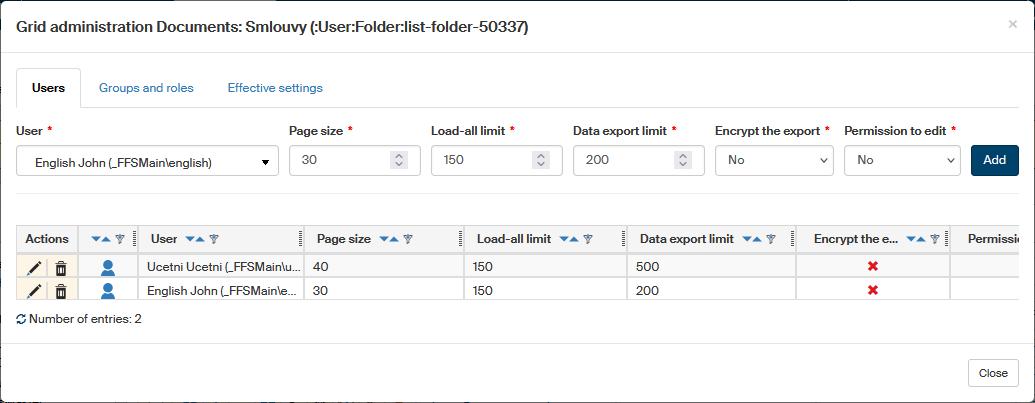
Then, in the upper part of the tab, use the field User or Group or role to select from the list who to apply the settings to. Then adjust the values as required:
-
The entries Page size, Load-all limit and Data export limit have the same meaning as the general setting described above. Effects of this setting are also described below in chapter Limit settings and displaying the filtration controls.
-
Encrypt the export – when exporting data from the grid, FormFlow will prompt the user to create a password, which will then be required to open the resulting file.
-
Permission to edit – if a user is granted edit permission for a specific grid, they can set the page size themselves (the entries Number of rows per page in the Advanced filter).
A list of all settings created for this grid is placed below. Use the buttons in the Actions column to edit the existing entries:
-
 Edit – changes the cells in the corresponding table row to editable fields.
 -
 Delete – removes the entry.
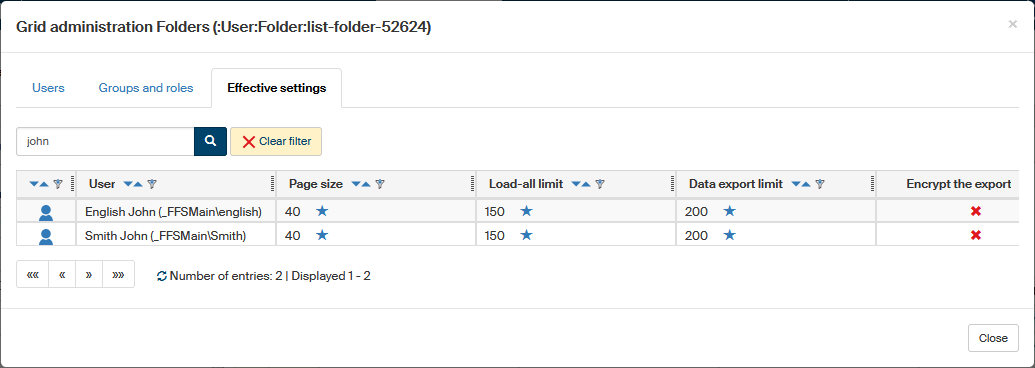
The third tab, Effective settings, displays the resulting grid setting for individual FormFlow users after all the group settings and individual user settings are applied.
If you point the mouse cursor to the star  symbol, a tooltip will be displayed to show which setting was used for this value.
Over-the-limit exports
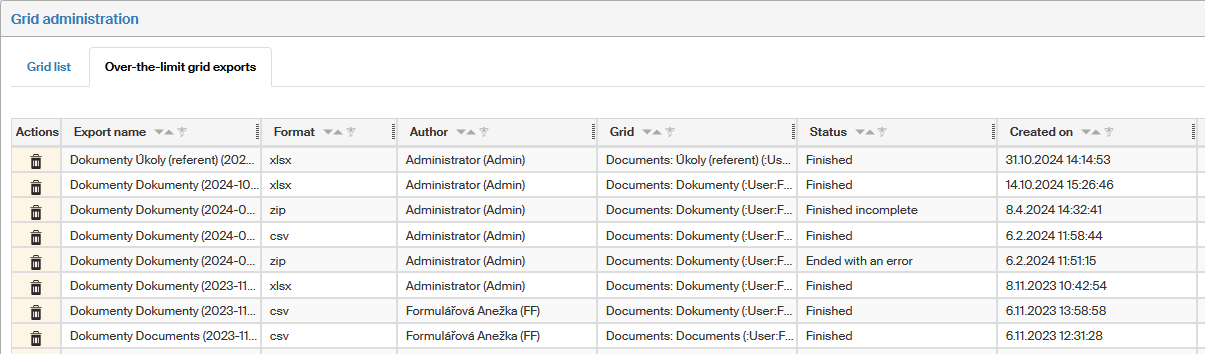
Selected users may have a permission to export lists even larger than the Data export limit specified in the general settings. For more details on exports that exceed the limit, see chapter Exporting large lists.
The Over-the-limit grid exports tab in grid administration displays a list of large exports.
The list contains information on the export and its status, but not the data itself.
Click Delete export to remove the selected export from FormFlow.
Limit settings and displaying the filtration controls
The page size limit and the load-all limit determine which data controls will be available when displaying a given number of entries.
Javascript controls
The buttons for javascript sorting and the column filter are only displayed if all data is loaded. Which means:
-
If the number of rows is lower than the page size.
-
If the Load all button was used – this is only possible if the number of rows is lower than the load-all limit.
If at least one of these conditions is met, all column headers will display the buttons for sorting 
 and the column filter
  .
Sorting and filtering is then applied to the loaded data, without needing to reload the web page and data from the database.
.
Sorting and filtering is then applied to the loaded data, without needing to reload the web page and data from the database.

Database filter
The database filter is not a control displayed directly at the grid, but part of the Advanced filter available using the  Filter button (usually placed directly above the filtered grid).
The individual filter items are available, if filtering is enabled for the given column by the grid designer and the user is authorized to use it.
Filter button (usually placed directly above the filtered grid).
The individual filter items are available, if filtering is enabled for the given column by the grid designer and the user is authorized to use it.
Limit comparison
Limits are calculated from the global limits, user limits and limits set for the individual grid so that the higher value is used, with the following exceptions:
-
a user’s global page size setting takes precedence over the global page setting, but it must not be higher;
-
page size in a filter always takes precedence (but it may be remembered, even though the user is not authorized for it or a filter is not set).