Queue
The Queue buttons provides interface to check the status of messages that are just being received or sent. The button offers two options: Incoming queue and Outgoing queue.
Incoming queue
The Input queue window displays a list of messages arriving from preset data mailboxes and e-mail addresses. They are messages that are being downloaded right now or failed to download for some reason. Users who can access this screen can check that an anticipated message is on its way or respond to any issues.
Click the Filter button above the list to filter the input queue to selected types or message statuses:
-
Entities – only displays messages that belong to a selected Electronic records management entity.
-
Undownloaded messages – messages that show at least one failed download attempt from the data mailbox system or failed to download within a time limit and have not been accepted as undownloadable. An error message is attached to them.
-
Errors unaccepted – messages that failed to download within a time limit and have not been accepted as undownloadable by a user. There is a negative number in the Attempts column for such messages.
-
Errors accepted – messages that failed to download and then have been accepted as undownloadable by one of the users.
-
New messages – messages waiting for the first download attempt.
Click Use to start filtering. Or you can click Clear to return to the default setting. For more details on filtering, see chapter Advanced search.
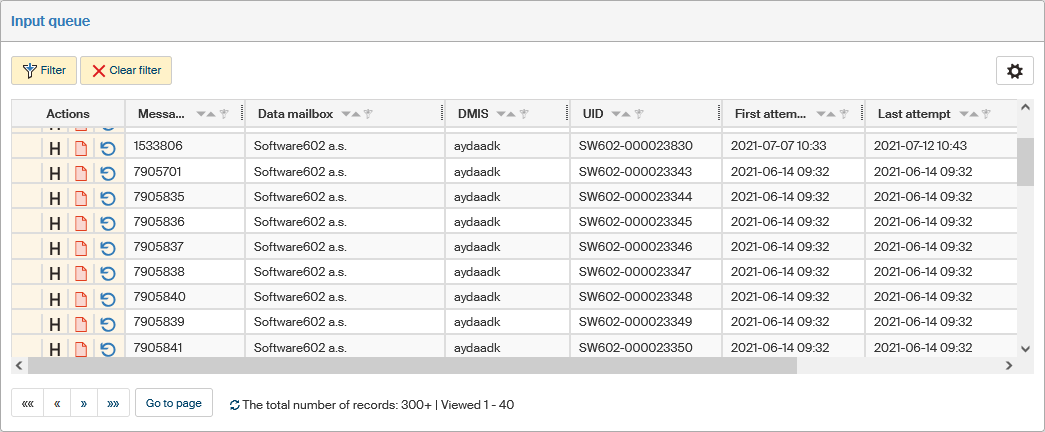
Messages that match the current filter are displayed in a table.
The table contains the Actions column with several buttons for handling the message:
-
 Download form – if there is a filled-out form for the message, click the button to display it,
 -
 Create a form for an undownloadable message – FormFlow creates a form with a notification of a problematic message for messages that fail to download within a certain time; click this button to create the form manually before the preset number of attempts,
 -
 Download SkTalk XML – download the envelope (template) of a Slovak data message,
 -
 Display history – displays a window with a list of download attempts and error messages if there are any,
 -
 the system is trying to download the message from the server,
 -
 Accept the message as undownloadable – the message fails to download, click the button to mark the message as undownloadable and no more attempts to download it will be made,
 -
 indicates messages that have already been marked (accepted) as undownloadable,
 -
 Renew message - runs a new attempt at downloading the message. After you click the button, a confirmation dialog is displayed and then a new attempt is made.
The following columns display the message identification details. The First attempt and Last attempt columns display when the Electronic records management tried to download the message; the total number of these events is displayed in the column Attempts.
Outgoing queue
The Output queue displays a list of messages ready to be sent to data mailboxes or e-mail addresses. The message sending process is run in regular, preset intervals. Here you can view the messages that have been submitted to send since the last time the process was run and those that failed to send for some reason.
Click the Filter button above the list to filter the output queue to selected types or message statuses:
-
Entities – only displays messages that belong to a selected Electronic records management entity.
-
Unsent messages – messages that show at least one failed send attempt or failed to send within a time limit and have not been accepted as unsendable. An error message is attached to them.
-
Errors unaccepted – messages that failed to send and have not been accepted as unsendable.
-
Errors accepted – messages that failed to send and then have been accepted as unsendable by one of the users.
-
New messages – messages waiting to be sent, that is, where no send attempts have been made yet.
-
Undelivered – messages that have been sent but a certificate of receipt has not returned yet.
-
Without data message original – data message that have been sent but the data message original has failed to download.
Click Use to start filtering. Or you can click Clear to return to the default setting. For more details on filtering, see chapter Advanced search.
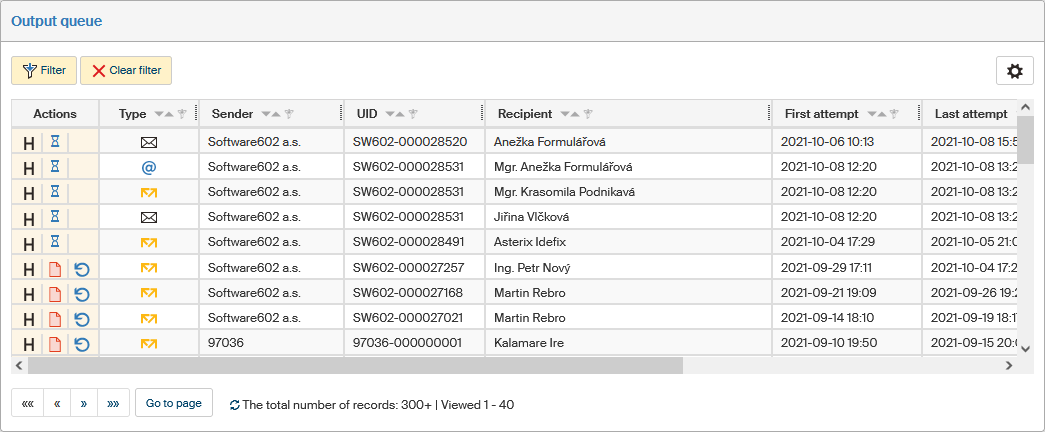
Messages that match the current filter are displayed in a table.
The table contains the Actions column with several buttons and, in the following columns, the message identification details – type, UID, sender and recipient. The First attempt and Last attempt columns display when the Electronic records management tried to send the message; the total number of these events is displayed in the column Attempts.
Buttons in the Actions column provide the following features:
-
Display history – displays a window with a list of download attempts and error messages if there are any,
-
the system is trying to send the message,
-
Accept the message as undownloadable – the message fails to download, click the button to mark the message as undownloadable and no more attempts to download it will be made,
-
indicates messages that have already been marked (accepted) as undownloadable,
-
Renew message - runs a new attempt at downloading the message. After you click the button, a confirmation dialog is displayed and then a new attempt is made.