Preparing entities for the shredding procedure
To start the shredding procedure, its storage units must be specified. A storage unit is a predefined object (imagine a binder or an envelope) where we place entities (documents, record) to enter the shredding procedure.
Chapter Creating a new storage unit describes how to add new storage units. A storage unit created this way is only described with its metadata but still empty. We will show how to fill it and prepare for the shredding procedure.
Remember that a storage unit can contain both records and individual documents. A record contains documents, and a document contains files.
| For shredding procedures without the National Archive, you can place stand-alone files in storage units too. Such storage units with stand-alone files cannot be included in a standard Czech shredding procedure that involves communication with the National Archive. |
The ARCHIVE toolbar contains Files, Documents, Records and Storage units. Entities can be inserted into one another in the same order. Note that there are other options too; this chapter will only cover the options offered by the Archive and already archived entities.
Inserting a file in a document
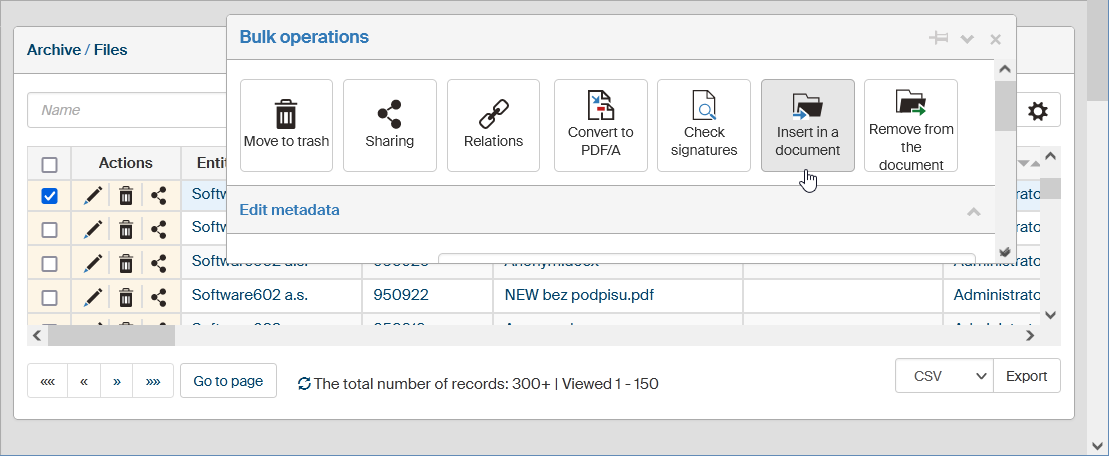
On the ARCHIVE toolbar, click Files. Select the required folder in the left section of the window Archive – Files or keep the option All folders.
On the right, look up the file (files) to insert in a document in the Archive. Check the box (boxes) for the selected files in the first column in the list.
The modal window Bulk operations opens; in the window, click Insert in a document.
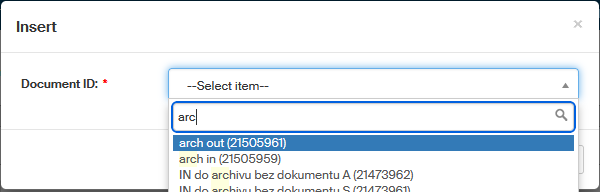
In the Insert dialog, look up an archived document where to place the files. You can use the autocomplete function and enter a few characters from the name to narrow down the selection. Click Save to insert the file(s) in the selected document.
There are exceptions from this process – you cannot insert an archived entity in an archived document created from the Electronic records management.
A message framed in green will notify you about a successful insertion.

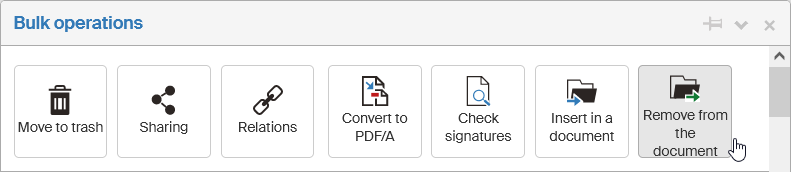
If you later decide to remove the files from the document, check the boxes next to their entries again, go to the Bulk operations panel and click Remove from the document.
A successful removal is again notified with a message framed in green.

Inserting documents in a record or a storage unit
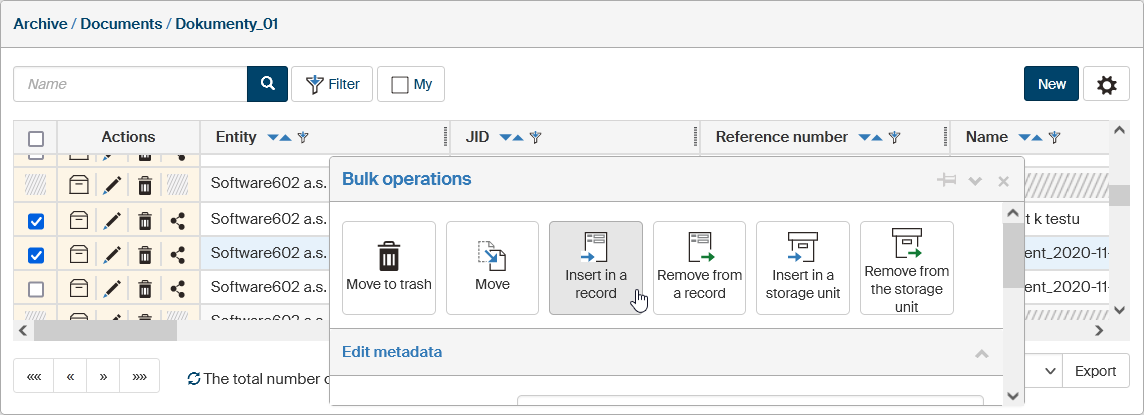
On the ARCHIVE toolbar, click Documents. Select the required folder in the left section of the window Archive – Documents or keep the option All folders.
On the right, look up the document(s) to insert in a record in the Archive or directly in a storage unit. Check the box (boxes) for the selected files in the first column in the list.
The modal window Bulk operations opens; in the window, click Insert in a record or Insert in a storage unit.
In both cases the Insert dialog is displayed; look up a record or a storage unit where to place the document(s). You can use the autocomplete function and enter a few characters from the name to narrow down the selection. Click Save to insert the document(s) in the selected record or storage unit.
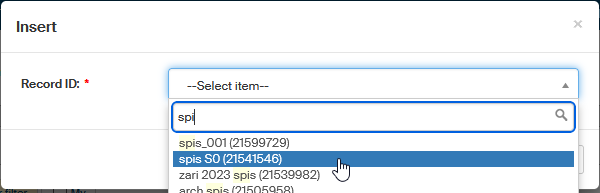
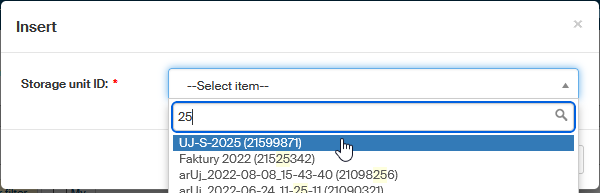
If you later decide to remove the document from the record or storage unit, check the boxes next to their entries in the Archives/Documents window again, go to the Bulk operations panel and click Remove from the record or Remove from the storage unit.

Inserting a record in a storage unit
On the ARCHIVE toolbar, click Records. Select the required folder in the left section of the window Archive – Records or keep the option All folders.
On the right, look up the record(s) to insert in a storage unit in the Archive. Check the box (boxes) for the selected files in the first column in the list.
The modal window Bulk operations opens; in the window, click Insert in a storage unit.
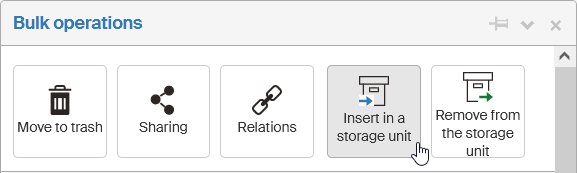
In the Insert dialog, look up a storage unit where to place the record(s). You can use the autocomplete function and enter a few characters from the name to narrow down the selection. Click Save to insert the record(s) in the selected storage unit.
A message framed in green will notify you about a successful insertion in the storage unit.

If you later decide to remove the records from the storage unit, check the boxes next to their entries again, go to the Bulk operations panel and click Remove from the storage unit.
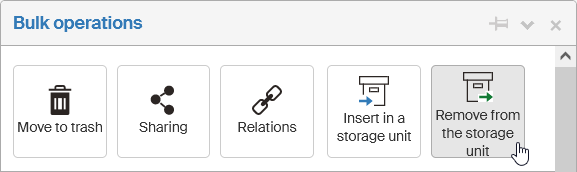
A successful removal is again notified with a message framed in green.

If you placed a large number of archived entities in the storage unit, a separate message would be displayed for each entity, which would make the result chaotic. That is why inserting more than five entities will only create two messages: one green for successfully processed items and one red for items that failed.
-
The green message contains the following information:
Archival entities: XX have been placed in storage unit "test A 2022" (UID: 440572), display the list of entities here: link to filter, or in a log file: link to LOG.
XX = number of successfully inserted entities; link to filter = filtered inserted entities; link to LOG = click to download a text file with the list of separate messages for each entity -
The red message contains the following information:
Archival entities: YY have not been placed in storage unit "test A 2022" (UID: 440572), display the list of entities here: link to filter, or in a log file: link to LOG.
YY = number of entities that failed to insert; link to filter = filtered inserted entities; link to LOG = click to download a text file with the list of separate messages for each entity

Moving an archived entity to another storage unit
When placing an entity in a storage unit using the panel on the right, the system makes sure the selected entities are not already placed in a storage unit. If they are, the following Insert dialog will be displayed instead of the current modal dialog.
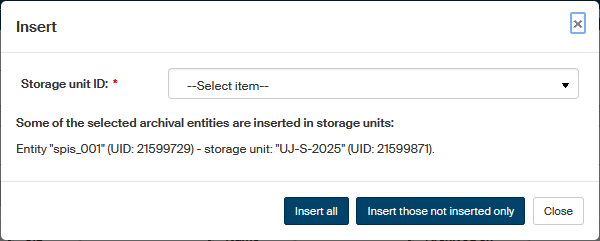
The dialog shows which entities are placed in which units, and you can decide whether to place them all in the selected storage unit or only the entities that are not placed anywhere yet.