Lists
Visit the Administration of document relation types screen () to edit document-related lists. These are:
-
Document relation types – specify the type of relation between related documents.
-
Document statuses – documents generally pass between several statuses during their lifetime, one at any point in time.
You can adjust the lists of items for these two properties in the list administration. Click one of the tabs in the upper part of the screen to select which property to edit.
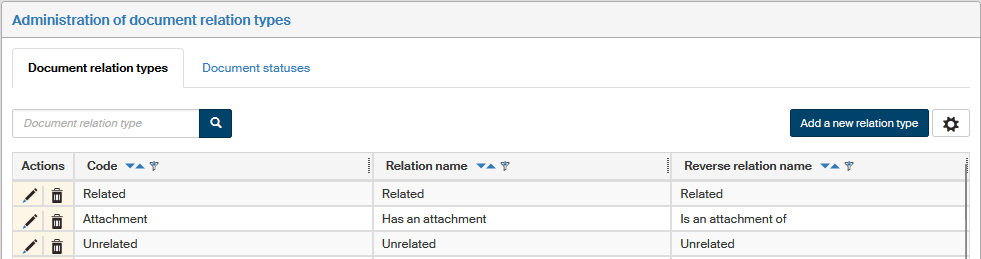
The setting process is the same for both relation types and statuses: this chapter contains instructions for both of them.
Existing relation types or statuses are displayed in a table. Each line corresponds to a single entry: the icons in the Actions column on the left are used to edit it, followed by details on the particular relation type or status.
The actions available are as follows:
-
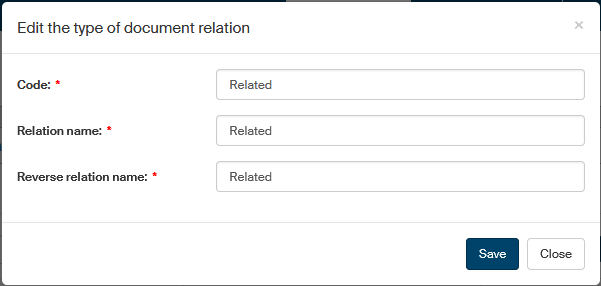
 Edit the document status (or Edit the type of document relation) – displays a dialog window where you can edit its properties.
If you are editing a document relation type, a Code field is displayed, used as a general relation ID, and Relation name and Reverse relation name. These two names describe the relation from the viewpoints of the two documents involved: Relation name describes the relation from the angle of the document marked as the main one. Reverse relation name describes it from the other document’s angle. In some situations (“related documents”) both relations will be identical, in others (“superior” and “subordinate” documents) they will be opposites.
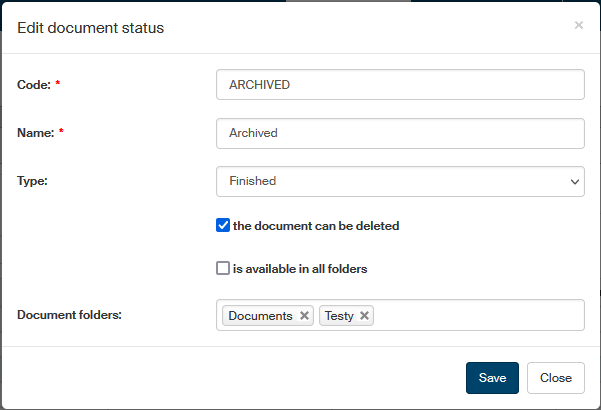
If you are editing a document status, the following fields are available:
-
Code – unique string;
-
Name – text displayed in lists when selecting a status;
-
Type – one of the preset values In process, Finished and Assigned. The status type determines how FormFlow will treat the document (e.g. when filtering forms that are in process or finished forms);
-
Document can be deleted – specifies whether a user may delete a document with this status assigned;
-
Is available in all folders– this status will be available for documents in all document folders. If unchecked, use the following field to select specific folders.
-
Document folders – the field is only available if the previous field Is available in all folders is unchecked. Click the field to display a list of existing folders and select the folders where to make the document status available.
-
-
 Delete the document status or Delete the type of document relation – removes the entry.
Create a new type or status by clicking Add a new relation type or Add a new status placed above the list of existing entries.
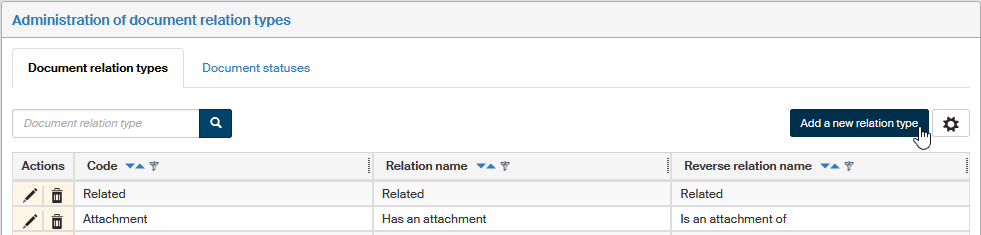
A dialog window is then displayed where you can enter the new type or status properties.
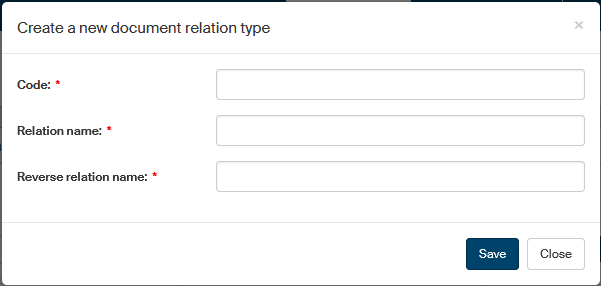
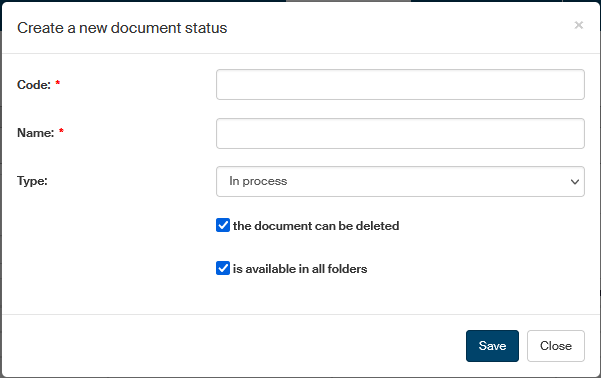
Click Save to confirm the settings. The new entry is then added to the list of existing relation types or document statuses.