Lists
Open the Lists screen by going to to create or edit lists of options for some address book entries. These are specifically Gender, Salutation and Purpose.
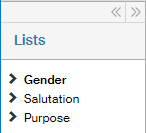
The lists are listed in the Lists section on the left. Click one of the options to display a table with the list items on the right.
Use the buttons in the Actions column to change the item: click  to display the item edit dialog and click
  /
/  to enable the item (include in the list) or disable it.
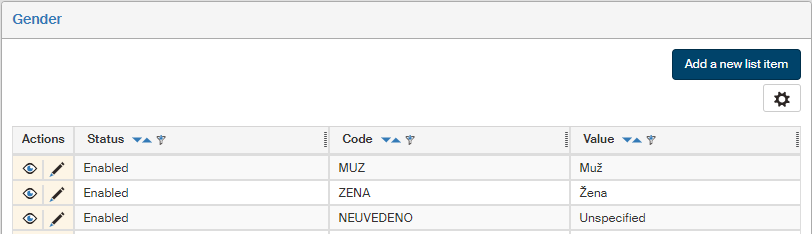
Click Add a new list item above the list of existing items or click next to an existing item to display a dialog to create or edit item properties. Besides the title, the two dialogs are the same.
Only two properties are kept for the Gender and Salutation lists: a unique Code and the Value, which is the text displayed to users to select when they fill in the corresponding field.
To confirm insertion or changes, click Save.
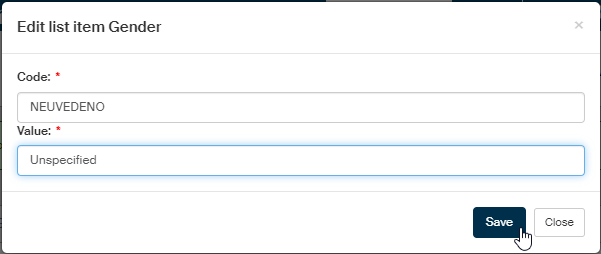
The Purpose lists contains the following properties for each item:
-
Name – the text displayed to users when they fill in the corresponding field.
-
Authorization – on what basis is the entity authorized to store the corresponding data.
-
Default – the item set as default will be prefilled in the purpose selection dialog.
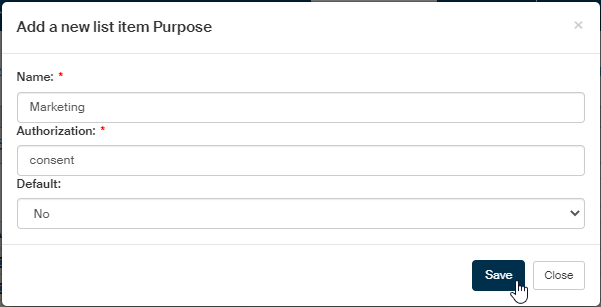
To confirm insertion or changes, click Save.