Login
Login methods
The typical method of logging in to the application is by entering a username and a password. The user enters the name and the password in the entry fields Username and Password and clicks Login. An administrator can set up password restrictions in user management, section Password requirements.
Users may also be allowed to log in to a preset account automatically, without having to fill in the username and password. Depending on the settings, the user can in such a case be logged in either automatically, without the option to log in using another username, or the login dialog displays the option Log in using automatic authentication. Details of these settings are described in chapters Login using SSO (Single sign-on) and Automatic authentication.
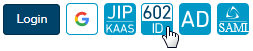
Another option is to log in using External authentication. If external authentication is available (the setting is described in chapter External authentication), a button or buttons with the link to the corresponding services is displayed next to the Login button. Clicking the button will display the service’s login page, where the user can enter the required login details and confirm them. After signing in, the user is redirected back to FormFlow.
Login using Google reCAPTCHA
To improve security on the login and password reset pages, you can enable Google reCAPTCHA check, which helps protect websites from machine attacks and spam.
Google reCAPTCHA registration
To enable Google reCAPTCHA, you need to register it on the Google website first. It is not possible to install reCAPTCHA to FormFlow without it. Do the following:
-
Open the following page in a web browser: https://www.google.com/recaptcha/admin/create
-
Log in using a Google account you will use to register reCAPTCHA. If you do not have a Google account yet, create one. Google reCAPTCHA registration screen is displayed.
-
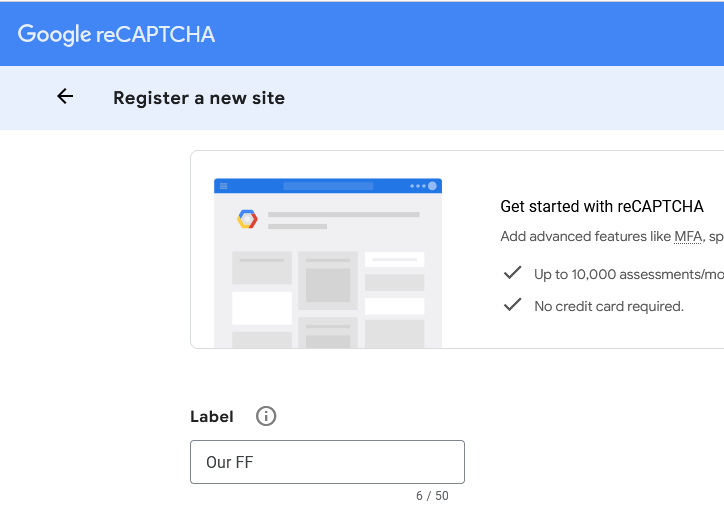
In Label, enter the name you want to use for the reCAPTCHA.
-
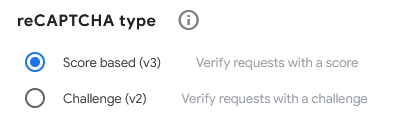
In reCAPTCHA type, select Score based (v3).
-
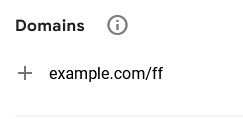
In Domains, enter your FormFlow website domain.
-
In Owners, enter the e-mail address for the person who will manage reCAPTCHA, set up the security level and monitor statistics. You can remove the address anytime later, if needed.
-
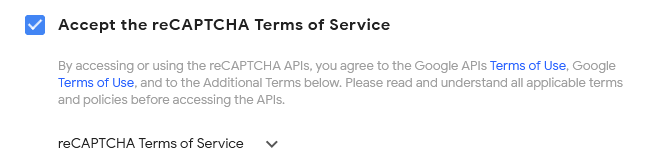
Read the reCAPTCHA terms of service and check Accept the reCAPTCHA Terms of Service to confirm.
-
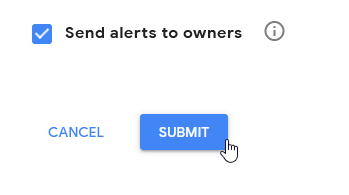
Click SUBMIT to save the settings.
-
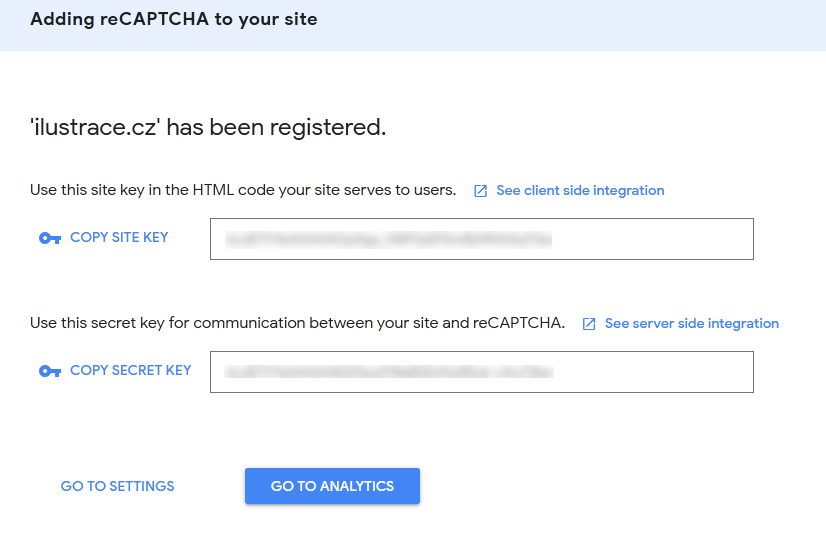
In the following window, Adding reCAPTCHA to your site, note the SITE KEY and SECRET KEY (you will need to copy them to FormFlow settings).
Installing Google reCAPTCHA to FormFlow
To install, enable or disable Google reCAPTCHA in FormFlow, visit the Security Settings screen (). To enable this feature, check secure user logins with CAPTCHA in section Settings and enter the SITE KEY and SECRET KEY in fields Site key reCAPTCHA v3 and Secret key reCAPTCHA v3. You should have both values saved from the registration described in the previous chapter.
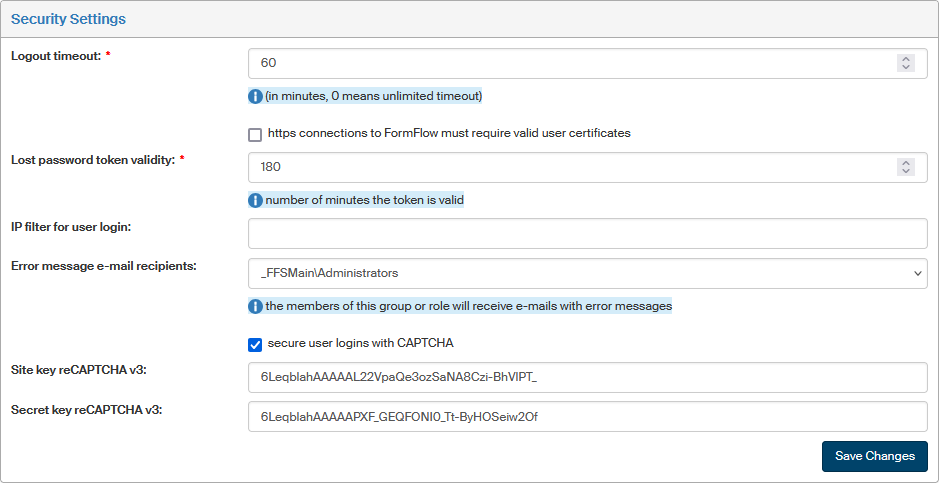
When you save the settings, the security feature against machine-based attack will be present on the login page and the password reset page the next time users visit them.