Synchronization properties
You can specify or edit the following parameters for each synchronization.
Basic synchronization settings
-
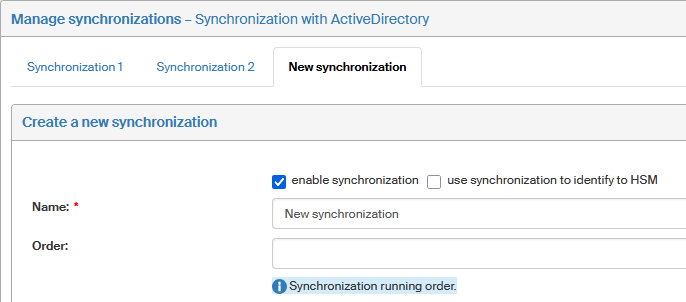
Enable synchronization – if checked, the synchronization will be used.
-
Use synchronization to identify to HSM – ensures that HSM certificates issued to users in Sofa will be correctly paired for synchronized users in FormFlow. Used with on-premises Active Directory, which is synchronized via AD Connect to Entra ID, and that is synchronized to Sofa. Check this option for a single synchronization, which will provide the pairing.
-
Name – unique identification of the synchronization; this field is mandatory. The name will be used as the tab title.
-
Order – the order in which the synchronizations will be run if there is more than one of them defined.
Login account
Active Directory synchronizations include the section Login account. Enter the required username and password details here. Both the fields are mandatory.
-
RDN username – username including the domain.
Example:
AD\Administrator(AD is the domain and Administrator is the username). -
Password – login password.

Advanced settings
-
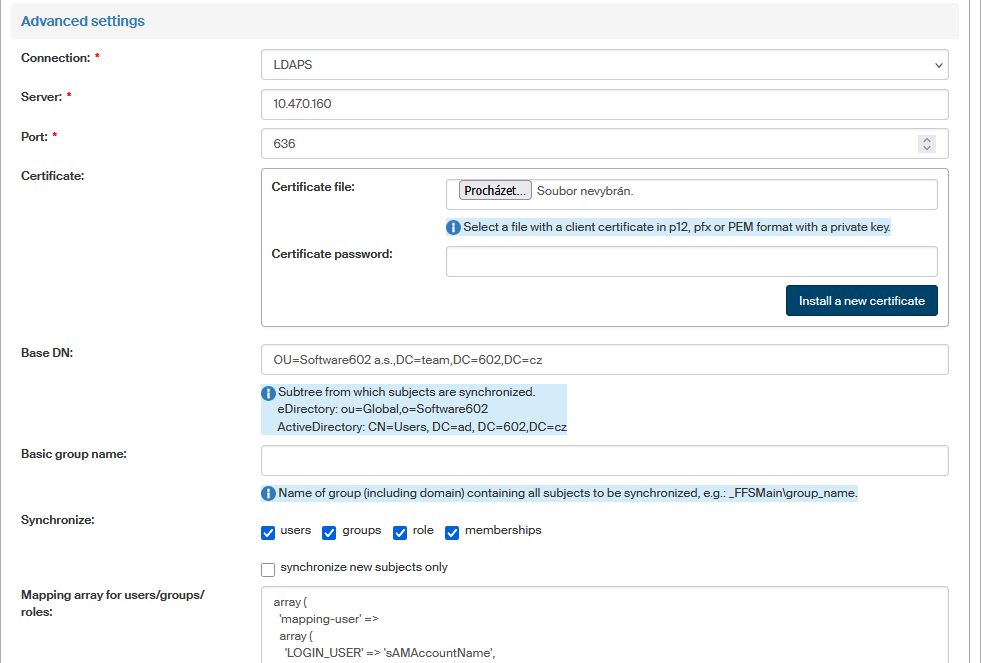
Connection – for Active Directory synchronizations, select a connection type – LDAP or LDAPS. If LDAPS is selected, the Certificate field for securing the communication is displayed below in this section after saving.
For synchronizations of the Other type, the Connection field is always set to Other.
-
Server – IP address or host name of the machine where FormFlow will connect to during synchronization. Typically, it is the machine where Directory is running. The field is only displayed for Active Directory synchronizations.
Example:
192.168.1.2. -
Port – the port number where to connect to. For LDAP, it is usually port 389, for LDAPS, it is 636. The field is only displayed for Active Directory synchronizations and is mandatory.
-
Path to file – used for synchronizations of the Other type. The synchronization is defined in a standalone *.php script. Enter the path to this script.
-
Certificate – insert a certificate to secure communication with the remote server. You can use a file with a client certificate in P12, PFX formats or PEM format with a private key. In the related field, enter the certificate password. Click Install a new certificate to confirm.
If the certificate is already set up, its description is displayed, and you can change it or delete if needed.
The field is only displayed for Active Directory synchronizations that have LDAPS selected in the Connection field.
-
Base DN – the item (subtree) from which to load the subjects to synchronize. Only for Active Directory synchronizations.
Example:
CN=Users, DC=ad, DC=602,DC=cz
-
Basic group name – name of a group in FormFlow (including the domain), that will contain all synchronized subjects.
Example:
_FFSMain\group -
Synchronize – check for the subject types to synchronize. The available options are users, groups, roles and memberships.
-
Synchronize new subjects only – check to exclude existing subjects from the synchronization and only include newly created ones.
In the following two fields, enter the settings for mapping user, group and role attributes, and also for setting up the synchronization itself. The mapping is described in separate chapters: